Germany – FAQs
Germany
Frequently Asked Questions
General
End of Day closing options (NFS = Z)
The closing can either be triggered directly from the cash register (POS) or manually through the EFR. The End of Day closing ensures that daily transaction data is finalized and stored correctly.
There are two options available for performing an End of Day closing.
Option 1: End of Day closing via the cash register
The End of Day closing can be triggered directly from the POS system by sending the following transaction to the EFR:
<Tra>
<ESR D="2024-06-01T08:30:15" TL="001" TT="1" TN="8" NFS="Z" Opr="101" OprN="Mario Rossi" />
</Tra>
The value NFS="Z" triggers the End of Day closing process.
For technical details, please refer to the EFR documentation:
Option 2: End of Day closing via the EFR
The End of Day closing can be triggered directly from the EFR.
- Open the corresponding EFR.
- Navigate to the Profile section.
- Open EFR Control.
- Set the attribute
Fiscal_Z.
Attribute names are case-sensitive. Make sure to enter Fiscal_Z exactly as shown.
For additional information about EFR attributes, please refer to:
How can I change the company's legal name?
Preparation
Perform a daily closing
- Send NFS=Z to the EFR
- Create a TSE export
Old Installation
- Uninstall EFR
- Archive or delete the folder:
C:\ProgramData\EFR - In the portal:
- Deactivate EFR
- Deactivate the old company
Create New Company
- Create a new company in the efsta portal.
- Order the TSE.
- Please note that hardware TSEs require a delivery time.
- For TSEs ordered via efsta, the assignment is handled automatically by the efsta Cloud.
- For self‑purchased TSEs, manual configuration is required.
Reinstall EFR
- Download EFR Germany
- Install EFR
- Open a browser:
http://localhost:5618 - Configure the profile page, for example:
- Badge
- Attributes
Final Steps
- Inform the Partner Manager so that:
- billing is switched to the new company
- a special termination of the old fiscal unit can be initiated if required
To whom does the Cash Security Ordinance apply?
The Cash Security Ordinance (KassenSichV) defines requirements for both system providers and business users to ensure legally compliant handling of cash transactions.
Who is responsible?
The responsibility for compliance is shared between different parties.
Manufacturers and providers
Manufacturers of:
- cash registers
- cash register systems
- software solutions for recording business transactions (e.g. accounting programs)
are responsible for the legally compliant implementation of the KassenSichV.
efsta supports this requirement by offering:
- efsta EFR middleware
- provided as Compliance as a Service
Taxable entrepreneurs
Taxable entrepreneurs are also subject to the KassenSichV.
They must ensure:
- the legally compliant use of the selected cash register system
- compliance with all related obligations
Additional Requirement
From 1 Jan 2025, entrepreneurs must also comply with the following:
- The reporting obligation for cash registers
Who is affected by the reporting obligation?
From Jan 1, 2025 new reporting obligations apply for cash register systems in Germany. These requirements affect all taxable persons using electronic recording systems and the TSE(s) they use to the authorities.
Who is affected?
From January 1, 2025:
All taxable persons are required to transmit:
- electronic recording systems (cash registers)
- and the TSE(s) used
The taxable person is responsible for reporting the required cash register data.
Deadline for existing systems
All electronic recording systems within the meaning of Section 1 (1) sentence 1 KassenSichV that were acquired before July 1, 2025 must be:
- reported no later than July 31, 2025
- including all TSE(s) used
How reporting is done
Electronic data transmission will be possible from January 1, 2025 via:
- “My ELSTER”
- the ERiC interface
Important requirement
All systems of a business premises must be:
- reported uniformly
- in a single XML data file
DATEV
Are registers created manually in MeinFiskal?
When working with MeinFiskal, it is important to understand how registers are created and initialized.
Explanation
- No. Registers are not created manually
- They are created automatically:
- during the first successful export
This means:
- no manual setup is required
- the system handles the creation process automatically
Do I need one DATEV account per company?
When working with multiple companies, questions often arise regarding the required number of DATEV accounts.
Explanation
No. One DATEV account can manage:
- multiple companies
This means:
a separate DATEV account for each company is not required
What data is transferred to DATEV?
When transferring data for DATEV, specific fiscal data must be provided in a standardized format.
Explanation
The following data is transferred:
- Fiscally compliant DSFinV‑K cash‑register data
This ensures that:
- the data meets the required legal standards
- the export is compatible with DATEV systems
- fiscal data can be processed correctly
DSFinV-K
What's the DSFinV-K?
The KassenSichV defines which data must be recorded for every transaction to ensure compliance and prevent manipulation.
General requirement
Since 30 September 2020, cash register systems in Germany must be equipped with a Technical Security Equipment (TSE).
This ensures that individual records are kept for all transactions.
Role of the TSE
The TSE:
- Signs and stores all cash register transactions.
- Stores the data in its internal memory.
- Returns a code to the cash register.
This code must be printed on every sales receipt.
Data storage and export
Transaction data is stored in an unchangeable log.
This log is known as the TSE TAR file.
The file must be exportable and available for the tax office.
Required data per transaction
For each business transaction, the electronic recording system must record:
- Time of the start of the process
- A unique and consecutive transaction number
- Type of procedure
- Data of the procedure
- Type of payment
- Time of completion or termination
- TSE signature data (QR code or plain text)
The TSE ensures that transaction data is signed, stored, and available for export in accordance with the requirements of the KassenSichV.
KassenSichV
What is regulated in the KassenSichV?
The KassenSichV defines requirements to ensure that manipulation of sales data can be detected reliably.
Purpose of the regulation
The aim of the KassenSichV is:
- to detect subsequent manipulation of sales data
- to ensure transparency and traceability of transactions
How verification works
Verification is carried out using a data export, defined as:
- DSFinV‑K (Digital Interface of the Tax Authorities for Cash Register Systems)
The tax office checks this data using:
- dedicated verification software
- analysis for:
- changes
- missing entries (gaps)
Role of the technical security device (TSE)
Each cash journal entry / transaction is:
- provided with an electronic signature
- generated by the technical security device (TSE)
Detection of manipulation
If transactions in the journal are manipulated:
- the chain of signatures becomes inconsistent
Using verification software, it is possible to:
- identify inconsistencies
- determine exactly where manipulation has occurred
What is the Cash Register Security Ordinance (KassenSichV)?
The Cash Register Security Ordinance (KassenSichV) is an ordinance of the Federal Ministry of Finance (BMF) in Germany.
It defines mandatory requirements to prevent manipulation of cash register systems.
Purpose of the ordinance
The KassenSichV introduces:
- mandatory standards for tamper-proof recording of transactions
- technical requirements for electronic recording and security systems
This includes systems such as:
- cash registers
- ERP systems
Key requirement
Since 1 January 2020, all cash register systems in Germany must be equipped with an anti-tampering device.
This device is known as the Technical Security Equipment (TSE).
The TSE is a mandatory component used to protect transaction data and ensure compliance with the requirements of the KassenSichV.
What must be recorded according to the KassenSichV?
The KassenSichV defines which data must be recorded for every transaction to ensure compliance and prevent manipulation.
General requirement
Since 30 September 2020, cash register systems in Germany must be equipped with a Technical Security Equipment (TSE).
This ensures that individual records are kept for all transactions.
Role of the TSE
The TSE:
- Signs and stores all cash register transactions.
- Stores the data in its internal memory.
- Returns a code to the cash register.
This code must be printed on every sales receipt.
Data storage and export
Transaction data is stored in an unchangeable log.
This log is known as the TSE TAR file.
The file must be exportable and available for the tax office.
Required data per transaction
For each business transaction, the electronic recording system must record:
- Time of the start of the process
- A unique and consecutive transaction number
- Type of procedure
- Data of the procedure
- Type of payment
- Time of completion or termination
- TSE signature data (QR code or plain text)
The TSE ensures that transaction data is signed, stored, and available for export in accordance with the requirements of the KassenSichV.
Reporting Obligation (ELSTER)
Cash Register Reporting (MeinELSTER) and the Wirtschafts-Identifikationsnummer (W-IdNr.)
This article provides an overview of the Wirtschafts-Identifikationsnummer (W-IdNr.) and its expected relevance for cash register reporting in Germany via MeinELSTER.
It also explains how to store the W-IdNr. in the efsta Portal and answers the most common questions about its purpose and issuance.
Important Notice Regarding Cash Register Reporting
Starting , it is expected that providing the Wirtschafts-Identifikationsnummer (W-IdNr.) will become mandatory when reporting electronic cash register systems via MeinELSTER.
To prepare for this change, companies should ensure that:
- A W-IdNr. has been assigned to the business
- The W-IdNr. is stored correctly in the cash register system and reporting processes
Store the W-IdNr. in Advance
Please refer to our end-customer guide for information on where and how to enter the Wirtschafts-Identifikationsnummer.
Until the reporting requirement is updated, the W-IdNr. remains an optional field. However, it can already be stored in our system to prepare for future reporting requirements.
How to Store the W-IdNr. in the efsta Portal
The W-IdNr. can be maintained in the company settings of the efsta Portal.
- Log in to the efsta Portal.
- Click on the left side menu Management
- Click then on Companies
- Click the <...> menu on the right-hand side.
- Select "Edit".
- Enter the W-IdNr. in the corresponding field.
- Save your changes.
Additional information about the W-IdNr. is available in the mouseover information field within the Portal.

General Information About the Wirtschafts-Identifikationsnummer (W-IdNr.)
What is the W-IdNr.?
The Wirtschafts-Identifikationsnummer (W-IdNr.) is a unique nationwide identification number for economically active persons and entities in Germany.
It is used to clearly identify businesses in tax-related and administrative procedures with tax authorities and other public institutions.
For official information, please refer to:
- FAQ – Wirtschafts-Identifikationsnummer (BZSt)
- Wirtschafts-Identifikationsnummer (German Federal Ministry of Finance)
Who Receives a W-IdNr.?
The W-IdNr. is assigned to all economically active entities, including:
- Sole proprietors and freelancers
- Legal entities (e.g. GmbH, AG)
- Partnerships and other associations of persons
The legal basis is defined in Sections 139a et seq. of the German Fiscal Code (Abgabenordnung – AO).
What Does the W-IdNr. Look Like?
The W-IdNr. follows the format:
DE123456789
Key characteristics:
- Prefix "DE" followed by 9 digits e.g., DE123456789
- The structure corresponds to the VAT Identification Number
- Additional distinguishing elements may be introduced for businesses with multiple economic activities as part of the phased rollout
Further information is available here:
Do I Need to Apply for a W-IdNr.?
No, the W-IdNr. is assigned automatically by the Federal Central Tax Office (Bundeszentralamt für Steuern – BZSt).
- No application is required
- Applies to both new and existing businesses
Since When Has the W-IdNr. Been Issued?
The rollout of the W-IdNr. started in November 2024.
It is currently being assigned to:
- VAT-registered businesses
- Small businesses according to Section 19 UStG
The rollout is being carried out in phases.
By the end of , all economically active entities are expected to have received a W-IdNr.
For current information, please refer to:
Does the W-IdNr. Replace Existing Identification Numbers?
No, not currently.
The W-IdNr. is used alongside existing identification numbers such as:
- Tax numbers
- VAT Identification Numbers (VAT ID)
In the long term, it is intended to simplify administrative processes and support a more unified identification system.
For official information, please refer to:
What Is the W-IdNr. Used For?
The W-IdNr. is primarily used for:
- Clear identification of businesses
- Simplified communication with authorities
- Supporting digitalized and automated tax and reporting processes
Entering business location details in the efsta Portal
The business location details required for fiscal notifications must be maintained directly at the corresponding location in the efsta Portal. This ensures that fiscal reports are created correctly and completely.
Step-by-step instructions
Navigate to locations
- In the efsta Portal, click on the left side “Management” and then on “Locations”
- Search for the location for which the business location details should be stored.
Edit location
- Click on the <…> icon next to the selected location.
- Select “Edit”.
- Enter the required business location details.
- Save your changes.
Automatic transfer to fiscal notifications
After saving, the business location details are automatically transferred to all subsequent fiscal reports. No additional manual entry is required.
If you do not have the required permissions or cannot see any locations, please contact your cash register manufacturer. They can correctly maintain the location data so that fiscal reports are filled in automatically.
Information of the operating facility in the efsta Portal
The operating facility details required for fiscal reports must be entered directly in the efsta Portal at the respective location.
Step-by-step instructions
1. Navigate to locations
- In the portal, click on the left side “Management” then on “Locations”
- Find the desired location for which the data should be entered
2. Edit the location
- Click the “<…>” icon on the right-hand side of the selected location
- Select “Edit”
3. Enter the required details
- Enter the required business location details
- Save your changes
Automatic transfer to fiscal reports
Once saved:
The information is automatically applied to subsequent fiscal reports
Missing permissions
If you:
- do not have the necessary permissions, or
- cannot see any locations
Please contact your cash register provider
They can:
- enter the data for the location
- ensure that fiscal reports are filled in automatically
Why is the automatic notification service not working?
The automatic notification service only works if notifications are created and saved correctly. Incorrect handling during creation can prevent automatic processing.
Explanation
If a notification is created manually:
- it can no longer be transmitted automatically
- the automatic service is blocked for this notification
In this case, the notification must be handled manually.
Important note on notification creation
When creating notifications, it is essential to:
- create the notification
- save it without clicking the “Create” button
Only in this way can the notification be:
- processed automatically
- transmitted via the notification service
Manually created notifications:
- are excluded from the automatic service
- must be processed manually
How can I update ELSTER contact information?
If an ELSTER contact is already registered and you need to update information, please follow these steps:
- Log in to the efsta Portal.
- Click on the left side menu Management
- Click then on Companies
- Click the three dots next to your company

- Open the “ELSTER Report” tab
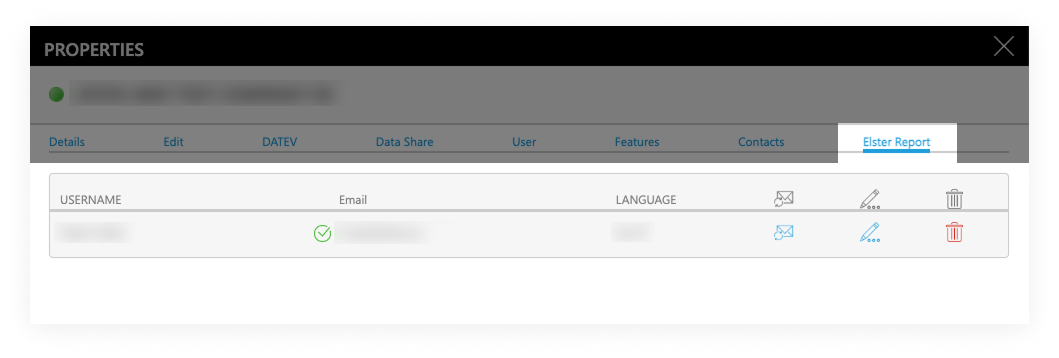
- Click the pencil icon

- Enter the missing or updated information
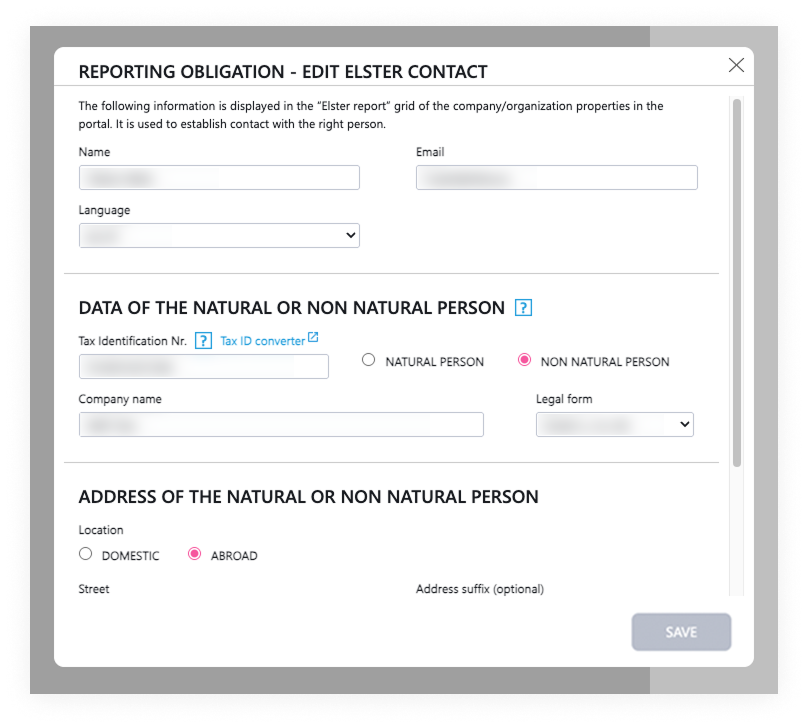
The changes will automatically apply to all future fiscal reports.
How do I register an ELSTER contact?
To register an ELSTER contact for your company, please follow these steps:
- Log in to the efsta Portal.
- Click on the left side menu Management
- Click then on Companies
- Click the three dots next to your company

- Open the “ELSTER Report” tab
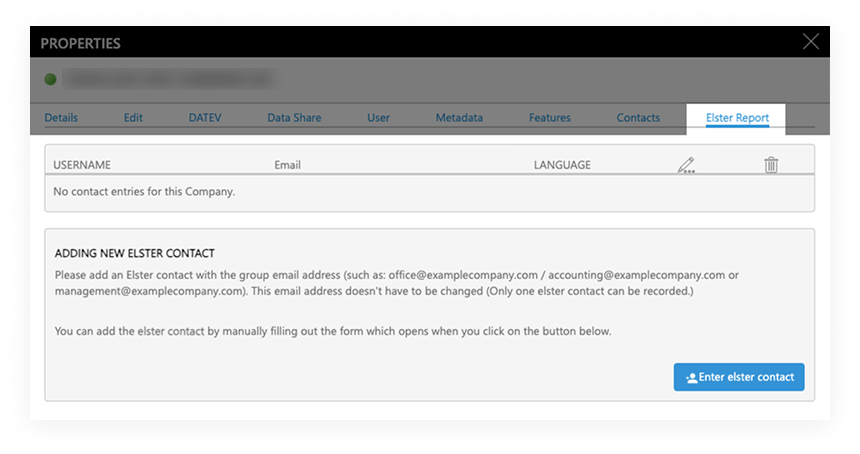
- Click the "Enter ELSTER Contact” button
- Enter the required information
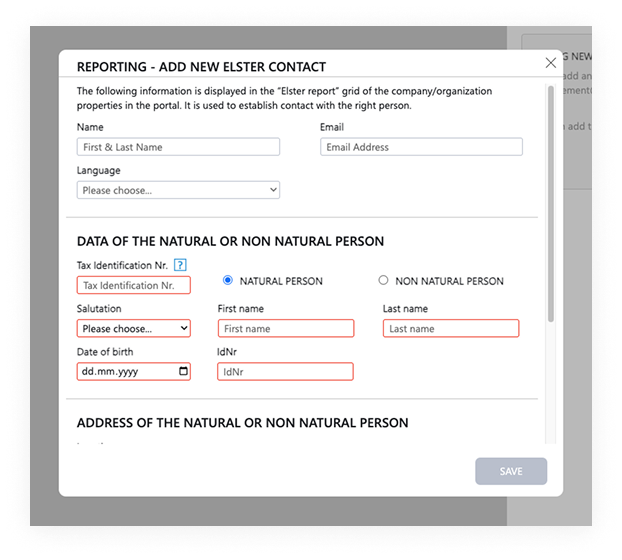
The registered ELSTER contact will be used for all future fiscal reports.
TSE
EFR has no TSE assigned
Cloud TSE
No TSE available in the company
If no Cloud TSE is available for the company, automatic assignment is not possible.
💡 Solution
Order a new TSE for the company via the efsta Portal.
Duplicate cash register ID / identical TL‑TT combinations
Automatic assignment is not triggered if multiple EFRs use identical TL‑TT combinations.
In this case, the system assumes that it is the same cash register.
💡 Solution
Change the TT (terminal ID) in your POS software so that each cash register uses a unique TL‑TT combination.
Automatic assignment not triggered
If the automatic assignment did not start, it can be triggered manually.
Procedure
- Open the efsta Portal
- Click on the left side menu “Management“
- Click then on “Companies”
- Click on the “<…>” icon on the right.
- Switch to the “Edit” tab.
- Click on “Trigger auto assign manually”.
Error message “Disabled”
If the TSE status is shown as “Disabled”, the TSE has been deactivated.
💡 Solution
Please send an email to ticket@efsta.eu for further clarification.
Hardware TSE
No driver installed
Some hardware TSEs require a specific driver to be recognised by the system.
💡 Solution
Install the appropriate driver provided by the manufacturer (e.g. Epson, Diebold Nixdorf).
Defective USB port
If the TSE is not detected, a defective USB port may be the cause.
💡 Solution
Check the USB port and try a different connection if necessary.
Hardware TSE deactivated in the efsta Portal
If the hardware TSE has been deactivated in the efsta Portal, it will no longer be displayed for EFRs.
💡 Solution
If the TSE is still in use, please contact us via ticket@efsta.eu.
Default client / main tenant
The main tenant of a MultiPOS or MultiCompany EFR is not a cash register and therefore does not require a TSE.
Initialized and uninitialized TSEs (Swissbit USB TSE)
This article concerns Swissbit USB TSEs and explains the difference between initialized and uninitialized devices.
General information
If a Swissbit USB TSE is purchased through efsta:
- it is delivered in an uninitialized state
- initialization is performed automatically by the EFR
After initialization:
- the TSE can also be used with additional EFR instances within the system
Pre-initialized TSEs
If a Swissbit USB TSE was not purchased through efsta:
- it may already be pre-initialized
👉 In such cases:
the TSE may not be usable with the efsta system
Important limitation
Pre-initialized TSEs:
- generally cannot be used in other POS systems without restriction
- are usually assigned to a specific cash register system
👉 This means:
- a TSE assigned to one system
- cannot automatically be used in a different system
Removing TSE Assignment from EFR Without Deactivation
You can remove the assignment between a TSE and an EFR without deactivating the TSE itself. This allows you to assign the TSE to another EFR later if required.
Instructions
- Open the efsta portal.
- Navigate to the affected EFR by clicking on the left menu the “Management” and then the “Register”
- Click the <...> icon on the right-hand side.
- Open the Assignment tab.
- Locate the assigned TSE.
- Click the trash bin icon next to the TSE.
- Confirm that you want to remove the assignment.
Removing the assignment only disconnects the TSE from the EFR. The TSE remains active and can be assigned to another EFR at any time.
Do not select the Deactivate option when removing the assignment. This would deactivate the TSE instead of only removing the assignment.
TSE failure and missing signatures
A TSE failure is legally permitted.
In this case, the cash register may continue operating and must not be blocked.
Receipts are signed using a fallback (replacement) signature until the TSE is available again.
The possible causes and solutions depend on whether a Cloud TSE or a Hardware TSE is used.
Cloud TSE
fiskaly Cloud TSE outage
Outage on the fiskaly side
- Check the fiskaly status page
- Check the efsta dashboard in the portal
Local network issues at the POS
- Required fiskaly endpoints not allowed https://docs.efsta.eu/efr/system-requirements
- Antivirus software or TLS inspection blocks communication
Maximum number of open transactions reached
- Caused by missing daily closing (NFS=Z)
- A daily closing is legally required once per day
Duplicate transactions
- Transactions sent twice are detected by the EFR
- These transactions are not signed again
Deutsche Fiskal Cloud TSE outage
Outage on the Deutsche Fiskal side
- Check the Deutsche Fiskal status page
- Check the efsta portal dashboard
Local network issues at the POS
- Check network access, IP addresses and drivers
- Third‑party software may block communication
Maximum number of open transactions reached
- Daily closing (NFS=Z) has not been performed
Error 504 – Circuit Breaker Open
- According to Deutsche Fiskal support, usually caused by local network issues
- Or the TSE status is “Pending”
- The issue usually resolves within one day
Duplicate transactions
- Transactions with identical transaction numbers or identical content
- Are not signed, as re‑signing receipts is legally prohibited
EFR version too old
- Minimum required version: EFR 2.6.0
Hardware TSE
Swissbit USB TSE failure
TSE self‑test
- Regular self‑tests (every 25 hours or after startup)
- Duration approx. 20 seconds, no signing possible during this time
Power‑saving mode
- Unplug the TSE, wait briefly, then reconnect it
Port issues
- Check or change the USB port
Maximum transactions reached
- Daily closing (NFS=Z) has not been performed
EFR version too old
- Minimum required version: EFR 2.5.0
Local fiscal exports
- During local exports, no parallel signing is possible
Epson USB TSE failure
TSE self‑test
- Regular self‑tests (every 25 hours or after startup)
Missing or outdated Epson driver
- Drivers must be installed and up to date
Power‑saving mode / port issues
- Reconnect the TSE
- Check or change the USB port
Maximum transactions reached
- Daily closing (NFS=Z) has not been performed
EFR version too old
- Minimum required version: EFR 2.5.0
Local fiscal exports
- No parallel signing possible during export
Epson TSE server failure
Outdated server driver
- Update the Epson server driver
Slot configuration
- Ensure the slot where the TSE is connected is active
Maximum transactions reached
- Daily closing (NFS=Z) required
Local exports
- No parallel signing possible during export
Login configuration on the EFR
Device_Auth=login:password- If no login is defined:
admin:admin
Diebold Nixdorf USB TSE failure
TSE self‑test
- Regular self‑tests (every 25 hours or after startup)
Missing Diebold Nixdorf driver
- Without the DN driver, the TSE is not recognised
Power‑saving mode / port issues
- Reconnect the TSE
- Check or change the USB port
Maximum transactions reached
- Daily closing (NFS=Z) required
Local exports
- No parallel signing possible during export
Diebold Nixdorf TSE server failure
Outdated driver
- Update the Diebold Nixdorf driver
Slot configuration
- Ensure the correct slot is active
Maximum transactions reached
- Daily closing (NFS=Z) required
Local exports
- No parallel signing possible during export
Login configuration on the EFR
Device_Auth=login:password- If no login is defined:
admin:admin
Cryptovision TSE
efsta does not offer Cryptovision TSEs.
This TSE is plug‑and‑play and does not require a driver.
Therefore, no specific error scenarios are available.
What is the difference between a Hardware TSE and a Cloud TSE?
When using a Technical Security Device (TSE), you can choose between a Hardware TSE and a Cloud TSE.
Both options have specific advantages and disadvantages that should be considered when selecting the appropriate solution.
Hardware TSE
Characteristics
- Always available, independent of the internet connection.
- No monthly billing is required.
Advantages
- Independent of the internet connection
- One-time purchase costs without recurring fees
Disadvantages
- Risk of damage to the physical device.
- Limited number of open transactions that can be stored.
- The hardware TSE has a defined validity period.
Cloud TSE
Characteristics
- Stored in the cloud, eliminating the risk of physical damage.
- Can also be used in offline mode in Germany, as permitted by law.
Advantages
- No risk of physical damage to the TSE
Disadvantages
- Dependence on the internet connection. If the connection is interrupted, the TSE cannot be reached but remains operational.
- Monthly fees apply.
- Service interruptions on the TSE provider's side are possible.
Both Physical TSE and Cloud TSE fulfill the legal requirements for a Technical Security Device. The choice depends on your operational requirements and preferred setup.
How can I deactivate a TSE in the efsta portal?
For more information about deactivating a TSE, please refer to the FAQ article "How can I deactivate a TSE in the efsta portal?" in the Portal FAQs.
How do I order a TSE in the efsta portal?
To comply with the KassenSichV, you need a certified TSE.
You can purchase this directly via the efsta portal.
Please contact your cash register manufacturer to make sure which TSS is compatible with the cash register system or cash register software.
- Go into the efsta Portal and click on the left side on “Store” and then on “Purchase”:
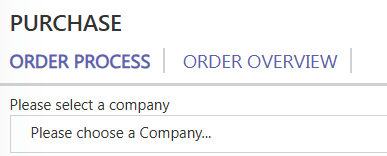
- Select the desired company from the drop-down menu
- Select the desired product for Germany
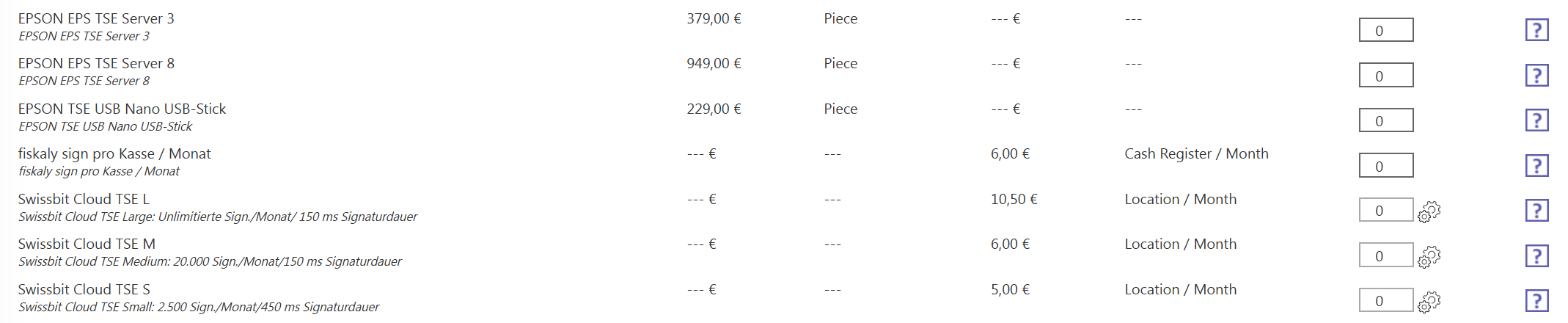
- Enter the number of TSEs required
- Read and confirm the terms of use
- Click on “Next”
- Enter the company address and select the stored billing address (this must be stored in the company master data beforehand). You can change the delivery address if necessary
- Then click on “Next”
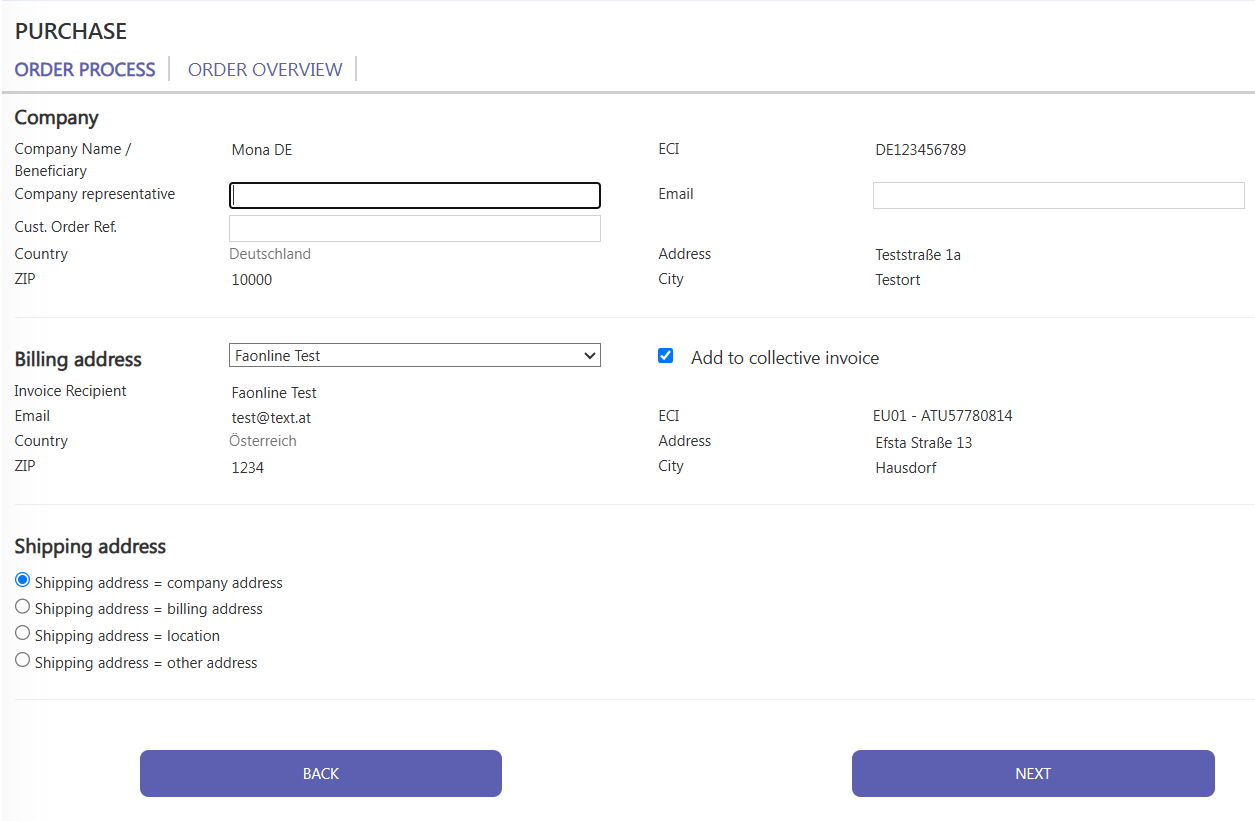
- You will receive confirmation that the order has been successfully completed
Ordering a cloud TSE
The Cloud TSE is available in the efsta Portal approx. 15 minutes after ordering.
The order is processed and dispatched by the efsta sales team. You will receive an order confirmation and an invoice by email.
Ordering a hardware TSE
The order will be processed and dispatched by the efsta sales team. You will receive an order confirmation and an invoice by e-mail. The delivery time is approx. 2-4 weeks. After receipt, you or your cash register manufacturer can install the hardware.
How does the cloud TSE assignment work?
After ordering a Cloud TSE, it is automatically prepared and assigned within the efsta system.
The process includes assignment, synchronization, and final initialization.
Process overview
After a successful order:
- The Cloud TSE becomes visible in the efsta Portal after approximately 5 minutes
Assignment to EFR
- The TSE is automatically assigned to an EFR without a TSE
- No manual assignment is required
Synchronization (Heartbeat)
- A heartbeat synchronizes changes between the EFR and the Portal
- This synchronization takes place every 15 minutes
During the heartbeat:
- The TSE is automatically configured on the EFR
Initialization of the TSE
After the heartbeat:
- A transaction must be carried out
- The TSE is initialized after the transaction
✅ Only after this step is the TSE fully operational.
What is a TSE?
The Technical Security Device (TSE) is a legally required component used in electronic cash register systems.
It ensures that all cash register transactions are recorded securely and in compliance with legal requirements.
Purpose
The TSE is used to protect transaction data and support the legally compliant operation of electronic cash register systems.
It ensures that all cash register transactions are recorded securely and in accordance with the applicable legal requirements.
The abbreviation TSE stands for Technical Security Equipment.