Portal
Frequently Asked Questions
General
Company is displayed as “Autocreate”
This FAQ applies only to Multi Company installations.
In a Multi Company setup, a central EFR is assigned to an organization. Companies are identified automatically based on the Tax ID transmitted by the POS system with each transaction.
How company assignment works
- The EFR is assigned to an organization.
- The POS system sends transaction data, including:
- TL
- TT
- Tax ID
- The EFR checks whether a company with the specified Tax ID already exists within the organization.
If the company already exists
- The transaction is assigned to the existing company.
If the company does not exist
- A new company is created automatically.
- This is displayed as Autocreate (for example, AutocreateDE...).
Automatic company creation may result in unwanted company entries if the setup is not configured correctly.
How to Prevent Autocreated Companies
To avoid unwanted Autocreate entries:
- Ensure that the EFR is assigned to the correct organization.
- Create the company manually before the POS system sends the first transactions.
This ensures that incoming transactions are assigned to the correct company and prevents unnecessary Autocreate entries.
How to Handle Existing Autocreated Companies
If an Autocreate entry has already been created:
- Open the automatically created company entry.
- Rename it to the correct company name.
Autocreated companies are generated when the EFR receives a Tax ID that does not yet exist within the assigned organization. Creating the company in advance prevents automatic creation and ensures correct transaction assignment.
Cash register replacement
Before replacing the cash register, ensure that the required closing procedure has been completed on the existing cash register.
Prerequisites
Before performing the cash register replacement:
- Austria (AT): Create a final receipt (Schlussbeleg) on the old cash register.
- Germany (DE): Perform a daily closing on the old cash register.
This ensures that all fiscal data has been processed correctly before the cash register is replaced.
Prepare the new cash register
- Install an EFR on the new cash register.
- Complete the required configuration.
- Send one transaction so that the new EFR becomes visible in the efsta Portal.
Configure the replacement in the efsta Portal
- Log in to the efsta Portal.
- Open the newly created EFR.
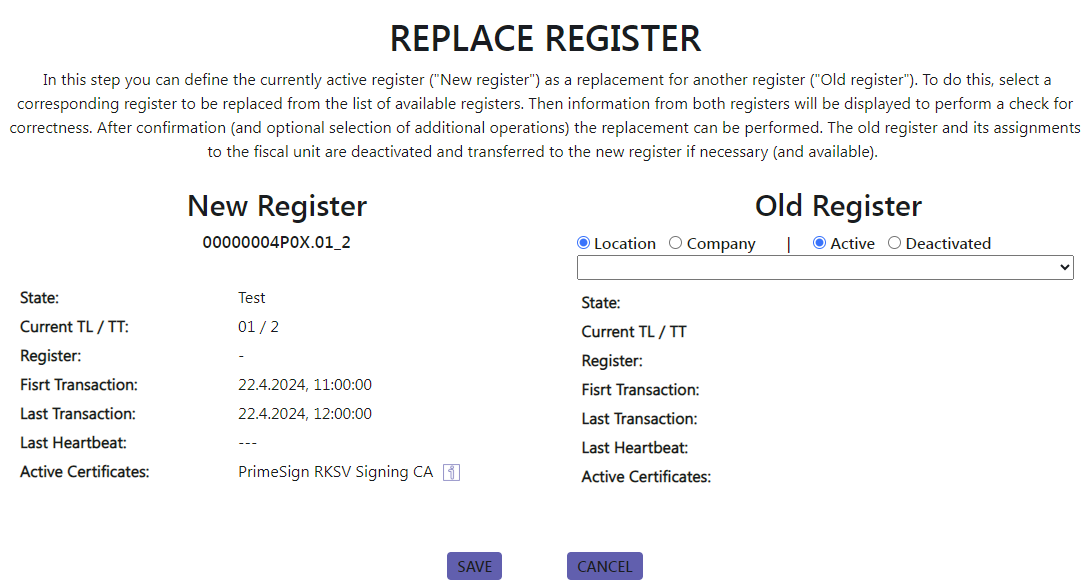
- Select Set replacement info.

- In the dialog window, select the EFR that should be replaced.
Deactivated EFRs
Even if the old EFR has already been deactivated, it can still be selected as the replacement source.
Be aware, If you make a Schlussbeleg for Austria, wait 10 minutes before you exchange/replace the EFR so the Schlussbeleg gets correctly submittet to the finance
Select the Replacement Option
Choose one of the following options:
Migrate Fiscal Unit
Select Migrate fiscal unit if the old cash register currently has an assigned fiscal unit (TSE or Certificate).
Order a New Fiscal Unit
Deactivate the fiscal unit assigned to the old EFR and automatically order a new fiscal unit for the new EFR.

- Select “Save”.
Result
After saving the configuration:
- The old EFR is deactivated.
- The new EFR is marked as the replacement.
- Double billing is prevented.
How can I create a financial export via the efsta Portal?
You can create a financial export in the efsta Portal to retrieve fiscal data for a specific company and time period. The export is generated through a Data Sharing link, which provides access to the requested data.
Step-by-step instructions
To create a financial export via the efsta Portal, follow these steps:
- Log in to the efsta Portal
- Navigate to Management in the left hand menu
- Click on companies
- Select the desired company
- Open company options by clicking the „<...>“ (options icon) on the right side
- Open Data Share
- In the new window, go to the “Data Share” tab
- Create data sharing
- Enter the required time period
- Click “Share Data”
- Access the export
- Copy the generated key
- Click the link displayed
- Download the export
- Wait until the new side loads
- Entere the Key you copied before
- Select the desired export type on the opened page
- Download the required data
The export is now available for the selected time period.
Good to Know
Financial exports can also be created on the following levels within the efsta Portal:
- EFR level
- Location level
- TSE level (Germany)
I have not received an email from efsta
If efsta has sent an email but you have not received it, the message was often delivered successfully but filtered, moved to another folder, or blocked by your email system.
Instructions
- Check your Spam or Junk folder.
- Search all mailbox folders, including Archive and Deleted Items.
- Check whether mailbox rules or filters automatically move incoming emails.
- Check whether your email security or antivirus software blocks emails from efsta.
- Ask your IT administrator to verify whether emails from efsta were rejected or quarantined by your mail server.
Email providers and corporate mail servers may filter or block emails based on their security policies. If the email cannot be found, ask your IT administrator to review the mail logs and check what happened to the message.
Releasing updates for companies and EFRs
Overview
This article explains how to:
- Release a new EFR version for a company
- Update a single EFR
- Update all EFRs within a company or location
- Understand version availability requirements
- Follow recommended testing practices before rollout
Releasing an Update for a Company
To release a new EFR version for a company, proceed as follows:
- Log in to the efsta Portal.
- Click on the left side Menu on Settings
- Select Versioning from the navigation menu in the lower-left corner.
- Choose the desired company.
- Release the required EFR version for the company.
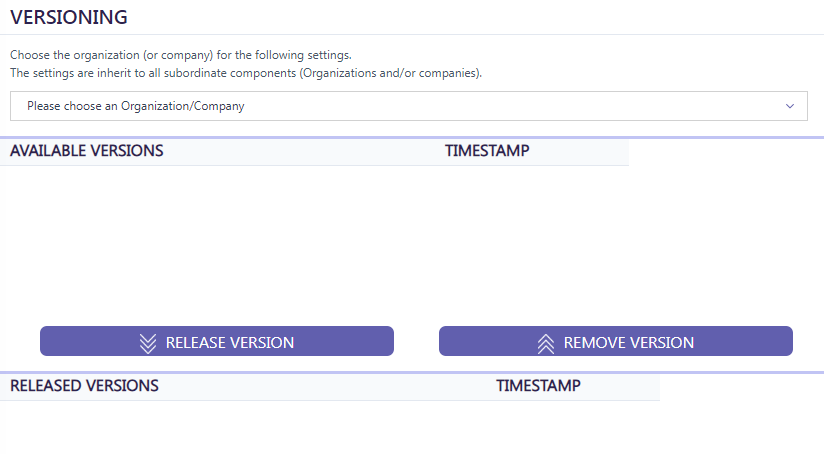
If no version is available or new versions are not displayed, the version must first be released at a parent organisation level.
In this case:
- Select the parent organisation of the company.
- Release the required version there.
- Afterwards, return to the company and release the version.
Updating a Single EFR
To update only one specific EFR, follow these steps:
- Navigate Management and then to Register.
- Selecton the “<…>” icon to the right of the desired EFR.
- Click “Update”.
- Select one of the available released versions.
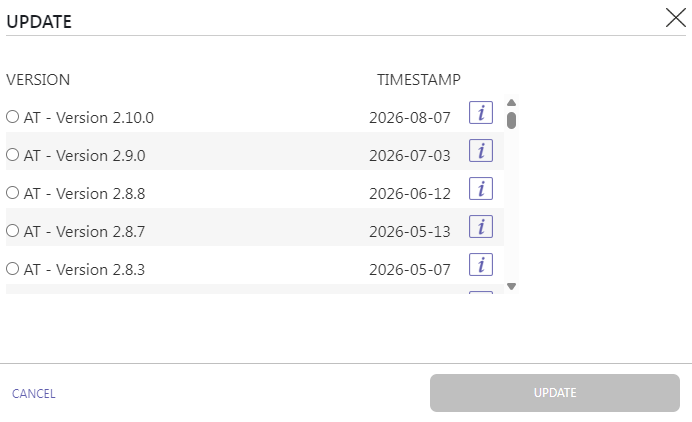
Result: Only the selected EFR is updated.
Updating All EFRs Within a Company or Location
To update all EFRs assigned to a company or location:, follow these steps:
- Select the “<…>” icon next to the desired company or location.
- Open the “Edit” tab.
- Click on “Update”.
- Select one of the available released versions
Result: All EFRs assigned to the selected company or location are updated to the chosen version.
Recommendation
Before deploying an update to all EFRs, test it on a single EFR or a dedicated test device.
Testing helps verify compatibility with the following components:
| Component | Details |
|---|---|
| POS software | Confirms the update works correctly with the Point of Sale system. |
| Hardware | Ensures compatibility with the existing hardware environment. |
| Connected Hardware/Cable | Verifies proper functionality with all attached devices. |
Best Practice
Testing significantly reduces the risk of issues during large-scale rollouts.
Cloud EFR Updates
Currently, Cloud EFRs can only be updated by the efsta Development Team.
How can I create an export in the portal?
You can create exports directly in the efsta Portal to retrieve data for a specific organization or company.
Depending on your needs, you can either preview the export within the portal or download the complete dataset as a CSV file.
Prerequisites
- Access to the efsta Portal.
- The required permissions to view and export data.
Step-by-Step Instructions
1. Open the efsta Portal
- Click on Report
- Click on Portal Exports.
2. Choose the Export
- Select the desired export type from the dropdown menu.
-
 3. Choose the relevant:
- Organization, or
- Company
- Enter the required time period for the export.
3. Generate the Export
After configuring the export, choose one of the following options:
Display Export
Use this option to:
- View the export directly in the portal.
- Quickly review the data without downloading a file.
- Only 100 entries will be shown
Download as CSV
Use this option to:
- Download the complete dataset as a CSV file.
- Export all available data within the selected time period.

How can I send invitations to the efsta portal?
You can invite new users to the efsta Portal by sending an invitation link via email.
The process can be started either directly from the organization structure or via the user management area.
📋 Prerequisites
| Requirement |
|---|
| You must have the required permissions to manage users in the efsta Portal. |
| Invitation links should only be sent by an efsta employee or a cash register manufacturer. |
⚙️ Step-by-Step Instructions
1️⃣ 1. Open the Invitation Dialog
You can start the invitation process in one of the following ways:
Just head into the efsta Portal and click on the left side menu “Management”
🏗️ Choose the Structure
Choose the structure you want to add someone (Organisation, Company, Location)
If you chose one, you see on the far right a “Head-Icon” ->

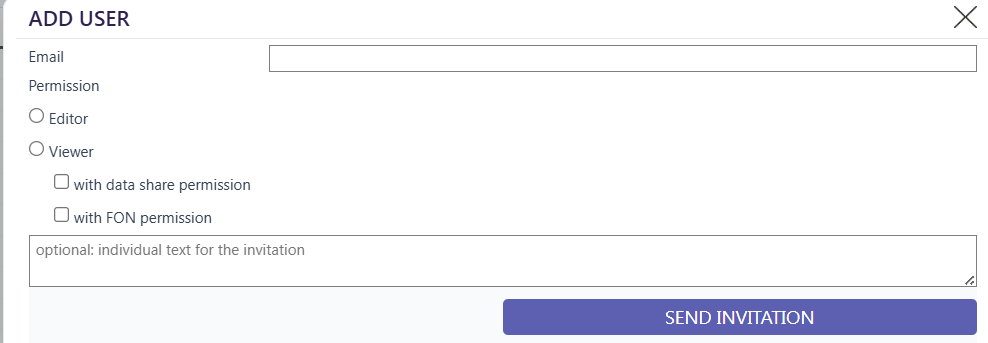
Click on it and you see this window:
📧 Enter Invitation Details
Here you can enter the User E-Mail adress you want to invite and the permissions.
”Editor” means the user can do anything. Creating companyies, organsiation, locations and gets access to all exports/data and can invite other users
| Role | Description |
|---|---|
| “Viewer” | “Viewer” only can view. no editing, user invites or Exports |
| Additional Viewer Options | You additionally can give a viewer access to the exports so he can access the data or FON permission which is in Austria to enter FON Data in the company. |
If you have all entered you need and you click on “send invitation”, the invite will be sent with a guide of how to set up and an invite Lint that must be clicked to registrate.
Please be aware, the password needs 12 letters, a combination of upper and lower case letters, a number and one additional special character
The invitation link is valid for 10 days.
Data Pending
New register at Data Pending
This FAQ is relevant if the register has shown the status "Data Pending" for longer than six months.
Cause of Data Pending
This state usually occurs when the same SQ number is used multiple times in the background.
This can happen, for example, if:
- data was copied,
- a clone operation was performed, or
- a backup was restored
in the process, older data records are sent to the cloud again.
Find detailed information on the SQ number on our Docs page under internal SQ
EFSTA Cloud behavior
- The EFSTA Cloud detects the duplicate SQ numbers and automatically “pauses” receiving the data
- The affected data is moved to a separate, temporary EFSTA Cloud
- The EFR continues to send data, which is also transferred to this temporary cloud until the issue is resolved
Why should a new register be created if the status “Data Pending” has been present for longer than six months?
Due to the large volume of accumulated data, the “Data Pending” status for the affected EFR, which is still actively sending data, can no longer be resolved properly.
The data can only be processed correctly once the affected EFR is no longer in active operation. Therefore, the current EFR should no longer be used.
To continue operations properly, a new EFR must be set up.
As soon as the new EFR has been set up, please send us an email at ticket@efsta.eu so that we can process the “Data Pending” entries of the old EFR and, if necessary, coordinate the next steps with you.
What is the Portalmessage 'datapending'?
Data pending occurs when there is manual intervention in the data.
Such interventions include
- Uploading or importing images
- Performing backups or system resets
- Use of the EFR in clone mode
- Incorrect cash register change
- Copying data
Deactivating
How can I deactivate a TSE in the efsta portal?
You can deactivate a TSE or end its assignment directly in the efsta Portal, depending on whether the fiscal unit will be used again in the future.
Open the TSE properties
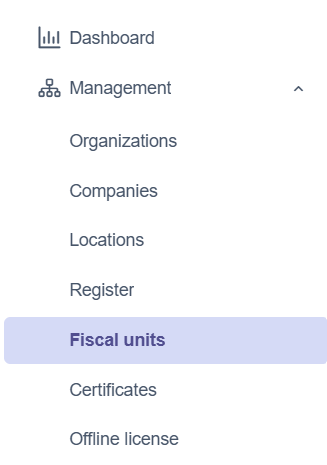
- Navigate on the left side menu to “Management”
- Then click on “Fiscal units”
-
 4. Select the desired TSE.
5. Click on the
4. Select the desired TSE.
5. Click on the <...> symbol next to the TSE to open the properties window.
Deactivate the fiscal unit
- Click the "Deactivate fiscal unit" button.
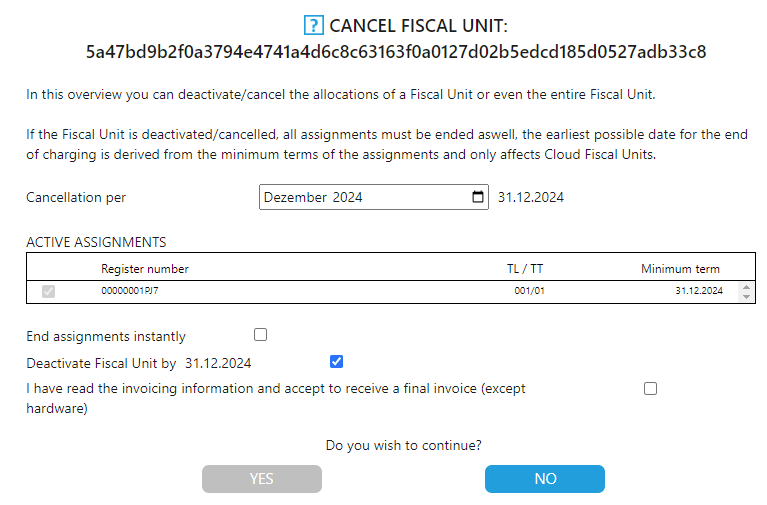
- A pop-up window will open.
Select the desired action
In the pop-up window, you will see the cash register to which the TSE is currently assigned.
You can choose one of the following options:
- Cancel the TSE if it is no longer required.
- End the assignment only if the TSE will continue to be used with another cash register.
Confirm your selection.
View deactivated TSEs
After deactivation, the TSE is hidden by default.
To display deactivated fiscal units:
- Enable "Show deactivated fiscal units".
- The deactivated TSE will become visible in the Portal.

How can I deactivate an EFR in the efsta portal?
You can deactivate an EFR directly in the efsta Portal if the fiscal register is no longer required.
Instructions
- Open the efsta Portal
- Click on the left side menu Management
- Click on Register
-
- Select the desired EFR.
- Click the <...> menu next to the EFR to open the properties window.
- Select the “Deactivate register” button, which opens the following pop-up window
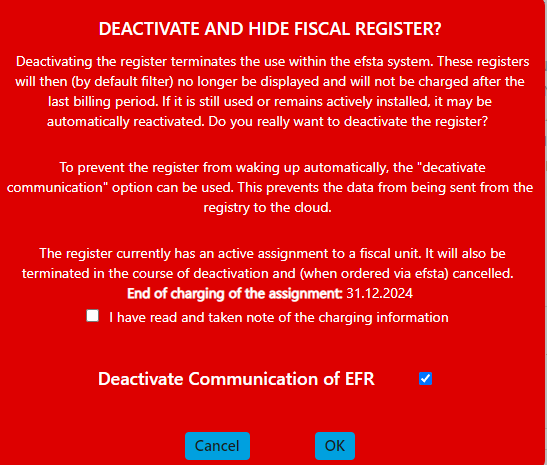
- Read the displayed information carefully.
- Confirm the required statements.
- Complete the deactivation process.
Deactivated tabs are only visible in the Portal if you activate “Show deactivated register”.

Ordering
How do I order offline licenses for my company?
Offline licenses can be ordered directly through the efsta Portal. During the order process, you must provide the required cash register information, including the Location ID (TL) and Cash Register ID (TT) assigned by your cash register software provider.
Order offline licenses
- Click on the left side menu “Store”
- Click on Purchase.
- Select the desired company.
- Enter the required information:
- Number of units
- Location ID (TL)
- Cash register ID (TT)
The TL and TT values are assigned by the cash register software manufacturer.
- Accept the Terms of Use and click Continue.
- Review the entered information and make changes if necessary.
- Click Continue again.
- Review the displayed order summary before completing the order.
- Confirm the order to complete the process.
Automatically Renewal of Offline Licenses
If automatic renewal is enabled in the efsta Portal, the renewal process is handled automatically.
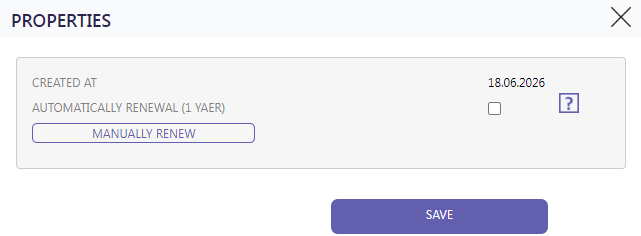
- An email notification is sent three months before the license expires.
- One month before expiration, a new license is generated automatically.
- The new license is created with the same settings and a validity period of one year.
- The license can be entered into the EFR immediately after it has been generated.
- Automatically renewed licenses are invoiced in the same way as manually ordered licenses.
Good to Know
If you need help configuring an offline license in an EFR, refer to the FAQ article:
How do I place orders in the efsta portal?
You can place orders directly in the efsta Portal for the required country and product. The portal guides you through the ordering process and provides an order summary before the order is submitted.
Instructions
- Navigate on the left side menu to “Store”
- Click on “Purchase”
- Select the desired company from the drop-down list

- Select the required country and item.
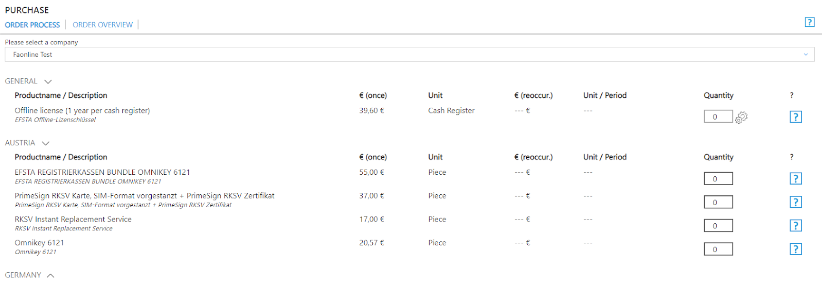
- Read the terms of use and click on “Continue”

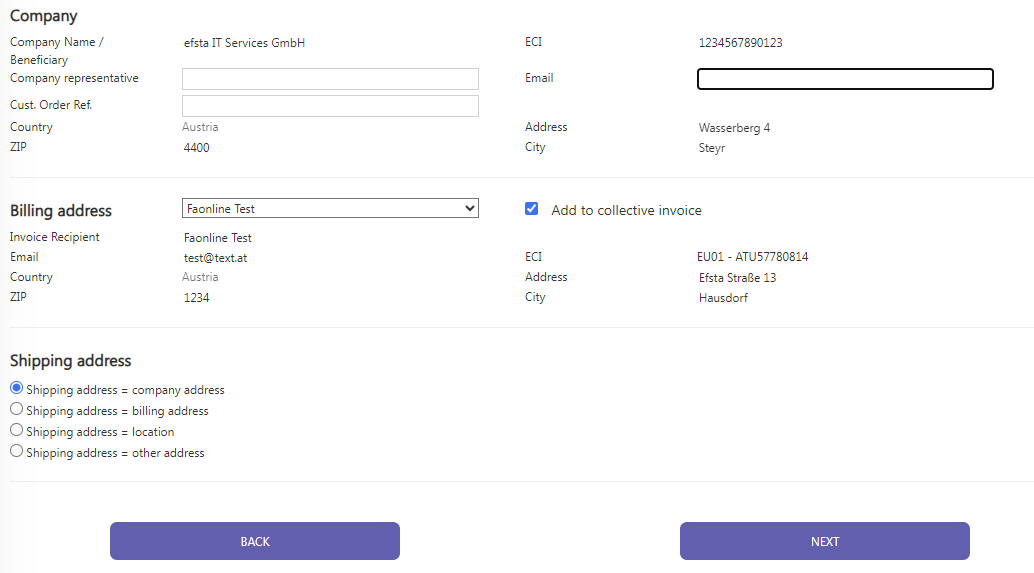
- Enter the company address.
- Select the stored billing address.
- If necessary, adjust the delivery address.
-
- Click Send Order.
- Review the displayed order summary.
- Confirm the order by clicking the corresponding confirmation button.
After submitting your order, the efsta Portal displays a summary of your order details. Review the information carefully before confirming the order to ensure all details are correct.
How do I order a TSE in the efsta portal?
Detailed instructions for ordering a TSE are available in the Germany-specific FAQ article.
Instructions
- Open the following FAQ article:
- Follow the instructions provided in that article to complete the TSE order process.
Structuring
How can I create a test company?
- Log in to the efsta Portal.
- Click on the left side menu Management
- Click on Companies
- Click on the “Add” button

- Select a test organization as the parent organization.
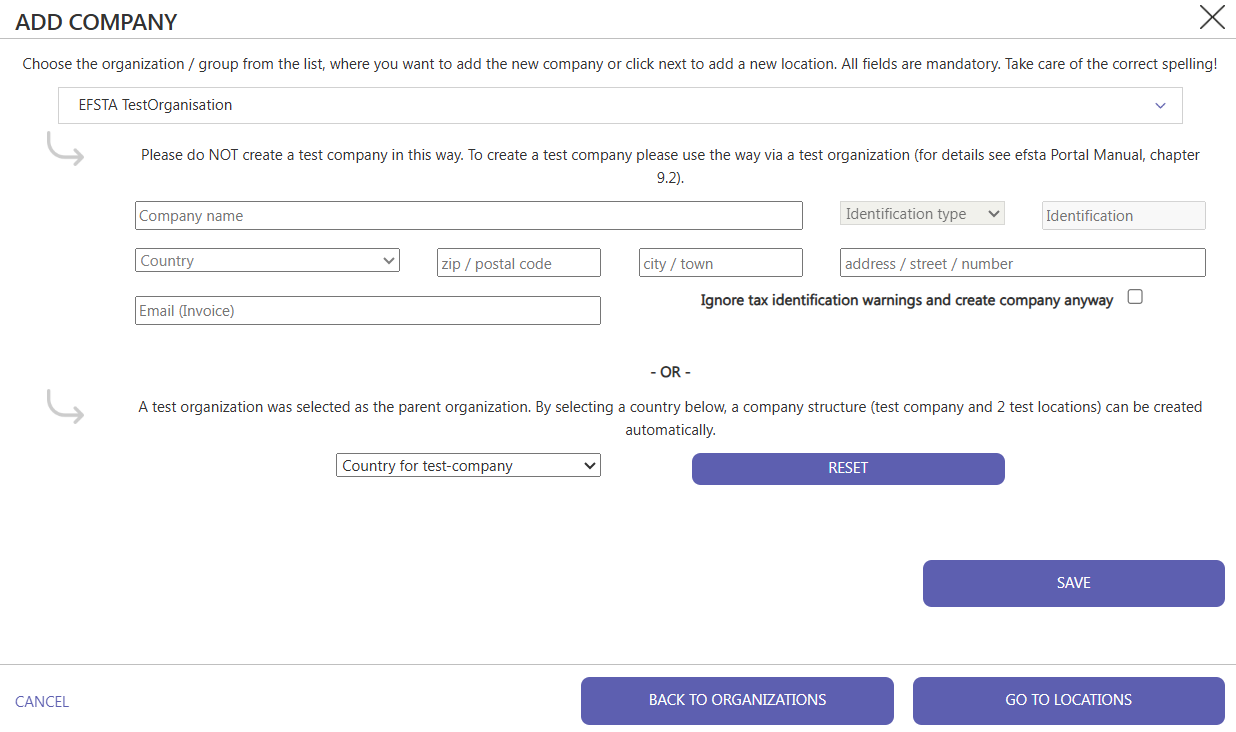
- Select the desired country from the “Country for test company” drop-down menu below.
- This automatically creates a test company and two locations if you have selected a test organization as the parent organization.
- Click on the 3 dots right from the newly created test company and enter the required data in the “Edit” tab.

How can I create companies in the efsta portal?
Before you create your desired company, it is important to check whether the parent organization has already been created in the efsta portal.
- Log in to the efsta Portal.
- Click on the left side menu Management
- Click on Companies
- Click on the “Add” button

- In the drop-down menu, select the organization to which you want to add the new organization
- If you have permissions for more than one organization, select the desired organization from the drop-down menu
- Enter the name of the new organization in the empty field below the drop-down menu
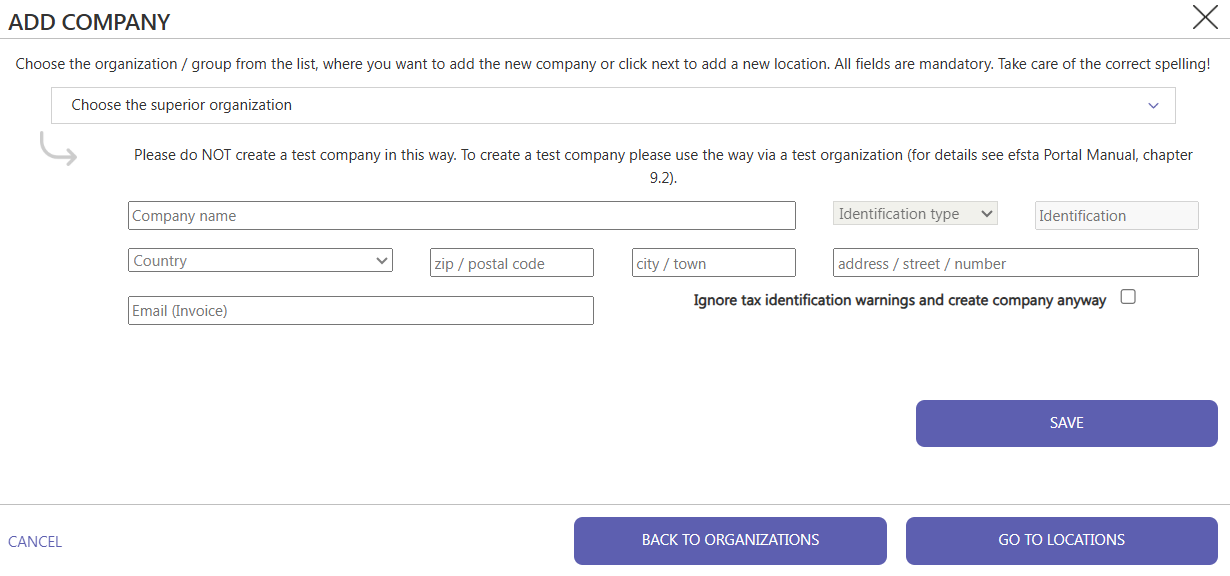
- Fill in all the required fields
| Field | Meaning |
|---|---|
| Select parent organization | Organization to which you want to add your company |
| Enter new company here | Name of your company |
| Identification type | first select the country so that the identification type is listed. e.g. UID in Austria and Ust-Id in Germany |
| Identification | Enter the identification, e.g. Austrian tax number, UID... |
| Country, zip code, city, address | company data |
- Click on the “Save” button
How can I create locations in the efsta portal?
- Log in to the efsta Portal.
- Click on the left side menu Management
- Click on Locations
- Click on the “Add” button

- Select the desired company:
- If you are authorized to multiple companies, select the company you want to add the new location to from the drop-down menu
- Name the new location:
- Enter the name of the new location in the free field below the drop-down menu
- Field “INTERNAL Branch ID”: Enter the branch number or the TL (Terminal Location) here
- The number can be freely selected, but is not checked
- Recommendation: Use the store numbers from your merchandise management system
- Save the changes
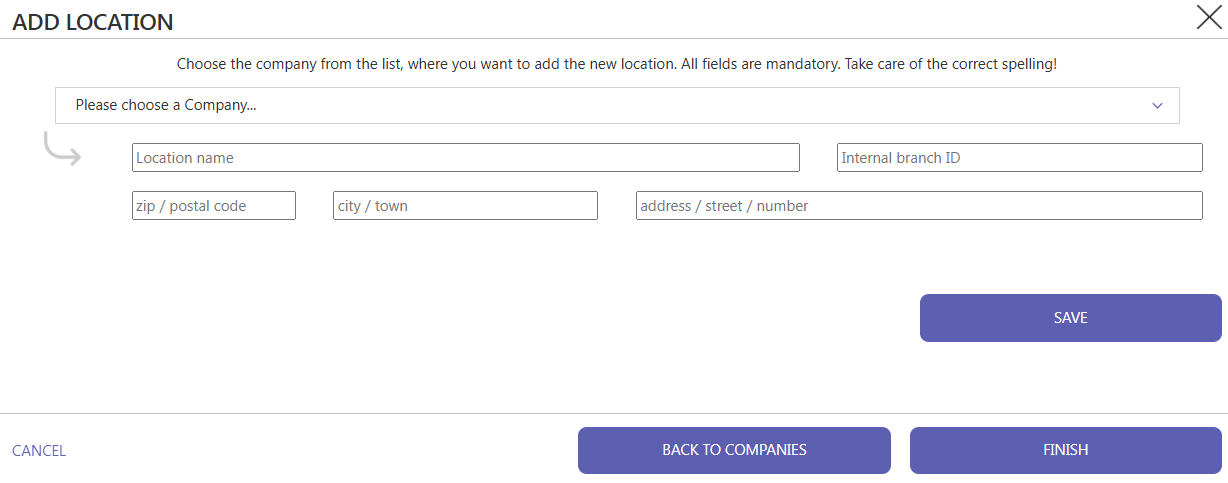
- Click on the “Save” button
How can I create organizations in the efsta portal?
New components can be added either individually and manually or automatically via CSV import (recommended for more than 10 components). Editor authorization required to add components.
- Log in to the efsta Portal.
- Click on the left side menu Management
- Click on Organisations
- Click on the 'Add' button

- In the drop-down menu, select the organization to which you want to add the new organization
- If you are authorized to several organizations, select the desired one
- Enter the name of your new organization in the free field below the drop-down menu
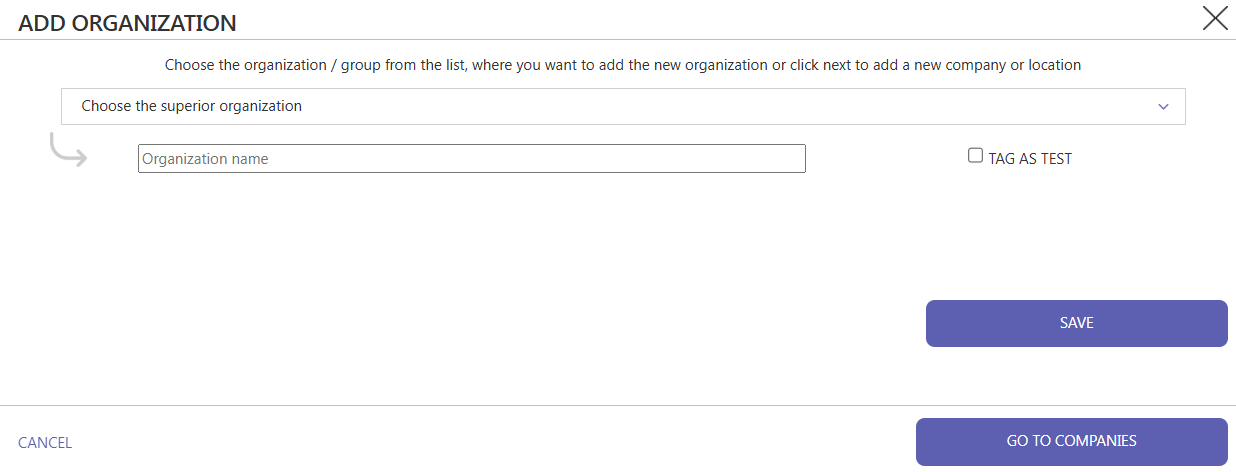
- Click on the “Save” button
How do I structure customers by organizational units?
To ensure effective management and categorization of your clients, we recommend the following structure in the efsta portal.
This structure enables efficient customer support and simplifies billing.
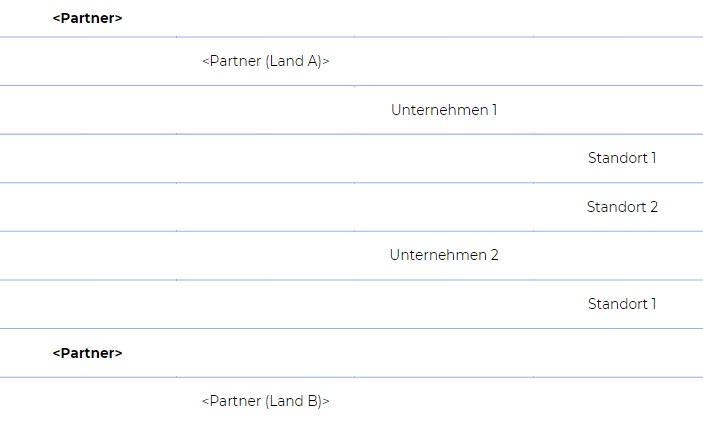
- Country organization:
- Create a country organization for each country in which your customers are active.
- Company organization:
- Below each country organization, create a customer organization for each individual customer. This level enables a fine subdivision and categorization of customers.
- Locations and branches:
- In the customer's organizational unit, you can create the company with at least one location (branch). Any number of additional locations can also be added to create a comprehensive structure.
Advantages of this structure:
- Improved overview and control:
- A clear hierarchy enables simple and quick navigation.
- More efficient customer management:
- Each customer has its own organizational unit for targeted management.
- Customized settings:
- Flexibility for customer-specific adjustments and settings.
- Flexible billing control:
- Better control of billing at customer and country level.
Recommendations for naming companies and locations:
- Company:
- Use of the correct company name according to the company register.
- Location:
- Designation with at least city and street.
- Optional additions: House number, floor, etc.
- Example:
- Company: “Mustermann GmbH”
- Location: “Musterstadt, Musterstraße 12”
The correct and unambiguous designation facilitates assignment and identification.