Austria
Frequently Asked Questions
General
How can I change certificates?
Important note: Expired certificates can still be used for signing. However, we recommend ordering a new one from efsta to avoid future errors on the part of the signature provider.
Hardware signature
If you order a new hardware signature, you can unplug the old certificate locally upon receipt and deactivate it in the portal.
Cloud signature
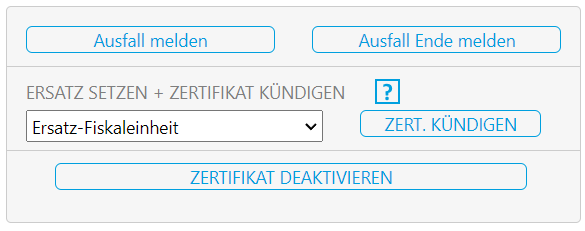
If you order a cloud certificate, you can then click on the 3 dots next to the certificate in the portal, select the new certificate and click on “Cancel certificate”. This cancels the old certificate and the new one is used.
How can I change the company's legal name?
Preparation
Create closing receipt
- Open a browser
- Go to
http://localhost:5618 - Open the Control tab
- Create a closing receipt by clicking on “Kasse außer Betrieb nehmen”
- the closing receipt is visible in the efsta portal (cloud)
- the deregistration has been confirmed by the finance department*(Status:*
FISCAL_AT-CLOSE--P-)
Old Installation
- Uninstall EFR
- Archive or delete the folder:
C:\ProgramData\EFR - In the portal:
- Deactivate EFR
- Deactivate the old company
Create New Company
- Create a new company in the efsta portal
- Configure the FON user
- Make sure all company and FON data is complete and correct
Reinstall EFR
- Download EFR Austria
- Install EFR
- Open a browser:
http://localhost:5618 - Configure the profile page, for example:
- Badge
- Attributes
- Prime Sign, A-Trust
Generate Start Receipt
- Send one transaction→ The start receipt is generated automatically
the start receipt was created before the correct FON data was entered in the portal
Final Steps
- Inform the Partner Manager so that:
- billing is switched to the new company
- a special termination of the old fiscal unit can be initiated if required
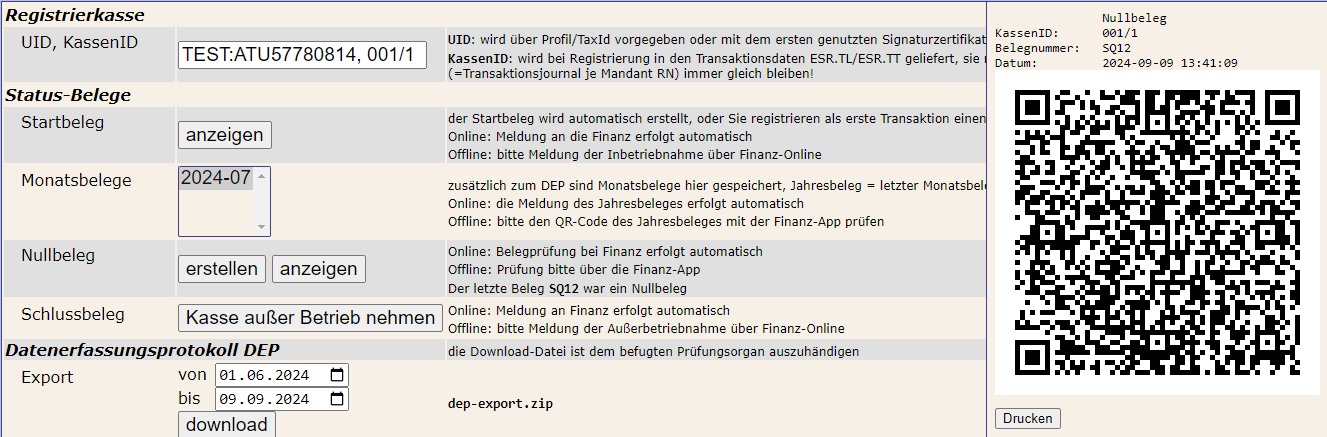
How can the QR code be displayed locally?
- Locate the POS system where the EFR is installed.
- Open a browser on the POS and enter
localhost:5618in the address bar. - Navigate to the “Control” tab.
- In the “Status-Belege” section, select the required document.
- The selected document is displayed as a QR code.
After completing these steps, the status document can be accessed via the displayed QR code.
How do I create a starting-, monthly- and annual receipt?
Starting Receipt
Is created automatically with the first transaction sent from the cash register to the ERA. This process does not have to be carried out manually.
Monthly Receipt
Is created automatically with the first transaction in the new month.
Year-end Receipt
Is created automatically with the first transaction in the new year.
Final Receipt
Is only necessary in Austria to deregister the cash register with the tax office. This process must be carried out manually.
Zero Receipt
Are not required in Austria, but can be created if necessary.
How do I create exports in the efsta Portal?
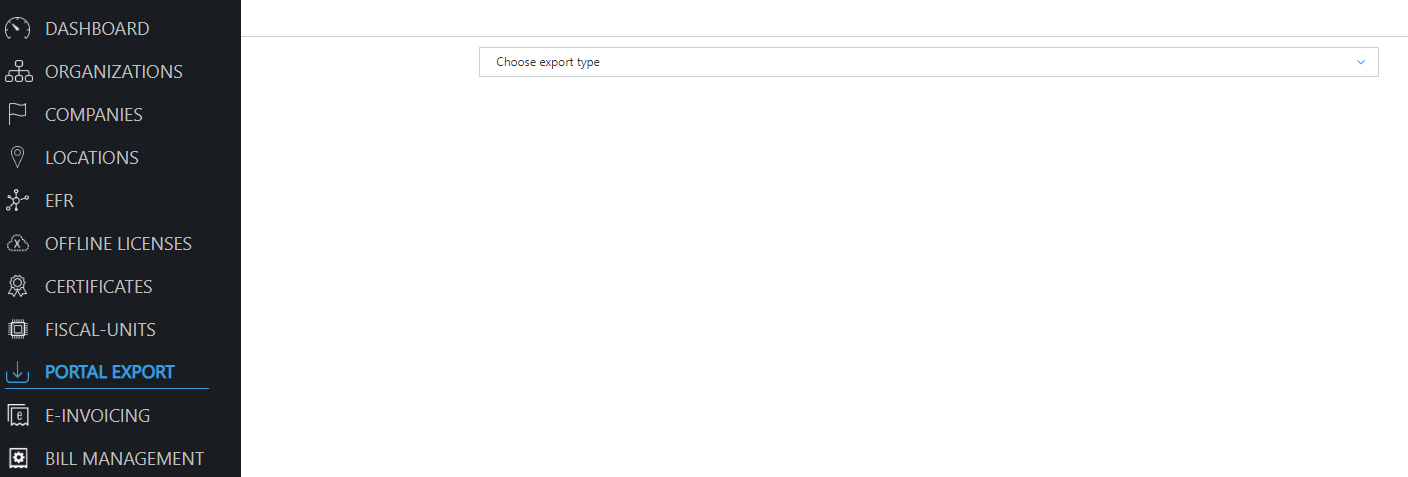
- Navigate to the “Portal Export” menu in the efsta Portal.
- Select the required export type from the drop‑down menu.
- Choose the relevant organisation or company.
- Enter the required time period for the export.
- You can either
- display the export as a preview, or
- download the full export including all data.
After completing these steps, the export will be available according to the selected options.
How do I generate a closing- and Start- receipt?
Procedure
Take the cash register out of operation
Perform this procedure only after store closing
- Go to the POS where the EFR is installed
- Open a browser (Google Chrome or Mozilla Firefox)
- Enter
http://localhost:5618in the address bar - Open the Control tab
- Then continue by clicking on the “Kasse außer Betrieb nehmen” button

Afterward
- On the next business day, the first transaction will automatically generate a new start receipt
This ensures that:
- the tax authority has processed the closing receipt
- the cash register is correctly registered again
Annual Receipt
How to check the transmission status
Procedure
- Log in to the efsta Portal.
- Navigate to the Fiscal Register (EFR) section.
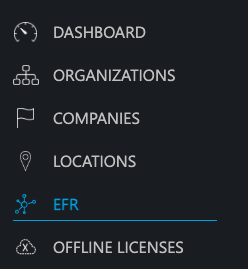
- Click on the <…> icon to the right of the relevant EFR to open the properties window.
- Open the “Financial Reports” tab.
- Check the status of the annual receipt and review any displayed error messages.

If the receipt status is shown as “completed”, no further action is required.
In this case, the annual receipt has been successfully created and verified by FinanzOnline.

My cash register was not correctly registered with FinanzOnline
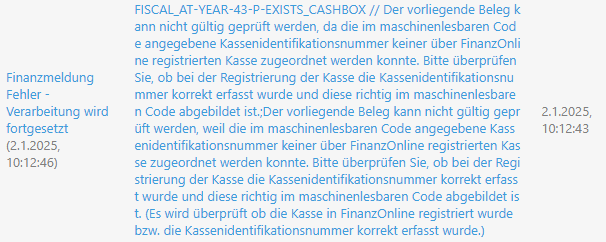
The annual receipt check is incorrect because the cash register was not logged into FinanzOnline at the time the receipt was created.
In this case, the Finanz‑Online (FON) transmission must first be reactivated. If the issue persists, the cash register must be decommissioned and re‑registered.
Procedure – Reactivate FinanzOnline transmission
- Log in to the efsta Portal.
- Navigate to the Fiscal Register (EFR) section.
- Click on the “…” icon next to the relevant EFR to open the properties window.
- Go to “Financial Reports”.
- Click on “Reactivate FON”.
After reactivation, all financial messages are forwarded to FinanzOnline.
This process may take a few minutes.

If the problem persists, the cash register must be logged off and re‑registered.
Procedure – Re‑register the cash register
Please perform the following steps only after closing time, as the cash register will be taken out of operation.
- Go to the location where the EFR is installed.
- Open a browser (Google Chrome or Firefox).
- Enter
localhost:5618in the address bar. - Click on the “Control” tab.
- Click on “Kassa außer Betrieb nehmen”.
On the next business day, a new start receipt is automatically created with the first transaction.
Due to the new registration of the cash register, no annual receipt is created or required for the previous year.
Please document this internally, as the tax authorities may ask why a correct annual receipt was not created.
The annual receipt was created with a failed security device
The message FISCAL_AT-SIGNDEV_BROKEN_QUEUE--P-is displayed, this indicates that the signature unit failed during the creation of the annual receipt.

The subsequent message FISCAL_AT-SIGNDEV_RESTORED_QUEUE--P- indicates that the signature unit has been restored.

In this situation, the annual receipt must be replaced by a zero document.
Procedure
- Open the efsta Portal.
- Navigate to the relevant Fiscal Register (EFR).
- Open the properties window of the EFR.
- Go to the “Commands” tab.
- Click on “Create zero document”.
The Portal sends a zero document to the EFR.
This zero document serves as a replacement for the annual receipt.

The cash register is not correctly registered with FinanzOnline
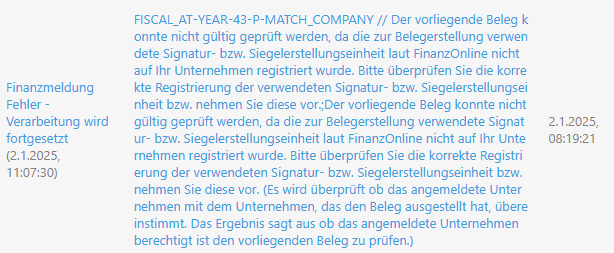
The message FISCAL_AT-YEAR-43-P-RECEIPT_FULL/STATE_CONSOLIDATED/STATE_CASHBOX // means that the cash register is not properly registered with FinanzOnline, as no valid start receipt has been created.
In this case, it is no longer possible to resend or repair the annual receipt.
The cash register must be decommissioned and re-registered.
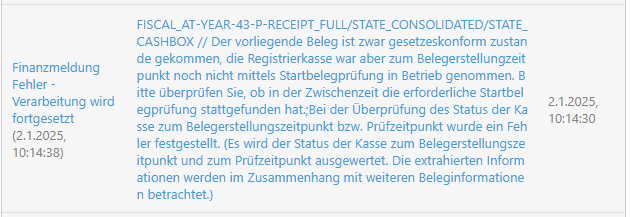
Please perform the following steps only after closing time, as the cash register will be temporarily taken out of operation.
Procedure
- Go to the location where the EFR is installed.
- Open a browser (Google Chrome or Firefox).
- Enter
localhost:5618in the address bar. - Click on the “Control” tab.
- Click on “Kassa außer Betrieb nehmen”.
On the next business day, a new start receipt is automatically created with the first transaction.
Due to the new registration of the cash register, no annual receipt is created or required for the previous year.
Please document this internally, as the tax authorities may request an explanation as to why a correct annual receipt was not created.
The creation time of the annual receipt is incorrect
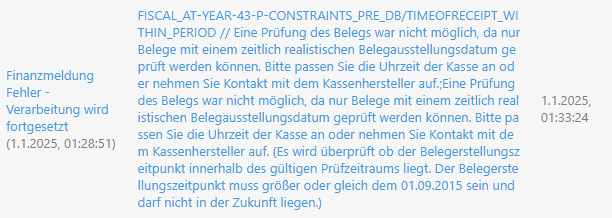
The annual receipt was created correctly according to legal requirements, but with a time that does not match the actual time.
In this case, the issue can be resolved by reactivating the Finanz‑Online (FON) transmission after the time specified in the error message.
Procedure
Log in to the efsta Portal.
- Navigate to the Fiscal Register (EFR) section.
- Click on the “…” icon next to the relevant EFR to open the properties window.
- Go to “Financial Reports”.
- Click on “Reactivate FON” after the time specified in the error message.
After reactivation, all financial messages are forwarded to FinanzOnline. This process may take a few minutes until all messages are processed.

The sales counter is incorrect
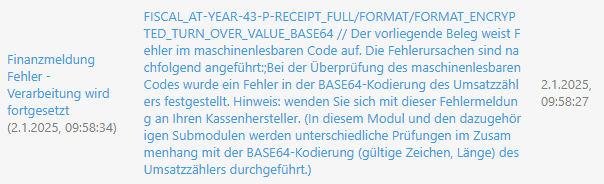
The sales counter was calculated incorrectly due to an error.
There may be various technical reasons for this issue. To correct the calculation, the cash register must be decommissioned and re‑registered.
Please perform the following steps only after closing time, as the cash register will be taken out of operation.
Procedure
- Go to the location where the EFR is installed.
- Open a browser (Google Chrome or Firefox).
- Enter
localhost:5618in the address bar. - Click on the “Control” tab.
- Click on “Kassa außer Betrieb nehmen”.
On the next business day, a new start receipt is automatically created with the first transaction.
Due to the new registration of the cash register, no annual receipt is created or required for the previous year.
Please document this internally, as the tax authorities may request an explanation as to why a correct annual receipt was not created.
The user data for the cash register web service user is incorrect
This issue occurs when the certificate data and the configured FON user belong to different companies or contain incorrect information.
Procedure
- Log in to the efsta Portal.
- Navigate to the Companies section.
- Click on the “…” icon next to the relevant company to open the properties window.
- Open the “FON” tab.
- Check that the certificate and the entered FON access data are correct and belong to the same company (UID/tax number).
- Save your changes.
- Click on “Reactivate FON for all cash registers”.
After reactivation, all messages are forwarded to the configured FON user.
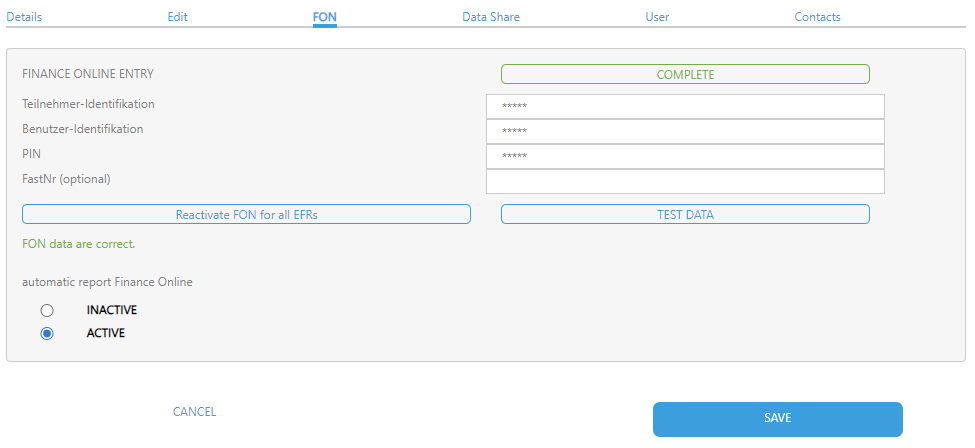
If it turns out that the signature certificate belongs to a different company, for example due to a UID change, a new signature must be ordered for the correct company.
FON
Error messages of Finanz‑Online web service user access data
When testing the access data in the efsta Portal, the following status codes may be returned by Finanz‑Online.
Error codes and descriptions
- Code 0 – Call okThe web service call was successful. The access data is valid.
- Code 1 – The session ID is invalid or has expiredThe current session is no longer valid. A new request is required.
- Code 2 – Access currently not possible due to maintenance workThe Finanz‑Online web service is temporarily unavailable due to maintenance.
- Code 3 – A technical error has occurredA technical problem occurred on the Finanz‑Online side.
- Code 4 – The transmitted access data is invalidThe entered web service user credentials are incorrect.
- Code 5 – User blocked after several failed attemptsThe web service user has been temporarily blocked due to multiple failed login attempts.
- Code 6 – The user is blockedThe web service user is currently blocked and cannot be used.
- Code 7 – The user is not a web service userThe entered user is not a dedicated web service user for cash registers.
Recommended action
If an error code other than Code 0 is displayed, open the company properties in the efsta Portal, navigate to the “Finance online” tab and verify the entered access data.
Please ensure that:
- a dedicated web service user for cash registers is used
- the access data is entered correctly
- the user is not blocked in Finanz‑Online
FON messages and their meanings
Status colours and their me
| Status colour | Meaning |
|---|---|
 Green Green | All good; the cash register is correctly fiscalised |
 Yellow Yellow | There is a temporary issue; no immediate user action required; please check again later |
 Red Red | Issue with cash register fiscalisation; immediate user action required |
FON messages and descriptions
| Status | FON message | Description |
|---|---|---|
| FON login failed | FON message could not be reported to FinanzOnline. Please use a FON web service user and verify the credentials. |
| FISCAL_AT-START-REGSE-7-P-The order term in the certificate is not assigned to the registering company. Please contact your trusted service provider. | The VAT/Tax number in the certificate (smartcard or remote certificate) does not match the VAT/Tax number in FinanzOnline. Check the FinanzOnline account and your certificate. |
| FISCAL_AT-START-BELEG--P- | A start receipt was successfully reported in the productive FinanzOnline. P stands for productive in all messages. |
| FISCAL_AT-START-BELEG--T- | A start receipt was successfully reported in the FinanzOnline test environment. T stands for Test in all messages. |
| FISCAL_AT-START-BELEG-43-P-EXISTS_CASHBOX | Another cash register with the same cash register ID already exists. The cash register ID must be unique for FinanzOnline. Please note that when deregistering this cash register with FinanzOnline, you might also deregister other productive cash registers with the same cash register ID. |
| FISCAL_AT-START-BELEG-43-P-RECEIPT_FULL/STATE_CONSOLIDATED | Error during start receipt verification. Please check whether another cash register with the same cash register ID exists. |
| FISCAL_AT-START-BELEG-43-P-RECEIPT_FULL/TYPE_OF_RECEIPT | Error during start receipt verification. Please check whether another cash register with the same cash register ID exists. |
| FISCAL_AT-SR-START-7-The order term in the certificate is not assigned to the registering company. Please contact your trust service provider. | The VAT/Tax number in the certificate (smartcard or remote certificate) does not match the VAT/Tax number in FinanzOnline. Check the FinanzOnline account and your certificate. |
| FISCAL_AT-SIGNDEV_BROKEN_QUEUE--P- | EFR could not find a security device. Please check whether a security device (smartcard or internet connection for remote certificate) is available. |
| FISCAL_AT-SIGNDEV_BROKEN_ISSUE--P- | The outage of the security device has now lasted longer than 48 hours; therefore the outage was reported to FinanzOnline. |
| FISCAL_AT-SIGNDEV_RESTORED_QUEUE--P- | EFR has found a security device again. |
| FISCAL_AT-SIGNDEV_RESTORED_ISSUE--P- | If the outage of the security device was reported, the end of the outage is now reported to FinanzOnline. |
| FISCAL_AT-YEAR--P- | An annual receipt was successfully reported in the productive FinanzOnline. P stands for productive for all reports. |
| FISCAL_AT-YEAR--T- | An annual receipt was successfully reported in the FinanzOnline test environment. T stands for Test in all messages. |
| FISCAL_AT-YEAR-43-P-CONSTRAINTS_PRE_DB/TIMEOFRECEIPT_WITHIN_PERIOD | The annual receipt was registered with an unrealistic date. |
| FISCAL_AT-YEAR-43-P-EXISTS_CASHBOX | The verification of the annual receipt is faulty because this cash register was not registered in FinanzOnline for issuing receipts. |
| FISCAL_AT-YEAR-43-P-MATCH_COMPANY | The VAT/Tax number in the certificate (smartcard or remote certificate) does not match the VAT/Tax number in FinanzOnline. Check the FinanzOnline account and your certificate. |
| FISCAL_AT-YEAR-43-P-RECEIPT_FULL/FORMAT | The format of the annual receipt is incorrect. Please note that the character “_” is forbidden in the location number, cash register ID, and transaction number. |
| FISCAL_AT-YEAR-43-P-RECEIPT_FULL/STATE_CONSOLIDATED/STATE_CASHBOX | The verification of the annual receipt is faulty because this cash register was not registered in FinanzOnline at the time of receipt issuance. |
| FISCAL_AT-YEAR-43-P-RECEIPT_FULL/STATE_CONSOLIDATED/STATE_SIGDEVICE | The verification of the annual receipt is faulty because the security device failed at the time of receipt issuance. Please check the security device. |
| FISCAL_AT-CLOSE--P- | The cash register was successfully deregistered in the productive FinanzOnline. P stands for productive in all messages. |
| FISCAL_AT-CLOSE--T- | The cash register was successfully deregistered in the productive FinanzOnline. T stands for Test. |
| FISCAL_AT-EFSTA-CHECK-CASHREG-OK-0-P- | Regular query to check whether the cash register is still registered in FON was successful. |
| FISCAL_AT-EFSTA-CHECK-CASHREG-NOTOK-0-P | Regular query to check whether the cash register is still registered in FON was not successful. The cash register is no longer registered in FON. Please check whether other cash registers with the same cash register ID exist. |
How to configure a Web Service User for cash registers in the Portal?
To use the FinanzOnline web service, you must first create a dedicated "Web service user for cash registers" in the FinanzOnline portal.
Important: Only one FON Web Service User per company (UID) is permitted.
For detailed instructions on creating the user in FinanzOnline, please refer to the documentation article*"Setting up the FON Web Service User"*.
Configure the FON Web Service User
- Create a "Web service user for cash registers" in the FinanzOnline portal and note the access credentials.
- Log in to the efsta Portal.
- Navigate to the company level.
- Select the relevant company.
- Click the <...> icon next to the company to open the properties window.
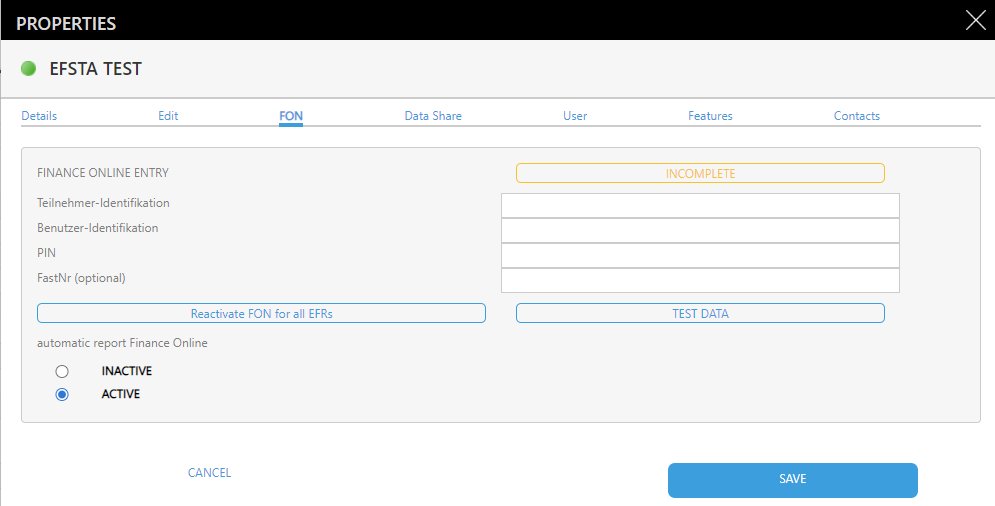
- Open the FON tab.
- Enter the previously created access credentials into the corresponding fields.
- Click "Save".
- Click "Test data" to verify the configuration.
- If the test is successful, activate the automatic mandatory transmission to FinanzOnline by clicking "ACTIVE".
- Save your changes.
After completing these steps, the FinanzOnline web service is configured and active.
How to resend the last FinanzOnline message
In some situations, a cash register may have been started incorrectly. For example, the start receipt may have been transmitted before the FinanzOnline credentials were configured.
In this case, the last transmitted message can be sent again.
- Open the efsta Portal.
- Navigate to the company level.
- Select the relevant company.
- Click "Reactivate FON for all EFRs".
The last transmitted message is then resent to FinanzOnline.
Most frequent problems with the FON webservice
Typical problems
The following issues occur most frequently when the Finanz‑Online web service is not working as expected:
- Instead of the “Web service user for cash registers”, standard Finanz‑Online access data has been entered in the efsta Portal.
- The company UID entered in the efsta Portal does not match the UID on the smartcard (certificate).
- The start receipt or zero receipt cannot be created.In this case, please contact the cash register manufacturer.
Solution and verification
To check and correct the Finanz‑Online configuration, proceed as follows:
- Open the efsta Portal.
- Navigate to the company level and select the relevant company.
- Click on the “<…>” icon to open the properties window.
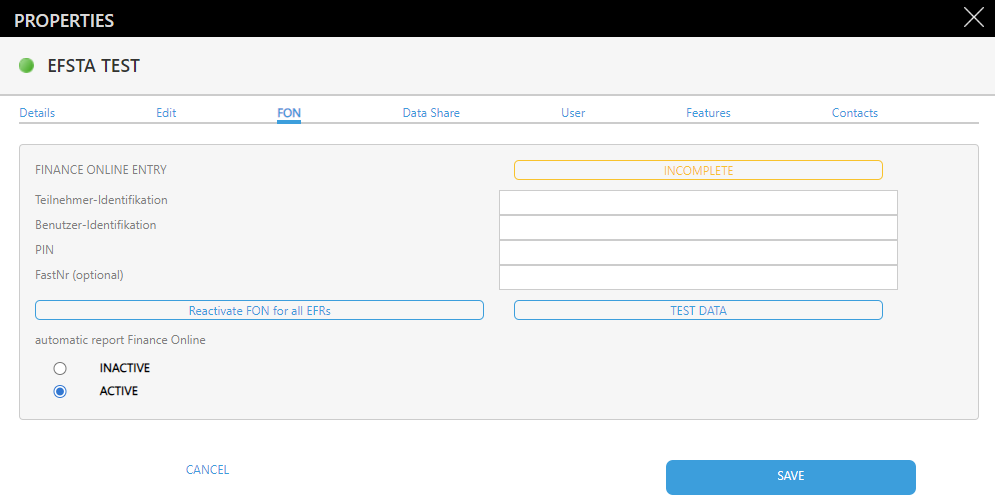
- Open the “Finance Online” tab.
- Enter the correct data and klick Save.
- Click on “Test data”.
Info: If the access data is correct, the status “COMPLETE” is displayed in green.
If the access data is incorrect, the status “Incorrect” is displayed in orange.
In case of incorrect data, a red error message from Finanz‑Online is shown below the “Test data” button.
Please note that the status calculation may take some time.
The display can be refreshed by moving the mouse over the status indicator or by reloading the page.
RKSV & Fiscal Units
How can I assign a Cloud Fiscal Unit?
After ordering a Cloud Fiscal Unit in the efsta Portal, it will be available in the portal shortly afterwards.
Instructions
- Open the efsta Portal.
- Verify that the ordered Cloud Fiscal Unit is available.
- Start processing transactions.
- The Cloud Fiscal Unit will be assigned automatically with the first transaction by the efsta Cloud.
- To check the current status of the Fiscal Unit, open the Fiscal Units section in the efsta Portal.
As a cloud-based solution, the Cloud Fiscal Unit can be used immediately. No delivery or installation of physical hardware is required.
How is manipulation prevented by the RKSV?
Under the RKSV, all relevant transaction data must be recorded in a way that subsequent modification or deletion can be detected.
How it works
The RKSV requires transaction data to be recorded so that any later changes remain traceable.
This helps ensure:
- Tax transparency
- Complete recording of transaction data
- Verification of data integrity during audits
This allows the tax authorities to verify the completeness and integrity of the recorded data during audits.
The RKSV is designed to ensure that modifications or deletions of transaction data can be detected. This supports transparent and traceable recording of cash transactions.
What is a certified security device (SEE)?
A Fiscal Unit is a mandatory technical security device for POS systems in Austria.
Since 1 April 2017, all POS systems subject to the Austrian Cash Register Security Ordinance (RKSV) must be operated with a Fiscal Unit.
Purpose
The Fiscal Unit ensures that all relevant transaction data is recorded in a tamper-proof and traceable manner.
This allows the tax authorities to verify the completeness and integrity of cash transactions.
Availability
Fiscal Units can be obtained from a certification service provider offering qualified signature certificates.
Alternatively, the Prime Sign certificate can be purchased directly from efsta.
A Fiscal Unit is required for POS systems that are subject to the Austrian RKSV.
What is a Fiscal Unit?
A Fiscal Unit is a mandatory technical security device for POS systems in Austria.
Since 1 April 2017, all POS systems subject to the Austrian Cash Register Security Ordinance (RKSV) must be operated with a Fiscal Unit.
Purpose
The Fiscal Unit ensures that all relevant transaction data is recorded in a tamper-proof and traceable manner.
This allows the tax authorities to verify the completeness and integrity of cash transactions.
Availability
Fiscal Units can be obtained from a certification service provider offering qualified signature certificates.
Alternatively, the Prime Sign certificate can be purchased directly from efsta.
A Fiscal Unit is required for POS systems that are subject to the Austrian RKSV.
What is the RKSV?
The Cash Register Security Ordinance (RKSV) has been in force since 1 April 2017 and is an Austrian regulation that requires companies to use electronic cash registers with technical security measures in order to protect cash transactions against manipulation.
Purpose
The objective of the RKSV is to prevent tax evasion and to ensure that all business transactions are fully and correctly recorded.
For this purpose, the regulation defines technical requirements that guarantee the tamper-proof and traceable recording of cash transactions.
RKSV is the abbreviation for Cash Register Security Ordinance (Registrierkassensicherheitsverordnung).