Fiscal Requirements
Implementation Slovenian Fiscal Rules
Minimum Requirement for the Cash Register Application
After finishing positions and payment entry, the cash register application sends transaction data to the EFR and prints the sales slip, which includes the fiscal signature received in the response and the provided Code in Fis.Code (in the form of a QR-code, PDF417 or Code128).
Access to the configuration to respectively control functions of the EFR is to be provided via web-browser, either locally http://localhost:5618/config or from a back-office PC.
Non-fiscal Transactions
In addition to revenues, all other non-fiscal postings like operator log in / log out, cash deposits / withdrawals, closure and so on may be registered using the EFR, marked by NF=. Thus, the journal kept in combination with cloud storage fulfills the requirements for consistent and coextensive archiving. Representation in XML is formless, but it is recommended to use predefined tags like <Pay> for payments / withdrawals nonetheless.
Functions of the EFR
The EFR fulfills the following functions:
- Fiscal message generation upon ESR data delivered
- Local message signature using the Fiscal Certificate
- Request to the fiscal system FURS
- Response to the cash register application
- Transaction protocol
- Protocol of Grand Totals per tax group
- Retry handling according to regulations in case of network failure
- Tamper-proof archiving (encrypted cloud-storage)
Registration Business Premises
Before starting to report to the fiscal system, the company has to register the business premises.
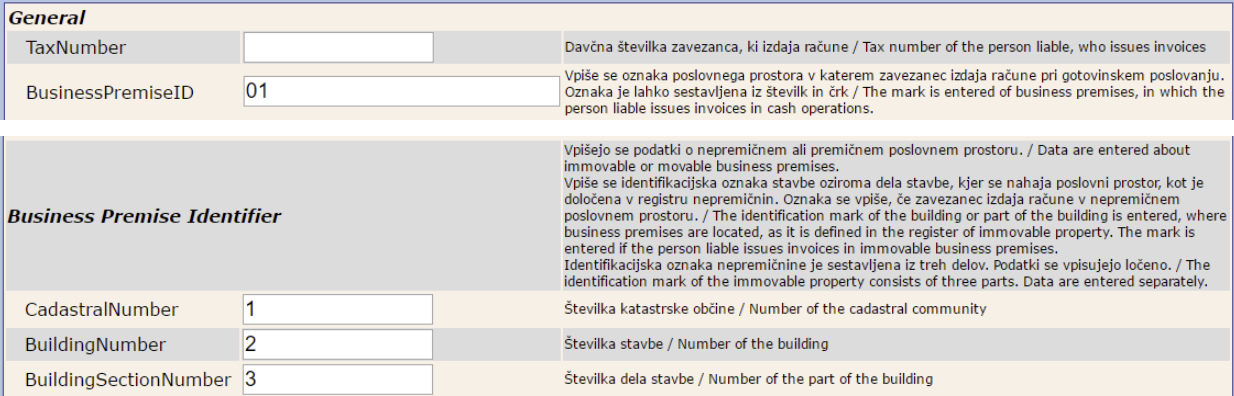
The location of the store(s) has to be entered and the message to the Fiscal System needs to refer to the corresponding Business premises ID with ESR.TL (Transaction Location) field.
Use [Poslji podatke / Send Data] Button to save and send the data to FURS. The data was sent correctly if the green OK bar is shown.
Fields
| Name | Required | Type / Format |
|---|---|---|
| TaxNumber | Yes | Number(8) |
| BusinessPremiseID | Yes | Varchar(20) |
| CadastralNumber | Yes, if available* | Number(4) |
| BuildingNumber | Yes, if available* | Number(5) |
| BuildingSectionNumber | Yes, if available* | Number(4) |
| Street | Yes, if available* | Varchar(100) |
| HouseNumber | Yes, if available* | Varchar(10) |
| HouseNumberAdditional | Yes, if available* | Varchar(10) |
| Community | Yes, if available* | Varchar(100) |
| City | Yes, if available* | Varchar(40) |
| PostalCode | Yes, if available* | Varchar(4) |
| PremiseType | Yes, if no address is available (webshop, mobile shop, etc...) | Varchar(1) |
| ValidityDate | Yes | Format: DD.MM.YYYY |
| ClosingTag | Yes, in cases of closure | Possible Value: Z |
| TaxNumber.2 | Yes, if software provider is in Slovenia | Number(8) |
| NameForeign | Yes, if software provider is not in Slovenia | Varchar(1000) |
| SpecialNotes | No | Varchar(1000) |
* If
PremiseTypehas a value, these fields have to be empty
ESR Format
Transaction data is sent to EFR as XML or JSON web request. See ESR – "efsta Simple Receipt" Format (efsta Simple Receipt) request and response format.
The following fields have specific meaning when generating the message to the fiscal system:
| Attribute | Name | Message fields affected |
|---|---|---|
| ESR.D | Date Time | IssueDateTime |
| ESR.TL | Transaction Location | BusinessPremiseID |
| ESR.TT | Transaction Terminal | ElectronicDeviceID |
| ESR.TN | Transaction Number | InvoiceNumber |
| ESR.T | Total | InvoiceAmount |
| ESR.OprTIN | Operator Tax Identification Number | OperatorTaxNumber |
For the OprTIN field, the tax number is entered by the individual (operator), who issues the invoice with the usage of the electronic device for issuing invoices. This data only required if the person has a Slovenian tax number. If left blank, the field "ForeignOperator" will automatically be set to "true" in the EFR.
In cases of issuing invoices via self-service electronic devices or when invoices are issued without the presence of individuals, the tax number of the company is entered instead.
Offline Transactions
If the fiscal acknowledge cannot be obtained within the timespan defined (5000 ms by default), the registration response is sent from EFR to the cash register software with an empty fiscal (EOR) tag. It is marked with Errorcode="#OFFLINE", contains a Sign tag instead of Fiscal, and the operator is informed with UserMessage="Sistem offline" during the first offline transaction (as to not interfere with cashier actions).
The offline transaction is stored in a separate folder, and an automatic retry is performed after a delay.
Retry Handling
Automatic retry is performed for all offline transactions, whereas the retry interval is increased up to one hour as long as the fiscal system is not accessible. The final, successful fiscal retry is logged into the fiscal journal file, so the whole transaction is tracked. If retries remain unsuccessful, EFR returns a UserMessage once a day.
According to fiscal law, network repair has to be performed within 48 hours.
Financial Year
If the financial year of your business does not start in January, you can change it to a different month with the FinancialYear-setting in EFR profile.
Document Numbering
ESR.FN is generated by EFR as a gapless sequence, starting at 1 with every fiscal year (see Financial Year). It is made up of the business premise, the terminal and the counter, and non-fiscal documents are numbered in their own sequence:
| Document | Format | Example |
|---|---|---|
| Invoice (fiscal) | {TL}-{TT}-{counter} | 1-1-1234 |
| Non-fiscal document | NFS {TL}-{TT}-{counter} | NFS 1-1-1234 |
System Reinstallation
Available from EFR version 2.12.0.
When a cash register is replaced or reinstalled, the counter starts at 1 again. This can lead to numbering values being sent to the tax authority a second time. To continue the numbering of the previous system instead, the last Fiscal Number issued can be entered in EFR.
1. Activate the attribute
In the client's Profile page (http://localhost:5618/profile), activate the attribute Fiscal_Set_Last_FN:

The attribute is removed automatically once the value has been saved, so it has to be activated again before entering the next Last Fiscal Number.
2. Enter the last Fiscal Number
Go to http://localhost:5618/control, section "Document Numbering". The page shows the last Fiscal Number sent and, if a value is already waiting, the number that will be used by the next transaction.

[Save] has to be clicked twice: the first click only asks for a confirmation.
- Enter the number in the format shown above, exactly as it was issued by the previous system. The format also decides which sequence is continued, e.g.
NFS 1-1-1234continues the non-fiscal numbering. - The value is used by the next transaction of that sequence only, afterwards the numbering continues normally.
- The counter cannot go back behind the last Fiscal Number issued, and TL and TT have to be the ones of the selected client.
- The value is applied in the fiscal year it was entered in.
On a multi client EFR (profile attribute RN_TT is set) the register has to be selected in the URL, e.g. http://localhost:5618/control?RN=1/1. Without the RN parameter the default client def is shown and the value would be set for the wrong register.
VAT Handling
For signature purposes, single receipt / control positions are to be assigned to the following tax groups:
| Tax group | TaxG | Tax rate |
|---|---|---|
| Osnovna stopnja DDV | A | 22% |
| Prvič po znižani stopnji DDV | B | 9.5% |
| Skupni znesek zalog so oproščene DDV in druge ugodnosti | Z | 0% |
This is achieved either by directly expressing TaxG="A" (A-Z) or by matching of value if the percent value is denoted.
For details see Tax Group Assignment.
Test/Playground Environment
For testing, transactions should be fiscalized against the playground system. Therefore the profile has to be set to fiscal test mode.
Please set this attribute and confirm with Save.
Fiscal Certificate Handling
By law, receipts have to be digitally signed. The certificate used (company specific containing the TaxId) is issued via the fiscal authority's online system. Certificate file and password are confidential. On page http://localhost:5618/control you can upload the certificate file:

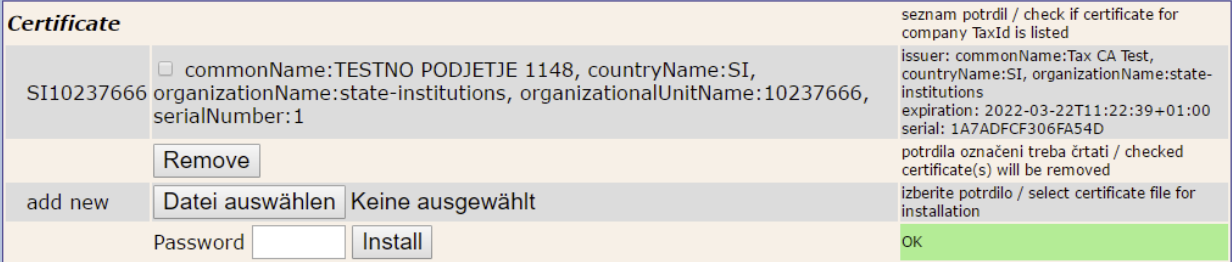
The certificate was installed correctly if the green OK bar is shown.
Certificates can be obtained at datoteke.fu.gov.si
Windows
The certificate is kept in the Windows Certificate Store (non exportable). It can be uploaded locally using the EFR web interface or distributed within a company network using Microsoft administrative tools. In that case, please make sure that the EFR service has sufficient rights to use the fiscal certificate for signature.
Linux
The certificate files are kept locally in directory EFR/cer/SI
Certificate assignment
As long as only one fiscal certificate is installed, or the TaxId of all certificates installed is unique, this TaxId is automatically assigned to the transaction protocol and the appropriate certificate (test/productive) is used ('no touch installation').
If the TaxId of the installed certificates is not unique, or if multiple companies are registering through one EFR instance (e.g. running as cloud service), TaxId has to be specified in client profile http://localhost:5618/profile
Network Access
The Slovenian fiscal law stipulates online registration of each sale transaction via web request. The resulting transaction acknowledge (EOR) has to be printed on the receipt. Therefore the machine running EFR must be granted access to the fiscal system FURS. Network devices (Router, Firewall) have to be configured accordingly or a web proxy is used.
The hosts for the firewall settings can be found in chapter firewall setting.
A proxy can be defined in the default profile at http://localhost:5618/profile
The connection can be tested using the "Echo"-feature on http://localhost:5618/control

Specifics
Tax ID of the operator
In Slovenia it is necessary to provide the cashier’s TaxId. This must be done with the attribute ESR.OprTIN. See also Sale of items