EFR Sweden
Quick Start
Step 1 – EFR API Integration
This onboarding guide was written to assist efsta customer’s with the efsta Portal and EFR setup after the POS has been integrated to the EFR API. For EFR API Documentation, please refer to API
Step 2 – efsta Portal
Set up the efsta Portal.
Creating Organizations, Companies & Locations
First you will receive an invitation to our efsta Portal. If you still require an invite, please get in touch with our team at ticket@efsta.eu.
For each of the following sections, you have the option between an active or inactive setup (for testing). Please make sure to follow the steps appropriate to your demands.
For testing/sandbox purposes, please create a test-organization with test-companies and test-EFRs. If you test with an active/live EFR, an invoice will automatically be issued (unless deactivated within the same day).
- Testing Setup
- Active Setup
Testing Organizations
organizations are used for structuring in the efsta portal. We recommend creating a separate organization for each country (e.g. Customer AT, Customer FR)
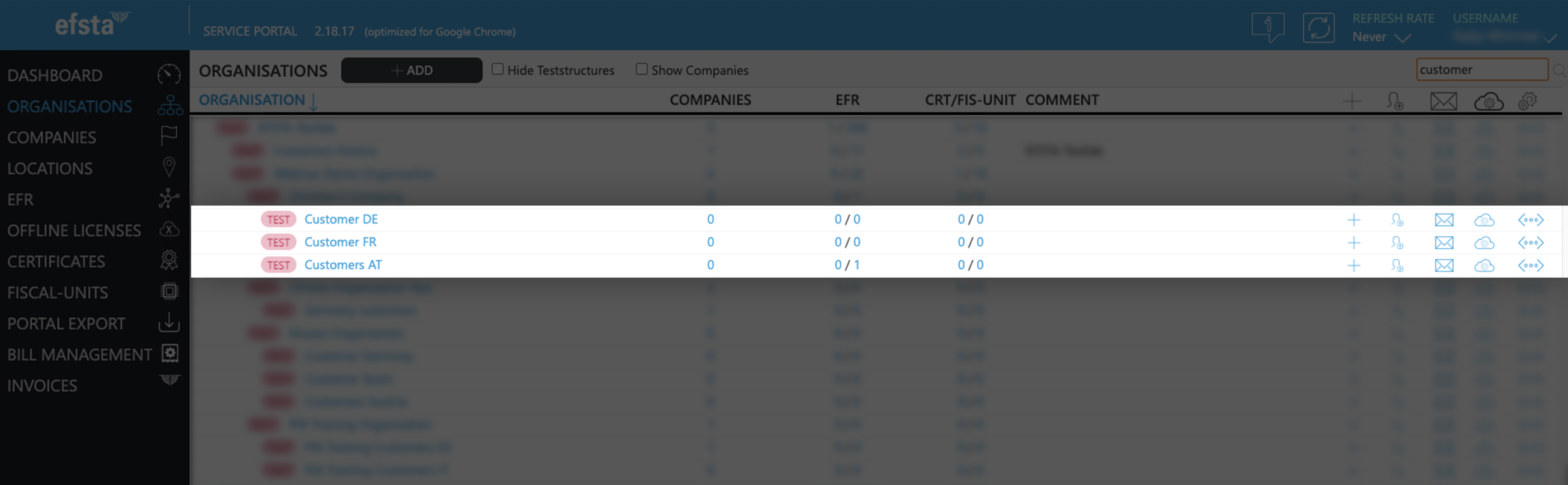
- On the main page of the efsta portal, click on “organizations” in the left side menu

- Click on „Add“

- In the pop up window, select your organization from the drop-down menu
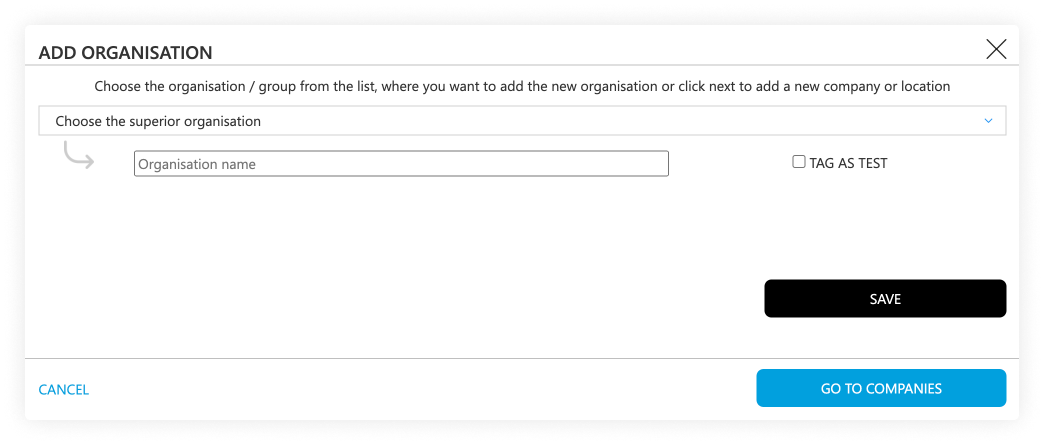
- Enter the name of the test-organization you want to create
(f.e. “efsta IT Services Gmbh Test Organization”) - Tick the "tag as test" checkbox
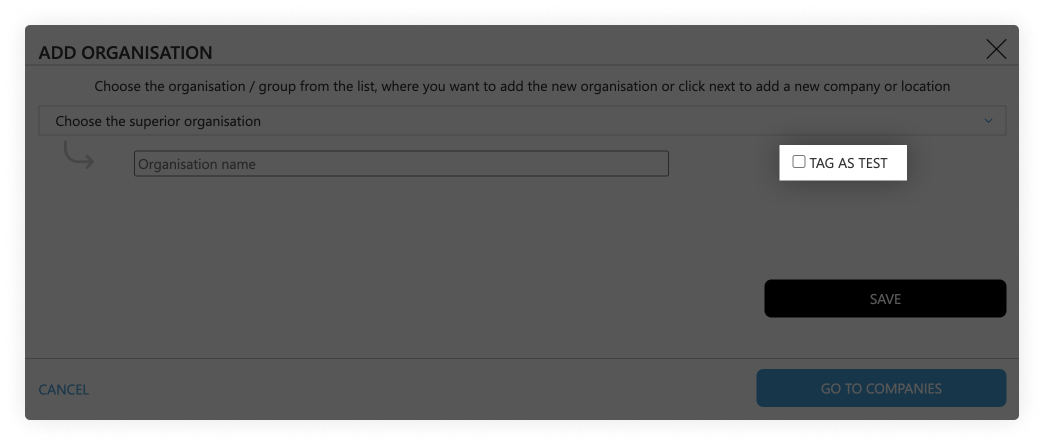
- Click on the save button
Testing Companies
- Go to the page „Companies“

- Click on the „Add“ button

- In the pop-up window, select the test-organization that was just created
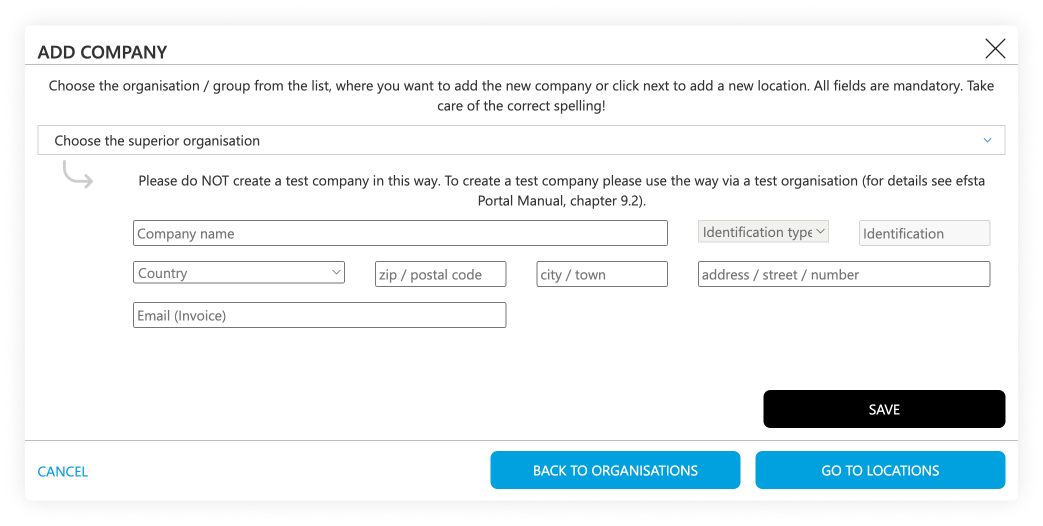
- Select the correct country
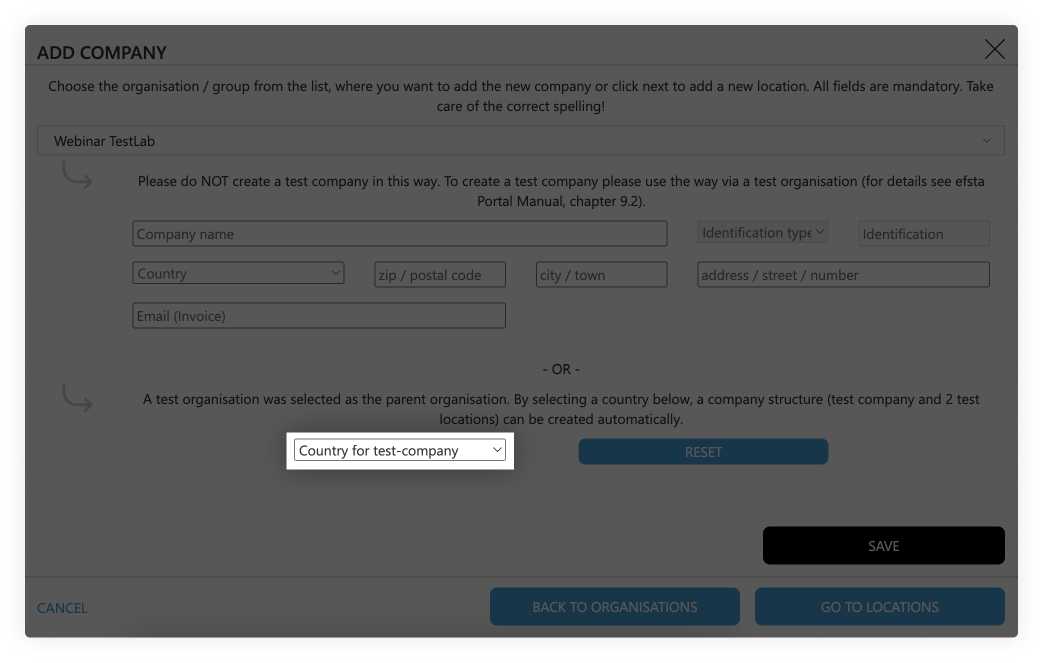
- Click on the save button
Testing Locations
Test-companies are automatically created with two location sites for testing purposes.
Active Organizations
Organizations are used for structuring in the efsta portal. We recommend creating a separate organization for each country (e.g. Customer AT, Customer FR)
- On the main page of the efsta portal, click on “organizations” in the left side menu
- Click on „Add“
- In the pop up window, select your organization from the drop-down menu
- Enter the name of the organization you want to create
(f.e. “efsta IT Services Gmbh Organization”) - Click on the save button
Active Companies
- Go to the page „Companies“
- Click on the „ADD“ button
- In the pop-up window, select the organization that was just created
- Select the correct country
- Enter the company data. At identification type, choose „EUROPE VAT-id“, country specific tax number, or GLN number if applicable
- Click on the save button
 DE | Germany
For German companies you can add the WIdNr (Wirtschafts-Identifikationsnummer) – this is currently optional but will be mandatory from 01.01.2027 onwards as requirement for the german reporting obligation.
Active Locations
- Go to „Locations“ in the left side menu

- Click on „Add“
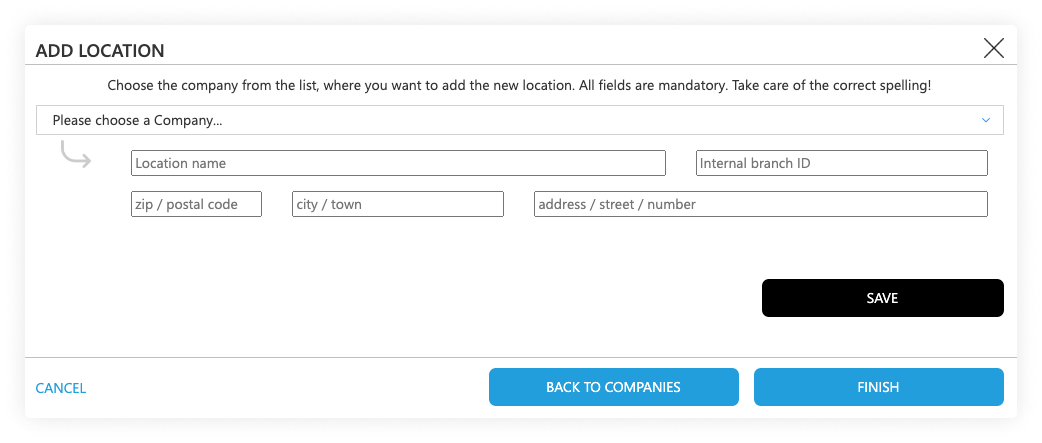
- In the pop-up window, select the company you just created
- Enter the location information
- The internal branch ID should match with the TL which you send in the transactions
Inviting Users & Permissions
After you have finished your organization structure, you can invite users to manage the correlating organization, depending on where they should have access.
User Invitations & Permission Setting
- Go back to “Organizations” page and the find your top organization
- On the right side (next to the organization, company, or location) click on the "add user" symbol:

- In the pop-up window, enter the mail address of the person you want to invite to the Portal and select the permissions you want to assign to them:
- Editor: can edit data, create companies and deactivate EFR
- Viewer: Read-only access with optional data sharing permissions
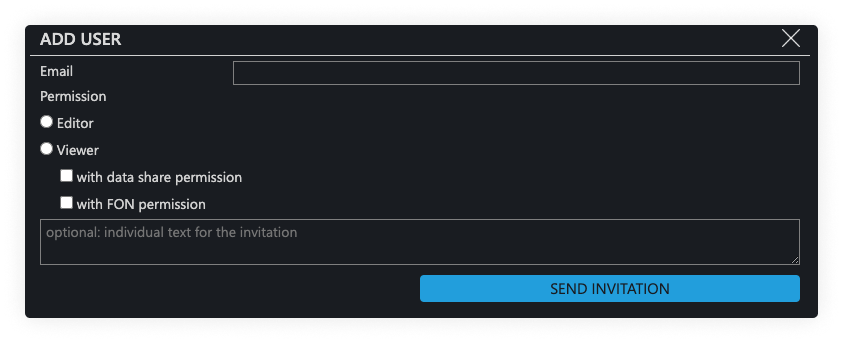
- Click on the button „send invitation“ so the invited person will receive an email with a registration token
The invitation is valid for 10 days.
-
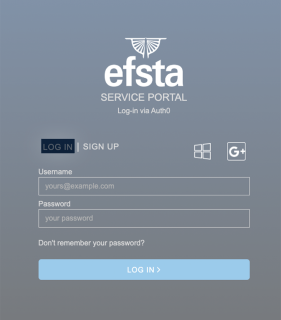
- The user to whom the invitation was sent has to sign up with their mail address and a custom password
- Alternatively, they can also sign up with a Google or Microsoft account
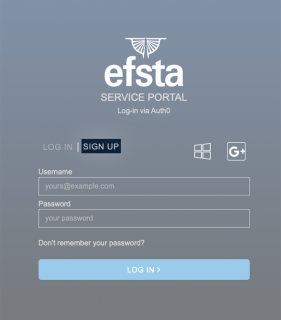
- After the registration was completed, they can log in
Step 3 - Local Installation // Web-API
At this point, there are two different paths you can take with your setup: Local Installation or Cloud Installation. Please continue with only one of the following two steps:
If your POS runs locally (Windows, Linux, Android), continue with Step 3 below.
If your POS is fully cloud-based and requires no local installation, use Cloud EFR instead of Step 3.
See the Cloud EFR guide →System Requirements
System Requirements
- Operating System
- Windows 7 or higher
- Linux
- Android 8 or higher
- Typically 1 GB hard disk space reserved
- Minimum 100 MB per POS
- Administration rights during installation
- Internet access for cloud services
- EFR should run locally for fail-safety reasons.
- Cloud EFR can only be used for fully cloud-based POS systems. See Cloud EFR
- We recommend whitelisting the email address noreply@efsta.net when using a spam filter to ensure notifications from our efsta portal are delivered.
Firewall Settings
| Partner | Host | Used for |
|---|---|---|
| efsta cloud | https://*.efsta.net:443 https://fr.efsta.net:443 https://de-fr.efsta.net:443 | EFR in Online mode for archiving data |
Remote Signature
| Partner | Used for | Host | |
|---|---|---|---|
[AT]  | A-Trust | External HSM signature | https://hs-abnahme.a-trust.at:443 https://rksv.a-trust.at/ |
 | Prime-Sign | External HSM signature | https://rs-1f9e614c.ps.prime-sign.com:443 https://rs-2759ffb9.ps.prime-sign.com (please see note below) |
[BE]  | zwartedoos.be | Remote Test FDM | https://sdk.zwartedoos.be:443 |
[DE] | Deutsche Fiskal | Remote TSE | https://fiskal.cloud:443 |
| Fiskaly | Remote TSE | https://kassensichv.io:443 https://*.fiskaly.com:443 |
| Swissbit Cloud | Remote TSE Test | https://web-tse.de:443 https://dev.web-tse.de:443 |
[SE]  | Infrasec | Productive Test | https://ccu.infrasec.se:8449 https://ccu-verify.infrasec.se:8449 |
Please note that Prime-Sign has not just one HSM Server, but a cluster. If certificates are ordered using the efsta Cloud Portal, you'll see the host address in the portal. However, should the certificate be ordered through different channels, it is possible that it resides on a different server, using a different IP.
Fiscal Authority
| Partner | Used for | Host | |
|---|---|---|---|
[CZ]  | EET | Productive Test | https://prod.eet.cz:443 https://pg.eet.cz:443 |
[ES]  | VERI*FACTU | Productive Test | https://www1.agenciatributaria.gob.es https://prewww1.aeat.es |
| Araba | Productive Test | https://ticketbai.araba.eus https://pruebas-ticketbai.araba.eus | |
| Bizkaia | Productive Test | https://sarrerak.bizkaia.eus https://pruesarrerak.bizkaia.eus | |
| Gipuzkoa | Productive Test | https://tbai-z.egoitza.gipuzkoa.eus https://tbai-z.prep.gipuzkoa.eus | |
[HR]  | FINA | Productive Test | https://cis.porezna-uprava.hr:8449 https://cistest.apis-it.hr:8449 |
[PT]  | Productive | https://servicos.portaldasfinancas.gov.pt:422/SeriesWSService | |
[SI]  | FURS | Productive Test | https://blagajne.fu.gov.si:9003 https://blagajne-test.fu.gov.si:9002 |
Fiscal Devices
| Partner | Used for | Host | |
|---|---|---|---|
[BE] | zwartedoos.be | Productive NTP | *:443 *:123 |
Fiscal Printer
| Partner | Used for | Host | |
|---|---|---|---|
[HU]  | BBOX | Productive | 193.91.88.26:4791 |
[SK]  | BBOX | Productive | 193.91.88.26:4791 |
[IT]  | Epson | Productive | - |
| Custom | Productive | - |
[PL]  | Productive Productive Test Test | https://esb.mf.gov.pl:5062 https://e-kasy.mf.gov.pl https://esb-te.mf.gov.pl:5062 https://test-e-kasy.mf.gov.pl | |
| Exorigo | Productive Productive Test Firmware Update NTP NTP | crr-eh01-prd.servicebus.windows.net:443 crr-eh02-prd.servicebus.windows.net:443 crr-eh-we-tst.servicebus.windows.net:443 upfirm.exorigo-upos.pl:4433 tempus1.gum.gov.pl:123 tempus2.gum.gov.pl:123 |
- Local Installation
- Windows
- Linux
- Android
- Go to public.efsta.net and select the appropriate country
- Download the correct installers for your system
- Install the software
- Once finished, open a browser and enter “localhost:5618” in the address line
- The EFR user-interface will open
Windows
- Windows 7 or higher
- .msi from public.efsta.net
- Runs as Windows service
Linux
- .zip from public.efsta.net
- Run file install.sh
- Run automation recommended, e.g. with systemd
- Setup run automation with install.sh:
install.sh --service --service-user=USER
Required packages for USB/Serial devices:
libudev-dev
Required packages for smartcard use:
libpcsclite1 libpcsclite-dev pcscd build-essential libudev-dev
ATTENTION: Swissbit / GermanyIn order for the TSEs to properly work on arm64, the libffi library is needed on the system.
Most Linux distributions should come with this pre installed but it’s presence on the system can be checked with the following command:
dpkg -l | grep libffi
Which should produce an output similar to this:
ii libffi8:arm64 3.4.4-1 arm64 Foreign Function Interface library runtime


Android
- Android 8 or higher
- .apk from public.efsta.net
- Execute and install apk on the device
- Disable battery optimization on first start (even if device is always plugged in / has no battery)
- On the first start the app will ask whether to disable battery optimization. Disabling it is required to ensure the app can run in the background and will not be suspended by the OS. Please make sure to test if the app can run interruption-free on your specific device and android version.
Please make sure to keep the app's data or perform a backup/export of all data you want to keep BEFORE uninstalling. Default data deletion behavior can vary between different android device manufacturers.
Connecting the EFR see also API Profile
In order to connect the EFR with the efsta Portal (recorder: online), follow these steps:
- In the portal, navigate to “Companies” on the left side menu
- Open the properties of your company

- Locate and copy the badge number
If you are using a MultiCompany installation, the badge of an organization must be selected.
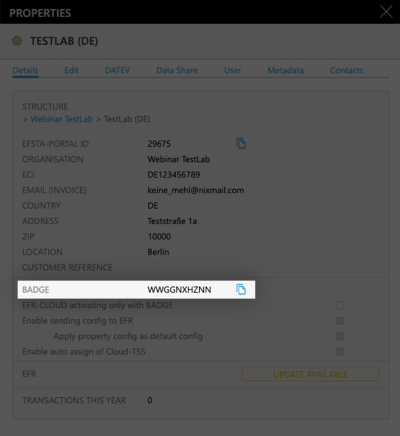
- In the EFR, go to "Profile" and paste the badge
(Optional) For MultiPOS & MultiCompany, tick the checkbox “RN/TT” at "Client Assignment" on
Please double check that the Badge is correct before saving since it cannot be changed after activation
MultiPOS is ONE installed EFR, managing multiple cash registers from the same company (usually a back-office server)
MultiCompany is ONE installed EFR, managing multiple companies, locations, and cash registers (only possible when cloud-hosting our EFR)
If you are interested in any of these two modes, please contact your partner manager for a consulting appointment!
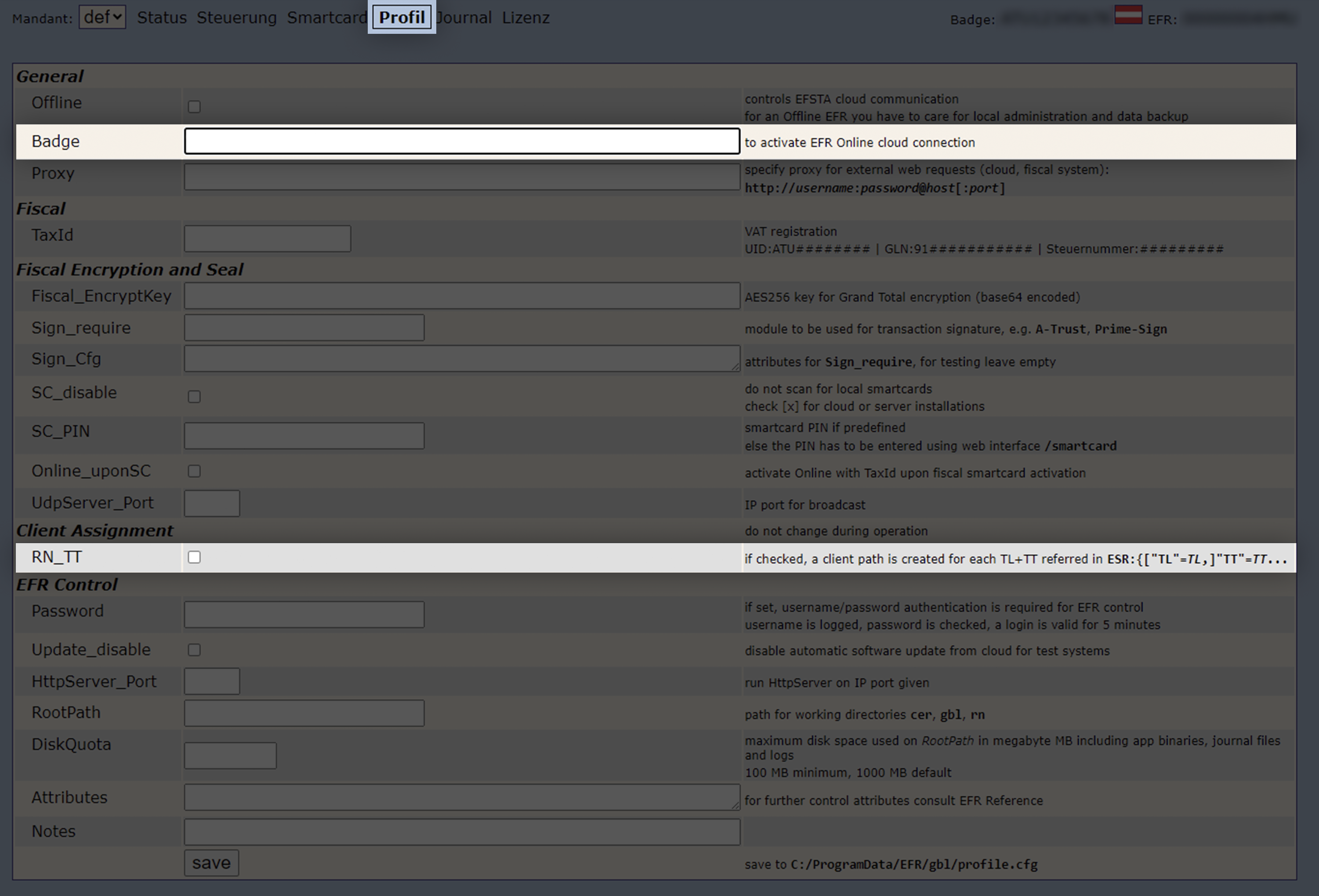
- Save the profile, so the communication to the efsta Portal is activated.
The EFR status will change to “Online”.
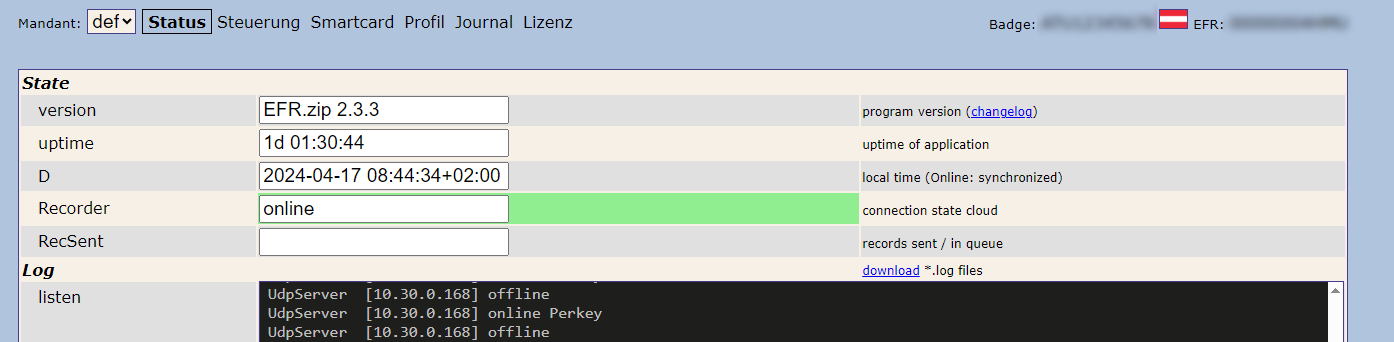
Please allow communication to the efsta Portal through your firewall. If not, it will cause connection issues.
For automated / scripted deployments, EFR Profile settings can also be configured via environment variables. See: ENV-based EFR Profile Configuration (Advanced)
Step 4 – Certification
Certification for efsta EFR Sweden & integrated TCS.
Introduction
This testing scheme is intended for you, the POS provider, who are certifying a new or altered cash register application (POS) with the efsta EFR and integrated Tax Compliance System (Kontrollsystem) from Infrasec Sweden AB (Tax Compliance System (Kontrollsystem), TCS). The POS connects to the EFR API, as described in the EFR Reference and EFR SE documentation. Completed certification means that the POS provider has created the conditions to receive control codes according to the Swedish Tax Agency regulations SKVFS 2021:17 and guidance SKV M 2021:32, in production, with the certified efsta EFR API (and integrated TCS) and tested business case functionality accordingly.
The certification is executed by the POS provider in cooperation with efsta/Infrasec where receipts, lists and extracts of the POS provider’s results are verified. The certification does not apply to the POS application as a whole, but only the integration of the efsta EFR and TCS. The POS provider is responsible for maintaining knowledge and requesting renewed certification if functions in the POS application are changed in such a way that existing tested business cases are handled differently.
The POS application is certified for the functions completed in the test plan. If, for example, an application would choose not to include the ”Pro forma” receipt function from the test plan, a ”Pro forma” receipt function is not included in the certification. In addition, if there are additional business cases, please add these to the test plan before certification. Only certified business cases in the test plan are allowed to be used in production.
The certificate is issued by efsta/Infrasec after completion and verification of the test plan, and production (Pilot) for a period of at least 14 days and at least 100 receipts (including all business cases in the test plan). If the POS application is server based, then the pilot must include transactions from at least 3 different cash registers.
Overall activities for approved certification
- Verify that the POS application fulfils the interface according to the EFR SE documentation
- Verify that the POS application has all the functions needed to handle information from the EFR and the TCS correctly
- Verify receipts and reports
- Verify a daily closure report, while in pilot, containing control codes for examination
The test cases to be executed
- Register status (EFR takes care of this automatically on POS start)
- Normal sale with 25% VAT rate
- Normal sale with 12% VAT rate
- Normal sale with 6% VAT rate
- Normal sale with 0% VAT rate
- Normal sale with 25%, 12%, 6%, 0% VAT rate
- Normal refund with 25%, 12%, 6%, 0% VAT rate
- Receipt copy with 25%, 12%, 6%, 0% VAT rate
- Practice receipt with 25%, 12%, 6%, 0% VAT rate
- Proforma receipt with 25%, 12%, 6%, 0% VAT rate
Business Cases
The certification is carried out in efsta/Infrasec’s verification environment. In this environment, it is possible to re-start the test cases until verification has been completed. After verification is completed, the recorded tests in the TCS are transferred into the production environment and can be subject to inspection from Skatteverket. Data in production cannot be deleted or reset. If the EFR/TCS is not available, you are not allowed to create a receipt. efsta/Infrasec recommends that the register create a cash invoice (outside of the cash register regulation scope), as a fallback, in case of communication issues with the EFR/TCS. If the EFR/TCS cannot be reached, please integrate a user message warning and allow the cashier to create a cash invoice. Please make sure to implement this fallback procedure before validation and self-declaration of conformity.
Preparation
The POS provider prepares all business cases within the test plan for certification:
- Disregard the inapplicable business cases if a certain tax group or pro forma function doesn’t apply. Please document in the test plan, if a business case does not apply.
- Define any additional test cases for the certified POS application that need to be included in the certification to ensure flawless service in the deployed EFR and TCS integration
Testing
The POS provider must test all business cases with his test register according to the following procedure:
- Inform efsta about which test register/EFR is intended to be used during the certification phase. efsta will send approval to the POS provider to begin the certification after verifying that this register is ready to be certified with the EFR and TCS.
- Following the test plan (you will receive from the efsta team) and executing every test thoroughly and in an uninterrupted sequence. Document the results of each business case in the Test plan and note eventual deviations. The name of the test needs to be written on each receipt (screenshot) for easy feedback at the verification. For example the name of the first test is 4.1.1. Please send us by email the first two business cases, so we can check that the tests are done correctly.
- Sending all business case receipts (with corresponding business case names) and completed test plan to the efsta Consulting team, ticket@efsta.eu.
Manufacturer-Declaration
In consultation with efsta, submitting the POS provider’s declaration of conformity and test protocol (templates provided from efsta), by registering with Skatteverket. According to the Swedish Tax Procedure Act (skatteförfarandelag 2011:1244), a cash register must be certified. According to the Swedish Tax Agency’s guidance, the requirements are fulfilled when the cash register has a manufacturer-declaration and a certified control unit / control system. In Sweden, only manufacturer-declared cash registers are approved for use. This means that as a supplier/manufacturer of cash registers, you are required to have a manufacturer’s declaration, which proves that your cash register complies with the Swedish Tax Agency’s regulations on requirements for cash registers.
To declare a cash register, you must complete the form Manufacturer's declaration (SKV 1509) and send it to the Swedish Tax Agency. You can download the form SSKV 1509 from Swedish Tax Agency’s website.
Then, proceed by sending it to the following address:
The Swedish Tax Agency (Skatteverket)
205 30 Malmö
Sweden
The form must provide that:
- The model / program has been tested together with a certified control unit / control system
- The test methods and the results of the tests must be included in a test log (see here)
It is not officially regulated how comprehensive the test logs need to be.
Step 5 – Cash Register Registration
If you have a cash register, you must register it by law with the Swedish Tax Agency (Skatteverket).
Registration of cash register & control system (for end customers)
The easiest way to register possession of your cash register and control system is via the Swedish Tax Agency's e-service for cash register. In order to use their e-service, you will need an electronic ID.
Here is the link to a guide provided by the Swedish Tax Administrations, where you can find a detailed explanation on how to register new control systems and cash registers.
After submitting the registration form, it takes around one month to receive the certificate of registration. At the same time, you will receive labels that show the registration number of the control system and cash register. You must stick these labels on the cash register so that the labels are clearly visible for the controllers of Swedish Tax Administration.
You can start using the cash register as soon as you have reported it to the Swedish Tax Administration. In other words, you don’t need to wait until you get the labels before you can get started. Just add them to the registers once you received the labels. For more information, see this page.
Step 6 - efsta Implementation Checklist
Before going live, you must submit the implementation checklist for validation. To acquire access, please contact your partner manager.
Please be aware that our consulting team requires 2–4 weeks to complete the review.