E-Invoicing Guide
Use Cases
Sending
As of right now, there is only one way to send an E-Invoice, though another will be added for your convenience soon:
- sending directly from the transaction
- sending an existing invoice as E-Invoice via the Portal (unavailable)
From Transactions
This is the most common approach and follows the process described in the Quickstart Guide.
To trigger the E-Invoicing module in the transaction:
- Specify the
DDfield (Document Delivery)- e.g.,
DD="IT".
- e.g.,
- If required, also provide the (Document Delivery To)
DDtofield.
If you include these fields in the transaction you send to the EFR, the invoice will also be delivered as E-Invoice.
From the Portal (Unavailable)
This feature is currently not available, but planned in a future release
You will be able to go through your invoices in the portal, select one, and send it as an E-Invoice at a later time as well. This is useful if the electronic delivery was not triggered at the time of the original transaction but needs to be done afterwards, e.g. when a customer asks for an invoice at a later point in time.
Correcting
There are several use cases for correcting invoices. Depending on the scenario, different actions are required.
Delivery Error
It is very important to fill in the ContactElectronicMail field in the configuration to ensure the creator of the E-Invoice receives an email notification in case of an error.
How a delivery error is corrected depends on the country:


 Belgium, Germany, France

 Italy, Poland
If an error occurs in the buyer data, the E-Invoice is held and an email notification will get sent to the email address specified in ContactElectronicMail. The email contains a detailed description of the error, as well as a link to correct the specific invoice's data and resend it.
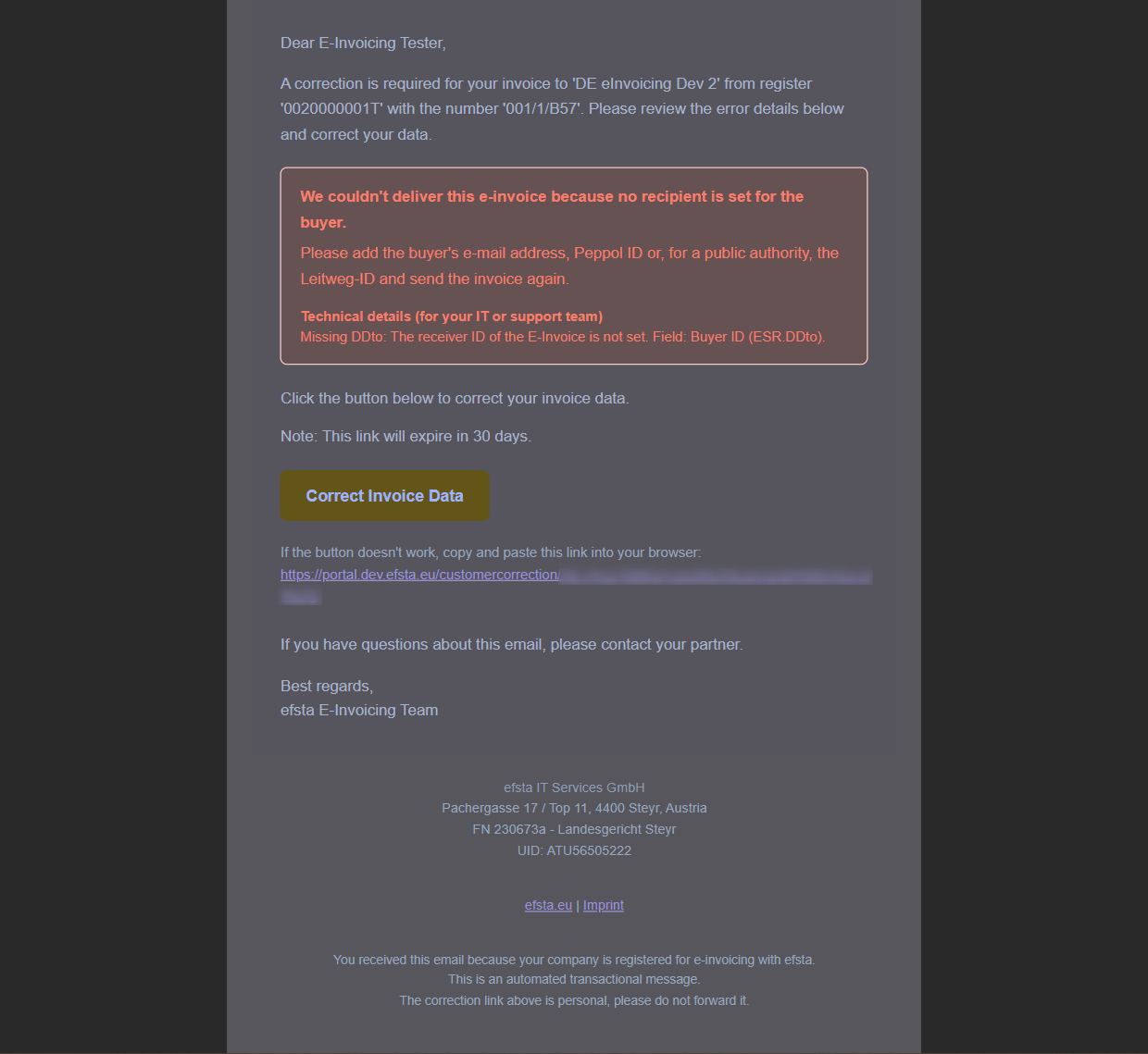
Clicking the link within the email will lead you to the correction page in the efsta Portal where you can correct the available data and resend the E-Invoice.

These fields of the buyer can be corrected:
| Field | Error |
|---|---|
ESR.DDto |
|
ESR.Ctm.TaxId |
|
The correction page shows only the field of the error, filled with the current value. In Germany the corrected recipient decides the delivery: an email address is delivered as B2B by email, a Leitweg-ID as B2G via Peppol.
The E-Invoice can also be corrected in the efsta Portal without the email: in the Archive it has the status Customer correction in progress, and the button Correct opens the same correction page. This also works after the link of the email has expired.
The link is valid for 30 days and can be used once. Every other error is not sent by email: it is shown with the E-Invoice in the Portal, see Monitoring.
If an error occurs during delivery, an email notification will get sent to the email address specified in ContactElectronicMail. The email contains a detailed description of the error, as well as a link to correct the specific invoice's data and resend it.
The previously generated E-Invoice is also attached.
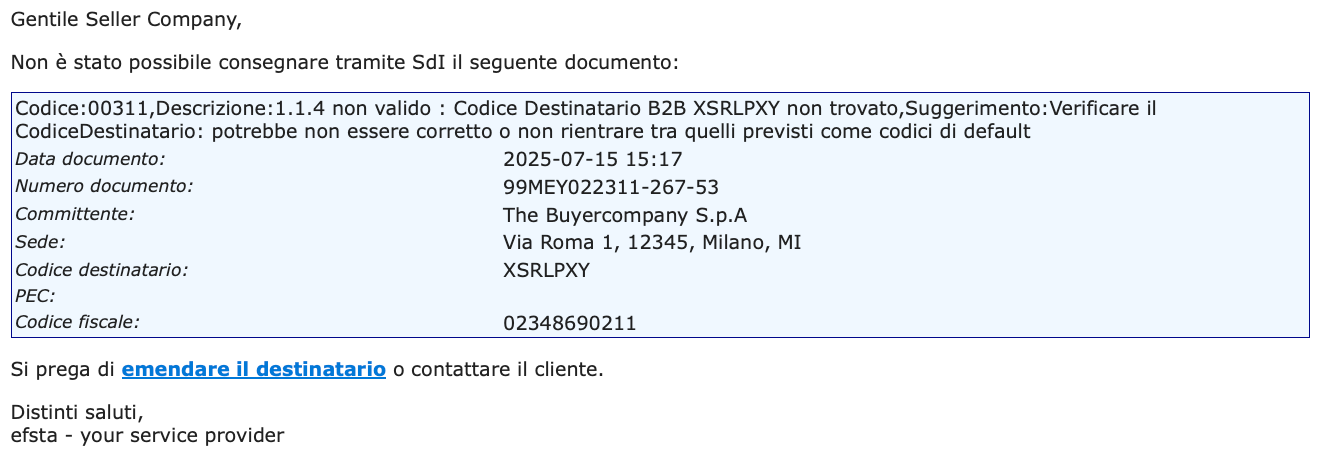
Clicking the link within the email will lead you to a setup page for the EFR where you can correct the available data and resend the E-Invoice.
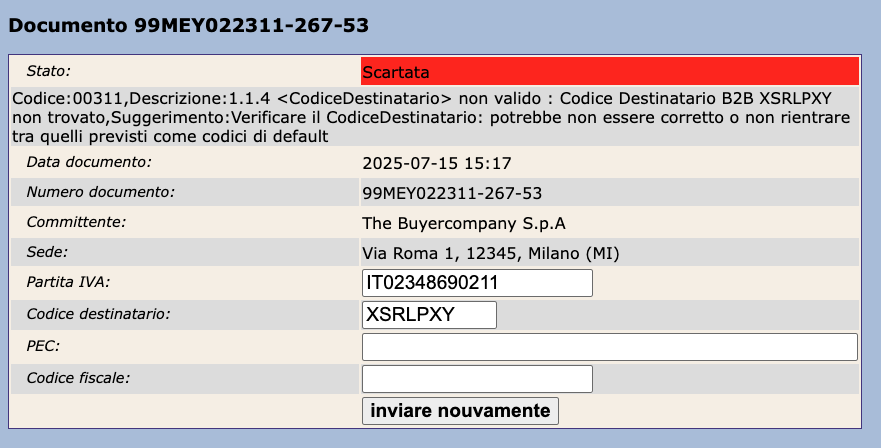
These fields of the buyer can be corrected:
| Country | Fields |
|---|---|
|
|
|
|
Modify Recipient
If you need to modify customer-related data such as the name, address or TaxId, this can be done via the portal.
Process
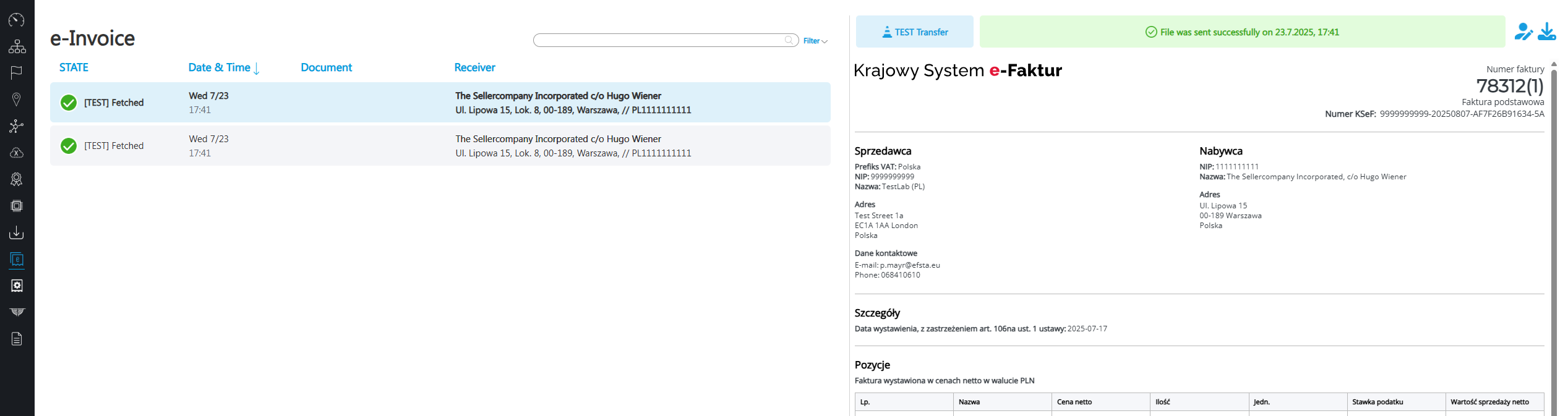
With a click on the edit button (which is right next to the blue download button) a new window opens where its possible to update the recipient of the selected E-Invoice.
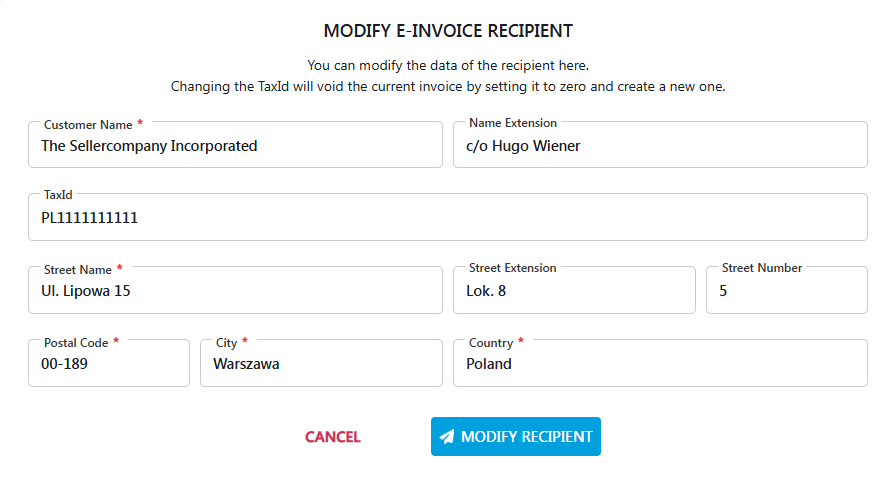
Changing the TaxId will automatically void the current E-Invoice and issue a new one with the updated TaxId.
This feature is only available in Poland. Please contact your partner manager about enabling it in other countries, if required.
Monitoring
Monitoring can take place in the Portal. This includes filtering the available E-Invoices.
Monitoring
We always use the latest standards and requirements for displaying E-Invoices. This means that even older E-Invoices can be viewed and downloaded with the current standards.
- The Portal provides an overview of the E-Invoices created for each company.
- You can also see whether the invoice was sent successfully or if an error occurred.
- Furthermore, you can filter results by date or status.
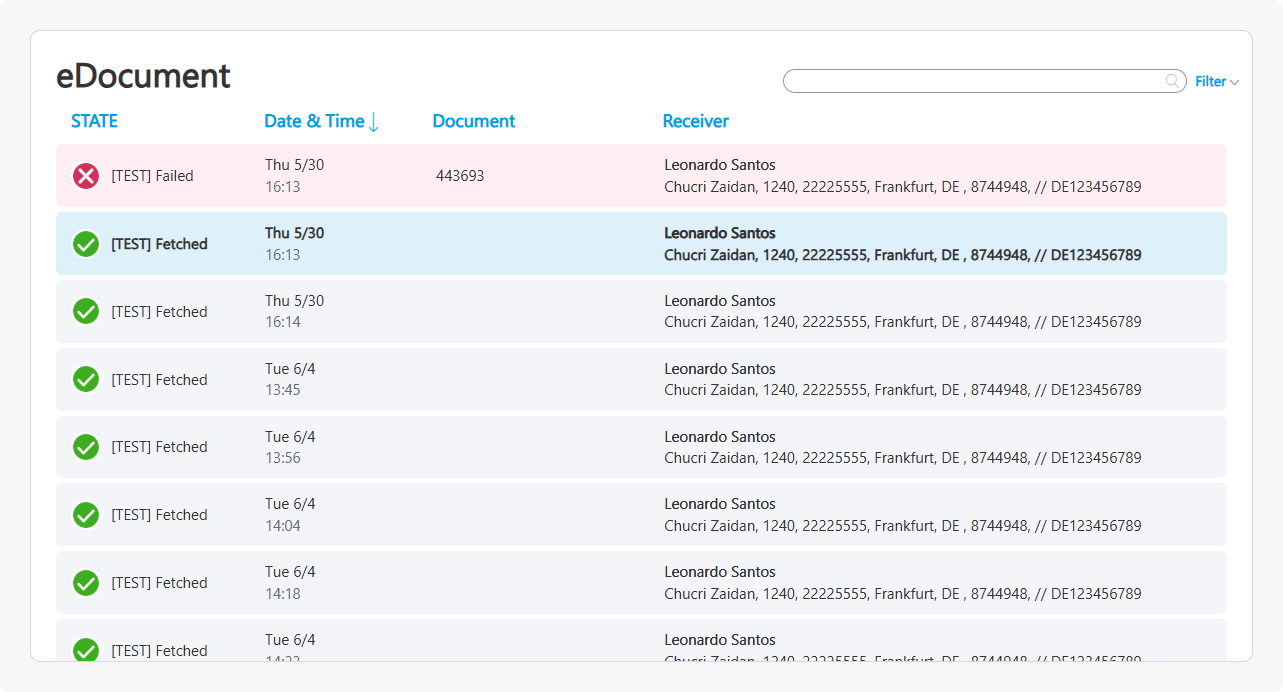
When an invoice is opened, it is displayed on the right side, offering more details about the invoice.
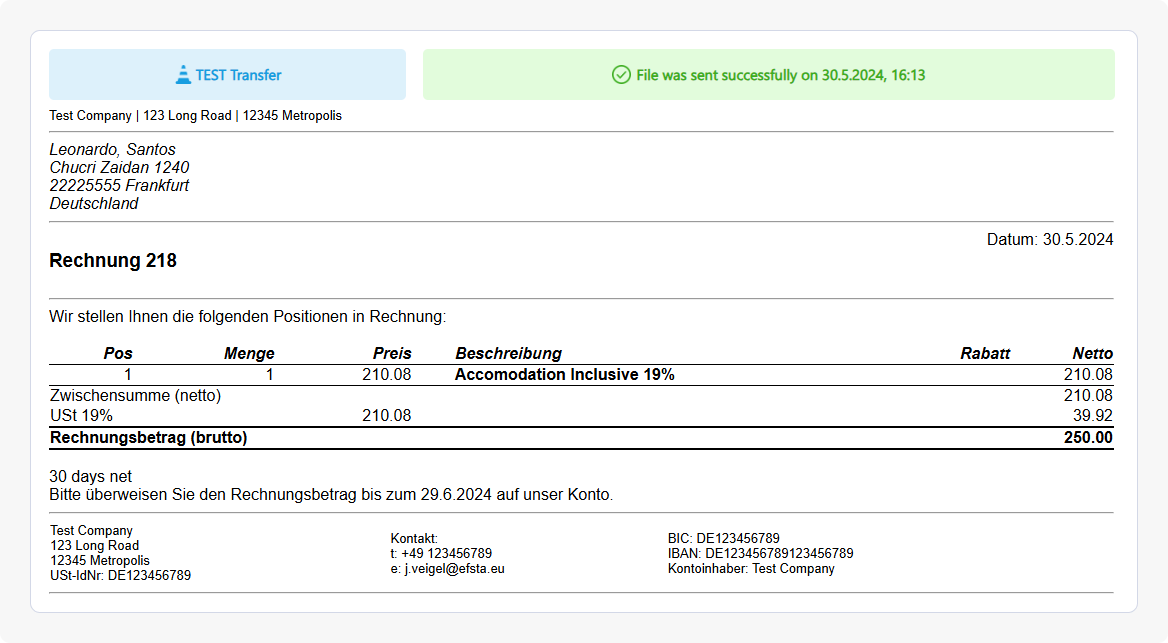
If an error has occurred, you will see a detailed description of the error in the banner above.