installation
At this point, there are two different paths you can take with your setup: Local Installation or Cloud Installation. Please continue with only one of the following two steps:
If your POS runs locally (Windows, Linux, Android), continue with Step 3 below.
If your POS is fully cloud-based and requires no local installation, use Cloud EFR instead of Step 3.
See the Cloud EFR guide →System Requirements
System Requirements
- Operating System
- Windows 7 or higher
- Linux
- Android 8 or higher
- Typically 1 GB hard disk space reserved
- Minimum 100 MB per POS
- Administration rights during installation
- Internet access for cloud services
- EFR should run locally for fail-safety reasons.
- Cloud EFR can only be used for fully cloud-based POS systems. See Cloud EFR
- We recommend whitelisting the email address noreply@efsta.net when using a spam filter to ensure notifications from our efsta portal are delivered.
Firewall Settings
| Partner | Host | Used for |
|---|---|---|
| efsta cloud | https://*.efsta.net:443 https://fr.efsta.net:443 https://de-fr.efsta.net:443 | EFR in Online mode for archiving data |
Remote Signature
| Partner | Used for | Host | |
|---|---|---|---|
[AT]  | A-Trust | External HSM signature | https://hs-abnahme.a-trust.at:443 https://rksv.a-trust.at/ |
 | Prime-Sign | External HSM signature | https://rs-1f9e614c.ps.prime-sign.com:443 https://rs-2759ffb9.ps.prime-sign.com (please see note below) |
[BE]  | zwartedoos.be | Remote Test FDM | https://sdk.zwartedoos.be:443 |
[DE]  | Deutsche Fiskal | Remote TSE | https://fiskal.cloud:443 |
| Fiskaly | Remote TSE | https://kassensichv.io:443 https://*.fiskaly.com:443 |
| Swissbit Cloud | Remote TSE Test | https://web-tse.de:443 https://dev.web-tse.de:443 |
[SE]  | Infrasec | Productive Test | https://ccu.infrasec.se:8449 https://ccu-verify.infrasec.se:8449 |
Please note that Prime-Sign has not just one HSM Server, but a cluster. If certificates are ordered using the efsta Cloud Portal, you'll see the host address in the portal. However, should the certificate be ordered through different channels, it is possible that it resides on a different server, using a different IP.
Fiscal Authority
| Partner | Used for | Host | |
|---|---|---|---|
[CZ]  | EET | Productive Test | https://prod.eet.cz:443 https://pg.eet.cz:443 |
[ES]  | VERI*FACTU | Productive Test | https://www1.agenciatributaria.gob.es https://prewww1.aeat.es |
| Araba | Productive Test | https://ticketbai.araba.eus https://pruebas-ticketbai.araba.eus | |
| Bizkaia | Productive Test | https://sarrerak.bizkaia.eus https://pruesarrerak.bizkaia.eus | |
| Gipuzkoa | Productive Test | https://tbai-z.egoitza.gipuzkoa.eus https://tbai-z.prep.gipuzkoa.eus | |
[HR]  | FINA | Productive Test | https://cis.porezna-uprava.hr:8449 https://cistest.apis-it.hr:8449 |
[PT]  | Productive | https://servicos.portaldasfinancas.gov.pt:422/SeriesWSService | |
[SI]  | FURS | Productive Test | https://blagajne.fu.gov.si:9003 https://blagajne-test.fu.gov.si:9002 |
Fiscal Devices
| Partner | Used for | Host | |
|---|---|---|---|
[BE] | zwartedoos.be | Productive NTP | *:443 *:123 |
Fiscal Printer
| Partner | Used for | Host | |
|---|---|---|---|
[HU]  | BBOX | Productive | 193.91.88.26:4791 |
[SK]  | BBOX | Productive | 193.91.88.26:4791 |
[IT]  | Epson | Productive | - |
| Custom | Productive | - |
[PL]  | Productive Productive Test Test | https://esb.mf.gov.pl:5062 https://e-kasy.mf.gov.pl https://esb-te.mf.gov.pl:5062 https://test-e-kasy.mf.gov.pl | |
| Exorigo | Productive Productive Test Firmware Update NTP NTP | crr-eh01-prd.servicebus.windows.net:443 crr-eh02-prd.servicebus.windows.net:443 crr-eh-we-tst.servicebus.windows.net:443 upfirm.exorigo-upos.pl:4433 tempus1.gum.gov.pl:123 tempus2.gum.gov.pl:123 |
- Local Installation
- Windows
- Linux
- Android
- Go to public.efsta.net and select the appropriate country
- Download the correct installers for your system
- Install the software
- Once finished, open a browser and enter “localhost:5618” in the address line
- The EFR user-interface will open
Windows
- Windows 7 or higher
- .msi from public.efsta.net
- Runs as Windows service
Linux
- .zip from public.efsta.net
- Run file install.sh
- Run automation recommended, e.g. with systemd
- Setup run automation with install.sh:
install.sh --service --service-user=USER
Required packages for USB/Serial devices:
libudev-dev
Required packages for smartcard use:
libpcsclite1 libpcsclite-dev pcscd build-essential libudev-dev
ATTENTION: Swissbit / GermanyIn order for the TSEs to properly work on arm64, the libffi library is needed on the system.
Most Linux distributions should come with this pre installed but it’s presence on the system can be checked with the following command:
dpkg -l | grep libffi
Which should produce an output similar to this:
ii libffi8:arm64 3.4.4-1 arm64 Foreign Function Interface library runtime


Android
- Android 8 or higher
- .apk from public.efsta.net
- Execute and install apk on the device
- Disable battery optimization on first start (even if device is always plugged in / has no battery)
- On the first start the app will ask whether to disable battery optimization. Disabling it is required to ensure the app can run in the background and will not be suspended by the OS. Please make sure to test if the app can run interruption-free on your specific device and android version.
Please make sure to keep the app's data or perform a backup/export of all data you want to keep BEFORE uninstalling. Default data deletion behavior can vary between different android device manufacturers.
Connecting the EFR see also API Profile
In order to connect the EFR with the efsta Portal (recorder: online), follow these steps:
- In the portal, navigate to “Companies” on the left side menu

- Open the properties of your company

- Locate and copy the badge number
If you are using a MultiCompany installation, the badge of an organization must be selected.
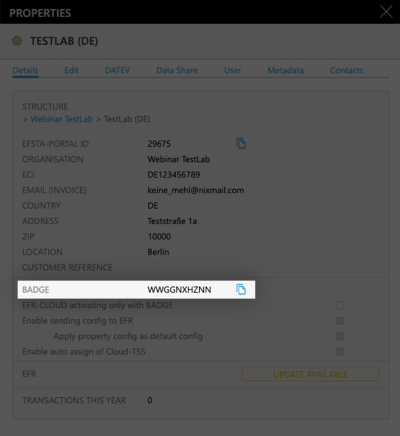
- In the EFR, go to "Profile" and paste the badge
(Optional) For MultiPOS & MultiCompany, tick the checkbox “RN/TT” at "Client Assignment" on
Please double check that the Badge is correct before saving since it cannot be changed after activation
MultiPOS is ONE installed EFR, managing multiple cash registers from the same company (usually a back-office server)
MultiCompany is ONE installed EFR, managing multiple companies, locations, and cash registers (only possible when cloud-hosting our EFR)
If you are interested in any of these two modes, please contact your partner manager for a consulting appointment!
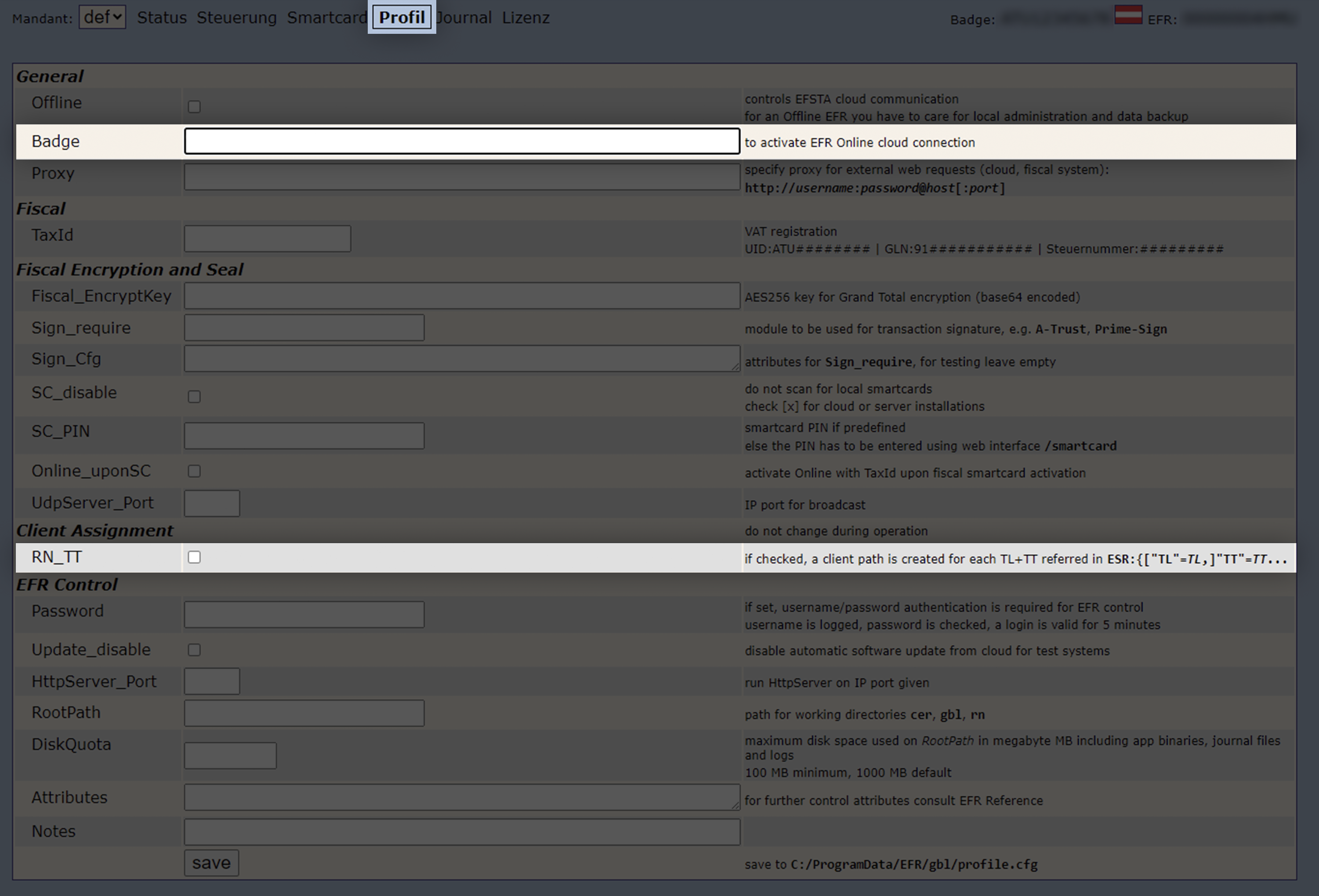
- Save the profile, so the communication to the efsta Portal is activated.
The EFR status will change to “Online”.
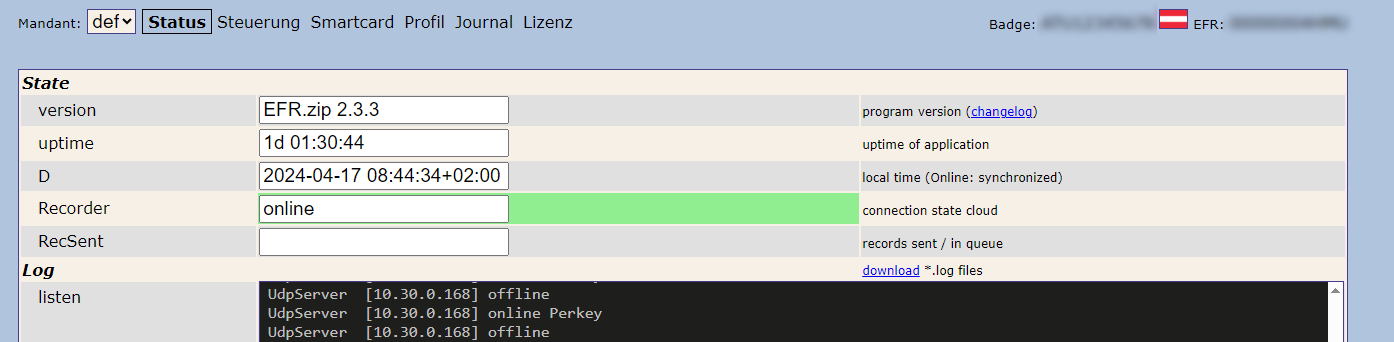
Please allow communication to the efsta Portal through your firewall. If not, it will cause connection issues.
For automated / scripted deployments, EFR Profile settings can also be configured via environment variables. See: ENV-based EFR Profile Configuration (Advanced)