EFR Portugal
Quick Start
Compared to other country implementations, for Portugal the EFR is intended to perform the whole receipt creation including printout to conform with software certification rules (CERTIFICAÇÃO DE SOFTWARE MODELO 24) of the Tax Authority.
System Requirements
System Requirements
System Requirements
- Operating System
- Windows 7 or higher
- Linux
- Android 8 or higher
- Typically 1 GB hard disk space reserved
- Minimum 100 MB per POS
- Administration rights during installation
- Internet access for cloud services
- EFR should run locally for fail-safety reasons.
- Cloud EFR can only be used for Cloud POS.
Firewall Settings
| Partner | Host | Used for |
|---|---|---|
| efsta cloud | https://*.efsta.net:443 https://fr.efsta.net:443 https://de-fr.efsta.net:443 | EFR in Online mode for archiving data |
Remote Signature
| Partner | Used for | Host | |
|---|---|---|---|
[AT]  | A-Trust | External HSM signature | https://hs-abnahme.a-trust.at:443 https://rksv.a-trust.at/ |
 | Prime-Sign | External HSM signature | https://rs-1f9e614c.ps.prime-sign.com:443 https://rs-2759ffb9.ps.prime-sign.com (please see note below) |
[BE]  | zwartedoos.be | Remote Test FDM | https://sdk.zwartedoos.be:443 |
[DE]  | Deutsche Fiskal | Remote TSE | https://fiskal.cloud:443 |
| Fiskaly | Remote TSE | https://kassensichv.io:443 https://*.fiskaly.com:443 |
[SE]  | Infrasec | Productive Test | https://ccu.infrasec.se:8449 https://ccu-verify.infrasec.se:8449 |
Please note that Prime-Sign has not just one HSM Server, but a cluster. If certificates are ordered using the efsta Cloud Portal, you'll see the host address in the portal. However, should the certificate be ordered through different channels, it is possible that it resides on a different server, using a different IP.
Fiscal Authority
| Partner | Used for | Host | |
|---|---|---|---|
[CZ]  | EET | Productive Test | https://prod.eet.cz:443 https://pg.eet.cz:443 |
[ES]  | VERI*FACTU | Productive Test | https://www1.agenciatributaria.gob.es https://prewww1.aeat.es |
| Araba | Productive Test | https://ticketbai.araba.eus https://pruebas-ticketbai.araba.eus | |
| Bizkaia | Productive Test | https://sarrerak.bizkaia.eus https://pruesarrerak.bizkaia.eus | |
| Gipuzkoa | Productive Test | https://tbai-z.egoitza.gipuzkoa.eus https://tbai-z.prep.gipuzkoa.eus | |
[HR]  | FINA | Productive Test | https://cis.porezna-uprava.hr:8449 https://cistest.apis-it.hr:8449 |
[PT]  | Productive | https://servicos.portaldasfinancas.gov.pt:422/SeriesWSService | |
[SI]  | FURS | Productive Test | https://blagajne.fu.gov.si:9003 https://blagajne-test.fu.gov.si:9002 |
Fiscal Devices
| Partner | Used for | Host | |
|---|---|---|---|
[BE] | zwartedoos.be | Productive NTP | *:443 *:123 |
Fiscal Printer
| Partner | Used for | Host | |
|---|---|---|---|
[HU]  | BBOX | Productive | 193.91.88.26:4791 |
[SK]  | BBOX | Productive | 193.91.88.26:4791 |
[IT]  | Epson | Productive | - |
| Custom | Productive | - |
[PL]  | Productive Productive Test Test | https://esb.mf.gov.pl:5062 https://e-kasy.mf.gov.pl https://esb-te.mf.gov.pl:5062 https://test-e-kasy.mf.gov.pl | |
| Exorigo | Productive Productive Test Firmware Update NTP NTP | crr-eh01-prd.servicebus.windows.net:443 crr-eh02-prd.servicebus.windows.net:443 crr-eh-we-tst.servicebus.windows.net:443 upfirm.exorigo-upos.pl:4433 tempus1.gum.gov.pl:123 tempus2.gum.gov.pl:123 |
EFR Installation
See: EFR > Installation
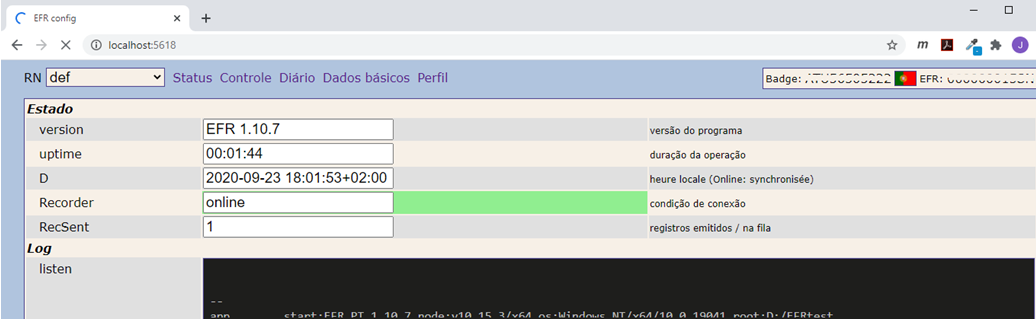
Basic execution tracking can be examined via web access http://localhost:5618/
Additional Linux packages
Required packages if using a USB printer: libudev-dev
Printer Installation
For direct EFR printout of fiscal and non fiscal transaction receipts a printer is required.
- Epson TM-T88 or compatible
- via USB, LAN or RS232
The printer must be capable of graphic printing, as a QR code on receipts is required by law from January 2021 on. For older printers without native QR support the EFR QR graphics generation can be used.
To setup the printer connection in EFR, navigate to "Perfil" and enter Printer=Epson_TM

See the additional steps below, depending on the communication interface. After having saved the profile data, restart your computer.
USB
Windows:
- Connect your compatible printer to the system
- Download zaxdig driver
- Run zadig.exe
- Select "TM-T800F TM-T900F" from the list (you may have to enable the "List All Devices" option first)
- "Install Driver" or "Replace Driver"
Linux:
- Install package libudev-dev
apt-get install -y libudev-dev - In case of LIBUSB access errors, the accessibility of USB interfaces has to be configured, e.g. insert in
/lib/udev/rules.d/50-udevdefault.rules:SUBSYSTEM=="usb", ATTRS{idVendor}=="04b8", ATTRS{idProduct}=="0201", MODE="0666"
LAN
Use following attributes to configure a LAN-connection: Printer=Epson_TM Printer_Port=ETH:10.0.0.123
Serial
Use following attributes to configure a serial connection: Printer=Epson_TM Printer_Port=COM1:57600
Network Access
The machine running EFR must be granted access to the fiscal system for cloud services and fiscal portal. Network devices (Router, Firewall) have to be configured accordingly.
| Environment | Host | Port |
|---|---|---|
| efsta Cloud | fr.efsta.net | 443 |
| Fiscal portal | servicos.portaldasfinancas.gov.pt | 422 |
| Fiscal portal (test) | servicos.portaldasfinancas.gov.pt | 722 |
A proxy can be defined in the default profile http://localhost:5618/profile
Configuration
Before sending the first transaction, the company header sales data should be configured. This can be done manually or via request.
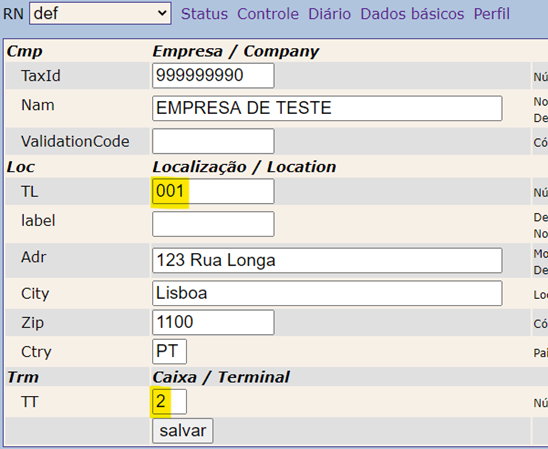
One of the key requirements for a fiscal journal is the unique identification of documents (transactions). As the incremental numbering of documents is created per cash register, each register has a specific ID consisting of TL (Transaction Location) and TT (Transaction Terminal).
Single Client (RN_SINGLE)
On systems running a local EFR using one single client (RN), save the settings for TL & TT and do not specify it in your request:
Multi Client (RN_MULTI)
In EFR server mode managing multiple clients, set RN_TT in "Perfil":

In this case, specify TL and TT (see EFR Reference) in your request so a separate storage area is created per client (directory /EFR/rn/{TL}_{TT}/), managing its own number range.
API-Key
For certification and field usage of EFR you have to obtain a partner specific API-Key from your efsta sales representative, which has to be entered in "Perfil".
Cloud Configuration
For centralized administration, base data can be set per cash register terminal (EFR) using the efsta cloud portal and the data is duplicated to the EFR instances.
Programmatic Configuration
Alternatively you can supply the header fields with POST http://localhost:5618/cfg:
<Cfg>
  <Cmp TaxId="PT999999999" Nam="My Company" ValidationCode="ATCD"/>
  <Loc TL="1" label="1" Adr="123 Long Road" Zip="12345" City="Lisboa" Ctry="PT"/>
  <Trm TT="1"/>
</Cfg>
{
	"Cfg": {
		"Cmp": {
			"TaxId": "PT999999999",
			"Nam": "My Company",
			"ValidationCode": "ATCD"
		},
		"Loc": {
			"TL": "1",
			"label": "1",
			"Adr": "123 Long Road",
			"Zip": "12345",
			"City": "Lisboa",
			"Ctry": "PT"
		},
		"Trm": {
			"TT": "1"
		}
	}
}
Further details for /cfg can be found in EFR Reference.
Manual Configuration
Navigate to http://localhost:5618 in your browser and open "Dados básicos" (base data). Enter the field values required and the data will be duplicated to efsta cloud.
Field reference
| Element | Attribute | Description |
|---|---|---|
| Cmp | Company header | |
| Nam | Company name | |
| TaxId | Intra-Community VAT identifier | |
| ValidationCode | Validation Code | |
| Loc | Location (store) header | |
| TL | Transaction Location correlating ESR.TL | |
| Adr | Address | |
| Zip | PostCode | |
| City | City | |
| Ctry | Country | |
| Trm | Terminal | |
| TT | Transaction Terminal correlating ESR.TT |
If fields Loc.TL and Trm.TT are persisted using /cfg, they may be omitted in the /register ESR element. For simplicity, ESR.TL and ESR.TT are not shown in further example transactions of this document.
First Test Transaction
The cash register software communicates with the EFR via REST web service. You can simulate this behavior before beginning to implement the actual interface. To do this, please install a REST client of your choice.
Parameters for the web request are:
| Element | Parameter |
|---|---|
| URL | http://localhost:5618/register |
| Method | POST |
| Payload | Transaction data as XML or JSON |
Example XML transaction
<Tra>
  <ESR T="3.98" TN="1234" Opr="555">
    <PosA>
      <Pos PN="1" Dsc="Pão de centeio integral 500g" TaxG="C" Amt="1.49" />
      <Pos PN="2" Dsc="COLGATE Escova dente dura" TaxG="A" Amt="2.99" />
      <Mod PN="2" Dsc="Promoção" Amt="-0.50" />
    </PosA>
    <PayA>
      <Pay Dsc="Numerário" Amt="5.00" />
      <Pay Dsc="Mudança" Amt="-1.02" />
    </PayA>
  </ESR>
</Tra>
{ "Tra": {
  "ESR": { "T":3.98, "TN":1234, "Opr":"555",
    "PosA": [
      { "_":"Pos", "PN":1, "Dsc":"Pão de centeio integral 500g", "TaxG":"C", "Amt":1.49 },
      { "_":"Pos", "PN":2, "Dsc":"COLGATE Escova dente dura", "TaxG":"A", "Amt":2.99 },
      { "_":"Mod", "PN":2, "Dsc":"Promoção", "Amt":-0.50 }
    ],
    "PayA": [
      { "Dsc":"Dinheiro", "Amt":5.00 },
      { "Dsc":"Mudança", "Amt":-1.02 }
    ]
  }
}}
Response
The returned answer provides you with the http state and ResultCode RC.
<TraC SQ="4">
  <Result RC="OK"/>
  <ESR TL="001" TT="2" D="2022-09-24T14:53:45" FN="FS 001_2.22/1">
    <TaxA>
      <Tax TaxG="A" Prc="23" Net="2.02" TAmt="0.47" Amt="2.49"/>
      <Tax TaxG="C" Prc="6" Net="1.41" TAmt="0.08" Amt="1.49"/>
    </TaxA>
  </ESR>
  <Fis>
    <Payload>2022-09-24;2022-09-24 14:53:45;FR 001_2/1;3.98;</Payload>
    <Signature>EWZM3...xhK0=</Signature>
    <Code>...</Code>
    <Tag Label="Número:" Value="FS 001_2.22/1" Name="FN"/>
    <Tag Label="Data:" Value="2022-09-24 14:53:45" Name="Date"/>
    <Tag Label="" Value="EH+U-Processado por programa certificado 9999/AT" Name="Sec"/>
    <Tag Label="ATCUD:" Value="AAJFFY3FCG-1" Name="ATCUD"/>
  </Fis>
</TraC>
The response contains automatically assigned fields, the <TaxA> array supplemented by EFR, and the fiscal security data including signature. In this example, EFR built-in tax groups TaxG are referred (see Appendix). When using your system's tax codes, please provide the <TaxA> array. The <Code> field contains the data to be printed as QR (version 9, M) on the ticket.
Workflow Rules
For details and data structures see EFR Reference.
| HTTP | RC | Meaning |
|---|---|---|
| 200 | OK | Proceed with the final steps (store transaction) |
| 406 | NO | Show error message based on field ErrorCode the transaction may be repeated after operator intervention |
| 400 | BAD | BAD signals a formal or logical error correct transaction data before resending |
The <Tag> lines have to be printed on the receipt using the label given.
Fiscal Implementation
Implementation Portuguese Fiscal Rules
Automatic ESR Fields
For detailed description of fields see EFR Reference. As described above RN_SINGLE, ESR.TL and ESR.TT should be omitted in favor of setting base parameters.
Also omit field ESR.D, as the transaction date is treated very restrictively by law. This will allow EFR to set its own reliable time, which is synchronized with cloud time in online mode.
Operator ID Opr
To each transaction, the cash register operator ID shall be assigned. Provide this in the field ESR.Opr (and optionally ESR.OprN), default is the username logged in (operating system).
Alternatively you can use separate non-fiscal Logon / Logoff transactions:
<Tra>
  <ESR TN="1233" NF="LOGON" Opr="555" OprN="Ana"/>
</Tra>
<Tra>
  <ESR TN="1250" NF="LOGOFF"/>
</Tra>
VAT Handling
For signature purposes, single receipt/control positions are to be assigned to the following tax groups:
| Tax group | Prc | Description |
|---|---|---|
| A | 23 | Normal |
| AM | 22 | Normal (Madeira) |
| AA | 18 | Normal (Azores) |
| B | 13 | Intermédia |
| BM | 12 | Intermédia (Madeira) |
| BA | 9 | Intermédia (Azores) |
| C | 6 | Reduzida |
| CM | 5 | Reduzida (Madeira) |
| CA | 4 | Reduzida (Azores) |
| M01 | 0 | Artigo 16.º n.º 6 do CIVA (ou similar) |
| M02 | 0 | Artigo 6.º do Decreto-Lei n.º 198/90, de 19 de Junho |
| M03 | 0 | Exigibilidade de Caixa |
| M04 | 0 | Isento Artigo 13.º do CIVA (ou similar) |
| M05 | 0 | Isento Artigo 14.º do CIVA (ou similar) |
| M06 | 0 | Isento Artigo 15.º do CIVA (ou similar) |
| M07 | 0 | Isento Artigo 9.º do CIVA (ou similar) |
| M08 | 0 | IVA – autoliquidação |
| M09 | 0 | IVA - não confere direito a dedução |
| M10 | 0 | IVA – Regime de isenção |
| M11 | 0 | Regime particular do tabaco |
| M12 | 0 | Regime da margem de lucro – Agências de viagens |
| M13 | 0 | Regime da margem de lucro – Bens em segunda mão |
| M14 | 0 | Regime da margem de lucro – Objetos de arte |
| M15 | 0 | Regime da margem de lucro – Objetos de coleção e antiguidades |
| M16 | 0 | Isento Artigo 14.º do RITI (ou similar) |
| M20 | 0 | IVA - Regime forfetário |
| M99 | 0 | Não sujeito; não tributado (ou similar) |
This is achieved either by directly expressing TaxG="A" (A-F) or by matching of value if the percent value is denoted. For tax exemptions set the appropriate code in field Pos.TaxG.
Reduced Tax Rates for Madeira & Azores
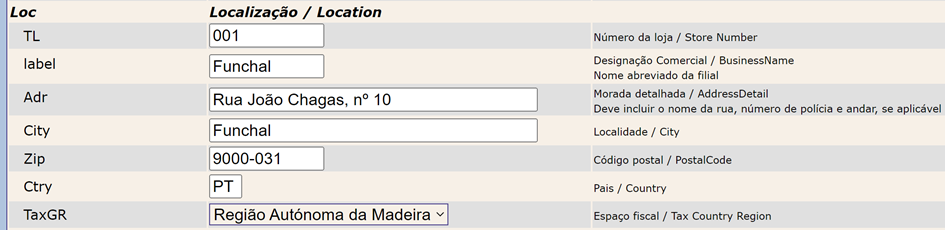
For Portuguese islands, reduced tax rates are valid. Extend TaxG with "M" for Madeira and "A" for Azores.
For stores in these regions you have to set field TaxGR in "Dados básicos", "Location":
Payment Groups
SAF-T expects payment mechanism specification for payment line. By default, this is derived from <Pay Dsc=... field using a string match list, but it can also be specified in field PayG. If you want to do so, please refer to "SAF-T Payment Group Codes".
| PayG | Description | Descrição |
|---|---|---|
| CC | Credit card | Cartão crédito |
| CD | Debit card | Cartão débito |
| CH | Bank cheque | Cheque bancário |
| CI | International Letter of Credit | Crédito documentário internacional |
| CO | Gift cheque or gift card | Cheque ou cartão oferta |
| CS | Balance compensation in current account | Compensação de saldos em conta corrente |
| DE | Electronic Money, for example, on fidelity or points cards | Dinheiro eletrónico, por exemplo residente em cartões de fidelidade ou de pontos |
| LC | Commercial Bill | Letra comercial |
| MB | Payment references for ATM | Referências de pagamento para Multibanco |
| NU | Cash | Numerário |
| OU | Other means not mentioned | Outros meios aqui não assinalados |
| PR | Exchange of goods | Permuta de bens |
| TB | Banking transfer or authorized direct debit | Transferência bancária ou débito direto autorizado |
| TR | Non-wage compensation titles regardless of their support (paper or digital format), e.g. meal or education vouchers, etc. | Títulos de compensação extrassalarial independentemente do seu suporte, por exemplo, títulos de refeição, educação, etc. |
SAF-T Document Type Codes
| DT | Description | descrição |
|---|---|---|
| FT | Invoice | Fatura, emitida nos termos do artigo 36.º do Código do IVA |
| FS | Simplified Invoice issued according to article 40 of the VAT code | Fatura simplificada, emitida nos termos do artigo 40.º do Código do IVA |
| FR | Invoice-receipt (default) | Fatura-recibo |
| ND | Debit note | Nota de débito |
| NC | Credit note (default for negative transaction) | Nota de crédito |
| Insurance sector | Para o setor Segurador | |
| RP | Premium or premium receipt | Prémio ou recibo de prémio |
| RE | Return insurance or receipt of return insurance | Estorno ou recibo de estorno |
| CS | Imputation to co-insurance companies | Imputação a co-seguradoras |
| LD | Imputation to a leader co-insurance company | Imputação a co-seguradora líder |
| RA | Accepted reinsurance | Resseguro aceite |
Unique Transaction ID / FN / ATCUD
Usually, each transaction in cash register systems gets an incremental transaction number, but the fiscal rules determine numbering per document type (e.g. invoice, credit note, ...). You can register your transaction number in the ESR field TN as reference, but a separate Fiscal Number FN will be assigned and stored in the journal. The current number part is reset to 1 with each year's first transaction.
Fiscal Signature
A digital signature is created for each transaction and cryptographically chained according to law, parts of the signature are printed in receipt trailer line "Processado por programa certificado...". Since the signature is included in SAF-T [PT] export data, the fiscal authority will verify signature values and chain.
Receipt Layout
The receipt print layout is controlled in /EFR/rn/def/cfg/fiscal.ejs (or .pug).
EJS/Pug (ejs.co/pugjs.org) are templating languages to transform JSON data into HTML. Afterwards, the formatted HTML is rendered for a character font receipt printer. A basic layout is provided by default, whereas details of print configuration can be found in EFR Reference.
Transactions
Normal Sale / Fatura Simplificado
<Tra>
  <ESR T="3.98" TN="1234" Opr="555">
    <PosA>
      <Pos PN="1" Dsc="Pão de centeio integral 500g" TaxG="C" Amt="1.49" />
      <Pos PN="2" Dsc="COLGATE Escova dente dura" TaxG="A" Amt="2.99" />
      <Mod PN="2" Dsc="Promoção" Amt="-0.50" />
    </PosA>
    <PayA>
      <Pay Dsc="Numerário" Amt="5.00" />
      <Pay Dsc="Mudança" Amt="-1.02" />
    </PayA>
  </ESR>
</Tra>
Credit Note / Nota de credito
As with other countries using fiscal printers, mixing positive (sales) and negative (return/void) positions within one transaction is not allowed and will lead to a <TraC><Result RC="BAD"> response. Please inform your cashiers to do this in two separate steps instead.
To accept data from applications which do not remove lines, but immediately void unwanted scans, negative (return/void) positions are allowed as long as they correspond to positive positions within the same transaction.
Transactions with negative total (e.g. ESR.T="-3.98") are automatically registered as credit notes "Nota de Crédito", which are printed showing inverted amounts and quantities. You have to reference the original transaction in fields ESR.RFN (or ESR.RTL, ESR.RTT, ESR.RTN) and Pos.RPN. Also specify a reason for SAF-T export:
<Tra>
  <ESR T="-3.98" ... RFN="FS 001_1.22/1234" Rsn="Jacket did not fit">
...
Voiding Documents / Anulação
Mark the transaction with <ESR ... Void="1", specify RFN and send the positions inverted. You will not get a <Fis> tag in the response, as the void trigger itself is not signed. The original ticket is flagged as voided (InvoiceStatus=A) in SAF-T. For voiding the last transaction, /register/void/last may be used (see EFR Reference).
Invoice / Fatura
For sales exceeding EUR 1000,- an invoice FT "Fatura" is issued instead of FS "Fatura simplificado". For this, customer data including the customer's TaxId NIF is required:
<Tra>
  <ESR T="1008.98" …>
        <Ctm TaxId="PT199998132" Nam="Nuno Cazeiro" Adr="Rua do Porto, 33" City="Carcavelos" Zip="2775-543" Ctry="PT"/>
...
If a ticket (with lower ESR.T) is registered including <Ctm TaxId=, FT will be used as well.
<Ctm> information without TaxId is shown as unknown customer (CustomerTaxID=Desconhecido) in SAF-T, with the document type FS.
Automatic Tax Computation
If element TaxA is omitted, it is computed from Pos and Mod elements.
<Tra>
  <ESR T="3.98" TN="1234" Opr="555">
    <PosA>
      <Pos PN="1" Dsc="Pão de centeio integral 500g" TaxG="C" Amt="1.49" />
      <Pos PN="2" Dsc="COLGATE Escova dente dura" TaxG="A" Amt="2.99" />
      <Mod PN="2" Dsc="Promoção" Amt="-0.50" />
    </PosA>
    <PayA>
      <Pay Dsc="Numerário" Amt="5.00" />
      <Pay Dsc="Mudança" Amt="-1.02" />
    </PayA>
  </ESR>
</Tra>
Block TaxA is returned:
<TraC SQ="4">
  <Result RC="OK"/>
  <ESR TL="001" TT="2" D="2022-09-24T14:53:45" FN="FS 001_2.22/1">
    <TaxA>
      <Tax TaxG="A" Prc="23" Net="2.02" TAmt="0.47" Amt="2.49"/>
      <Tax TaxG="C" Prc="6" Net="1.41" TAmt="0.08" Amt="1.49"/>
    </TaxA>
...
Error at registration
<Tra>
  <XXXXXXXXXXXXXXX/>
</Tra>
Response:
<TraC>
 <Result RC="BAD">
  <ErrorCode>#ERROR</ErrorCode>
  <Warning>e-#INVALID Tra without ESR</Warning>
 </Result>
</TraC>
HTTP Status 400
Bad RequestRC="BAD"
The transaction couldn’t be registered, the receipt must be discarded.<Warning>e-#INVALID:...
Warning-Elements contain more details on the type of error.
Non-fiscal Receipts
Administrative transactions like PAYIN, PAYOUT or Z report (closure) can be registered using field ESR.NF, e.g. <ESR NF="Z". By using NF, no signature will be created. These document types are not included in SAF-T export.
Other Document Types
Sales are stored as FS "Fatura simplificado", FT "Fatura" (amount > EUR 1000,-), and credit notes as NC "Nota de crédito" per default. Other document types shall be specified in field ESR.DT. Please assure compliance with SAF-T Document Type Codes.
B2B Sales
For business-to-business sales, at least the NIF TaxId (with or without leading "PT") of the buyer shall be registered.
<Tra>
  <ESR T="3.98" TN="1234" Opr="555">
    <Ctm TaxId="PT980701066">
    <PosA>
...
TaxId PT999999990 ("undefined"/"desconhecido") is ignored and will not trigger a "Fatura". For further customer data fields see EFR Reference.
Full Transaction XML
<Tra>
  <ESR T="3.98" TN="1234" Opr="555">
    <Head>
      <Txt>Operator: Gabriele</Txt>
    </Head>
    <PosA>
      <Pos PN="1" Dsc="Pão de centeio integral 500g" TaxG="C" Amt="1.49" />
      <Pos PN="2" Dsc="COLGATE Escova dente dura" TaxG="A" Amt="2.99" />
      <Mod PN="2" Dsc="Promoção" Amt="-0.50" />
    </PosA>
    <PayA>
      <Pay Dsc="Numerário" PayG="NU" Amt="5.00" />
      <Pay Dsc="Mudança" Amt="-1.02" />
    </PayA>
    <TaxA>
      <Tax TaxG="A" Prc="23" Net="2.02" TAmt="0.47" Amt="2.49"/>
      <Tax TaxG="C" Prc="6" Net="1.41" TAmt="0.08" Amt="1.49"/>
    </TaxA>
    <Foot>
      <Txt>Thank you!</Txt>
    </Foot>
  </ESR>
</Tra>
POS Administration
Document Reprints
To access the fiscal journal use "Diário", where you can search for specific field values. Single transaction reprints can be requested, which will be marked as Cópia do documento original ....
Backup Strategy
The backup strategy of the POS (databases) and recovery procedure will have to be presented during fiscal certification. On larger POS infrastructure, the base and configuration data is usually provided by replication, so a local base data backup will not be required. Transacting data backups from EFR is done immediately after each registration into the efsta cloud archive, so data loss cannot occur as long as either the EFR has an online connection or the local hard disk works without total failure.
Manual Integration of Lost Documents
Although a loss of transaction data is highly improbable, the fiscal auditor may ask for the procedure on how to proceed after system failure and replacement. After restoring the latest backup, a function to manually integrate documents which have been lost may be required to provide a gapless SAF-T export.
For integration of "Lost Documents", please register the original transaction including the additional fields Fiscal Number FN and original Date D:
<Tra>
  <ESR TL="001" TT="1" T="0.98" Opr="102" FN="FT 001_1.22/4711" D="2022-01-02T14:12:00">
    <PosA>
...
Printout is optional. Manual integration will automatically start a new numbering series (see Numbering Series).
Documents integrated manually are tagged with <SourceBilling>M</SourceBilling> ("manual") in SAF-T, and other reference fields are set according to the regulations.
Numbering Series
The numbering of documents has to be unique within the whole company. For this, the ID of the POS system and the document date is used. Transaction Location TL="001" (business premise), Transaction Terminal TT="1" (POS number on premise) with transaction Date D="2022-..." will result in the series 001_1.22. The whole Fiscal Number then shows as: FS 001_1.22/1234
An automatic enumerator reset is performed with each new year (first transaction on January, 1st 2023), giving e.g. FS 001_1.23/1. If the system is restored from backup, you may have to enter missing documents. Afterwards, click [start new series] on the "Controle" page.
Client Certificate for the Software Producer
Steps:
- Please open http://localhost:5618 page "Controle" and click on "Registration"
- Check if
NIF(=TaxId) is yours (the software producer) - In "Request" enter the certificate subject fields, e.g. "FR, none, Paris, ...". CN will show your NIF
- Create [new .csr]
- The content of the .csr file (PEM base64 formatted) has to be copied into the request field in the AT portal
- The request will be processed by AT and you will get the public key part via email
- Then paste the PEM formatted certificate in the "Registration" page and [create .pfx]
The .pfx file then will be used as client certificate in the WSDL communication. Another certificate for communication with the test backend is provided by EFR.
ATCUD
Each document (e.g. Fatura Simplificado) has to show a number prefix, which is issued by the Portuguese fiscal authority AT. EFR performs the communication automatically on your behalf (open or close series), using a web service interface. You will then have to configure a login (sub-user/password) in the fiscal portal.
Proceed to enter the data on "Controle", [configurar...] login:
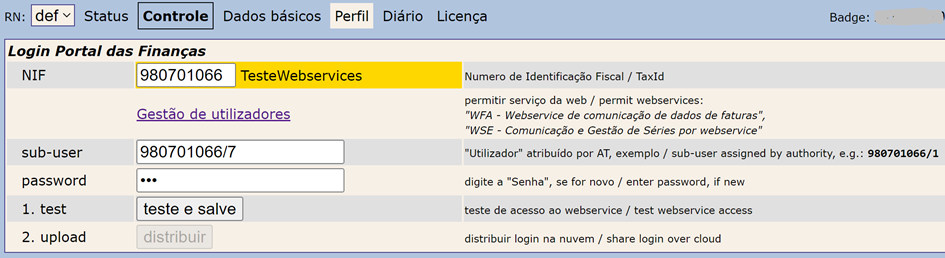
With [teste e salve] a communication test is performed and upon success, an encrypted file with the login credentials is created. With [distribuir] you can immediately provide the credentials to all systems belonging to your company. This function is disabled in test mode (before certification).
Open series at AT can always be shown on "Controle", [listar...]:
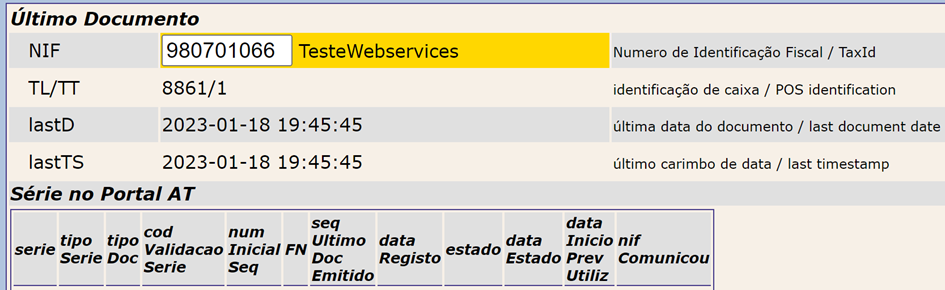
Network communication with the AT portal is done with following endpoints:
- https://servicos.portaldasfinancas.gov.pt:422/SeriesWSService (Production)
- https://servicos.portaldasfinancas.gov.pt:722/SeriesWSService (Test)
Please assure that these URLs and ports are appropriately configured on your local firewall.
During certification with the fiscal authority, please set "Perfil" (Attributes) Fiscal_test:

This will force communication with the test endpoint.
Automatic New Series
Opening an new series is done automatically by EFR as much as possible on following events:
- First transaction on a new (empty) EFR
- First transaction in a new year (e.g. on January 1st)
- First transaction after manual integration of lost documents (because after hardware failure, a new series is required)
- First normal transaction after manual integration of lost documents
Closing Series
Upon creating new series, the old ones are always closed automatically. If a POS system is taken out of operation, please use the function "Controle", "Serie e ATCUD" [finalizer ativas / close active] instead.
SAF-T Export
The Portuguese Fiscal Authority "AT" requires at least a monthly upload of sales data of all POS systems. This is normally performed for the whole company from the efsta Cloud Portal.
During certification and for on-premise audit by the Fiscal Authority, a local export is required. This can be found at http://localhost:5618 under "Controle":

An export of all POS systems from the business premise is required, so all other EFR systems within the local network (LAN) are shown (for this the UDP broadcasting is used, so if your systems are not shown properly please check your network switch / router / firewall configuration).
By default, the checkbox "LAN" is checked, so a SAF-T export will include all other POS systems (with matching field Loc.TL, see "Dados básicos"). If LAN=on and a known POS cannot be reached, a warning is shown on the GUI, but the export will still be performed:

REST Implementation
For export use e.g. GET /control/export?lan=on&from=2022-01-01&till=2022-12-31
Before starting the export, please check the current network state with GET /control/lan (for XML response instead of JSON set request header Accept=application/xml). POS systems not accessible are listed with "state":"offline". In case of systems being offline, request a user confirmation that the resulting export will not be completed.
As network reachability can change, the /control/lan result is cached for 60 sec and will then be used in a subsequent export while offline systems will be skipped.
Optional query parameters for /control/export:
| Element | Description |
|---|---|
| Headercomment | Will be exported in <header><HeaderComment>... |
| Target | Specify a directory path, where the export .xml shall be stored else, a .zip containing the export file will be sent in response body |
Software Certification
Finally, the POS software has to undergo a certification with the Portuguese fiscal authority AT.
Prerequisites
For details, please contact sales@efsta.eu. efsta will support you through the preparation phase.
Initiation at the Fiscal Portal
The fiscal public key file public.pem has to be uploaded (download from page "Controle"):
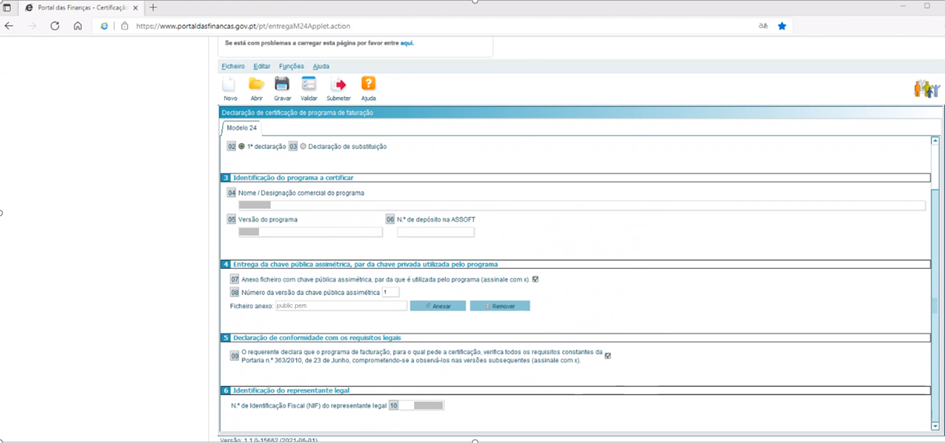
After registration you will receive an email from your fiscal auditor.
Data Transfer to the Tax Authority
Part of the Portuguese ruleset is to periodically (per day or per month) deliver receipt data (invoice) in SAF-T [PT] 1.04_01 format. An appropriate export function is included in EFR and can be found in the user interface http://localhost:5618, page "Controle". By now this is a manual task, further process automation is planned in accordance with the Tax Authority.
Appendix
Change Log
| Revision | Date | Modifications |
|---|---|---|
| 1.13 | 2024-03-28 | [PT] PDF converted to .md |
| 1.12 | 2024-02-02 | Latest [PT] PDF version |